> For the complete documentation index, see [llms.txt](https://docs.subwallet.app/main/llms.txt). Markdown versions of documentation pages are available by appending `.md` to page URLs; this page is available as [Markdown](https://docs.subwallet.app/main/extension-user-guide/account-management/import-accounts/import-from-trust-wallet.md).
# Import from Trust Wallet
Import your account from Trust Wallet to SubWallet via seed phrase in just a few seconds!
## Difference between Polkadot addresses generated from Trust Wallet & Polkadot-native wallets
In the past, when importing the seed phrase from Trust Wallet to Polkadot-native wallets, the Polkadot address generated by these wallets differed from the one in Trust Wallet. This is because Trust Wallet and Polkadot-native wallets turn the exact 12-word seed phrase into Polkadot keys using different derivation rules, so they literally generate a different keypair:
* Trust Wallet derives a Polkadot account using the `ed25519` curve/key type
* Polkadot-native wallets derive a Polkadot account using the `sr25519` curve/key type
To deal with this issue, SubWallet now supports importing seed phrases from Trust Wallet using the same derivation settings, so the resulting Polkadot address matches the original address in your Trust Wallet account.
## Import accounts from Trust Wallet via seed phrase
### If you are currently using SubWallet
**Step 1**: Obtain your Trust Wallet seed phrase by following [this guide from Trust Wallet](https://trustwallet.com/blog/guides/how-to-backup-your-recovery-phrase-and-export-private-keys-in-trust-wallet).
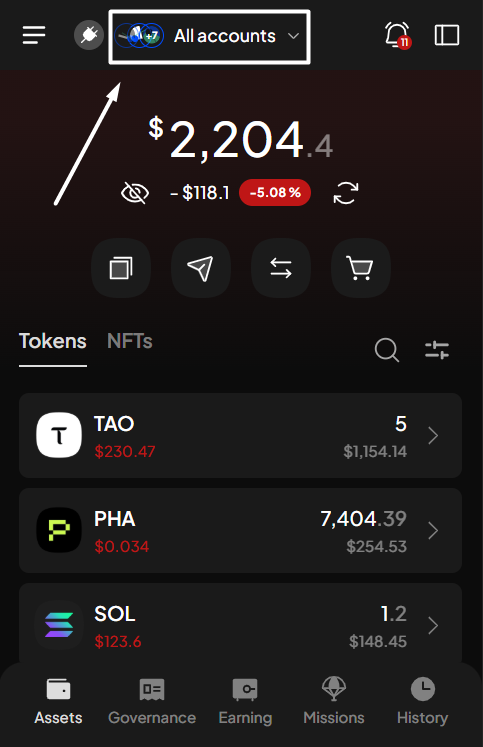
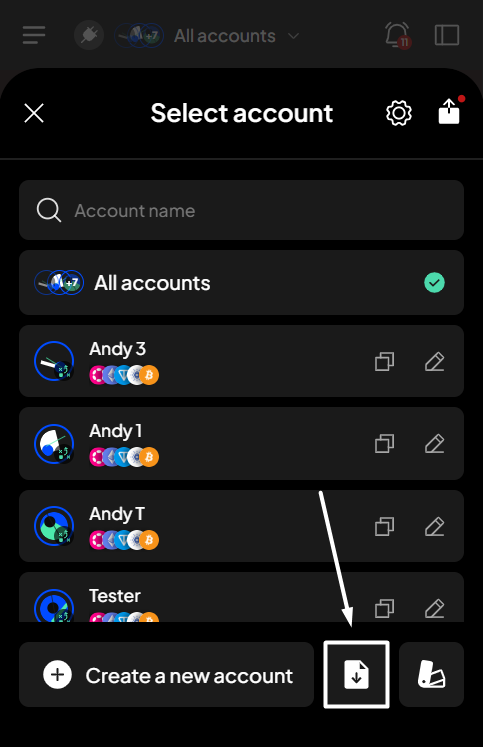
**Step 2**: Open the SubWallet extension and click on the account name to access the account selection tab.
**Step 3**: In the Account selection tab, click the icon at the bottom of the screen.
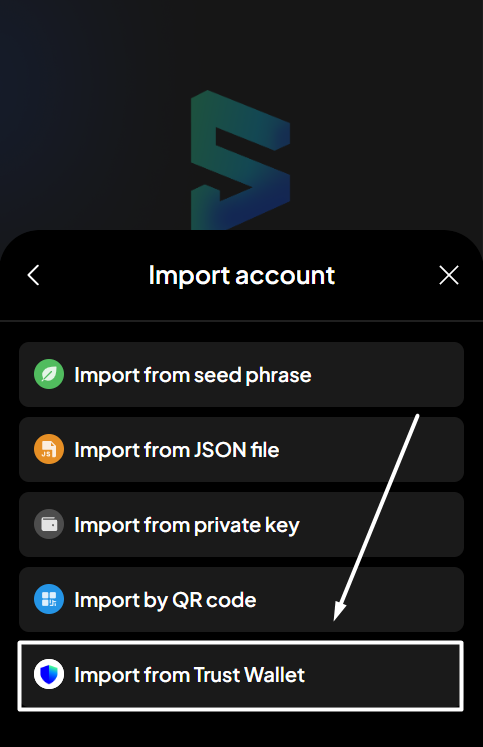
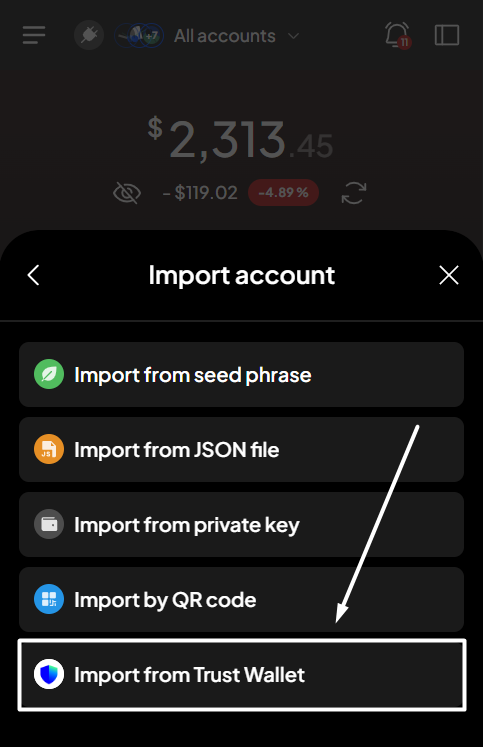
**Step 4**: Choose "**Import from Trust Wallet**" as the chosen method to import your Trust Wallet account.
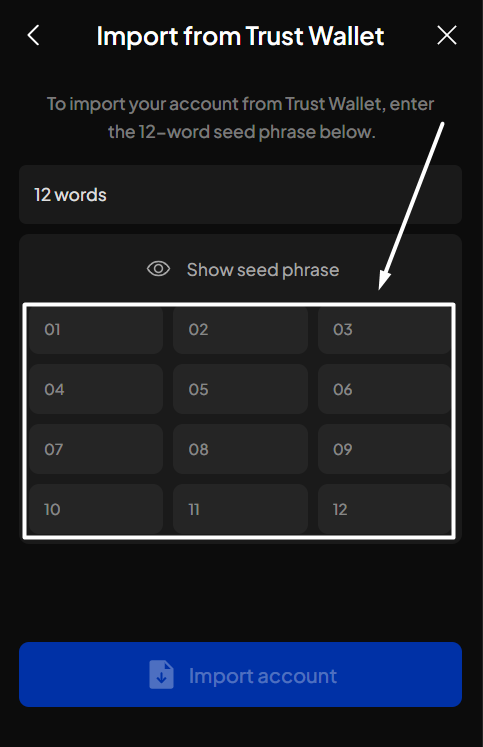
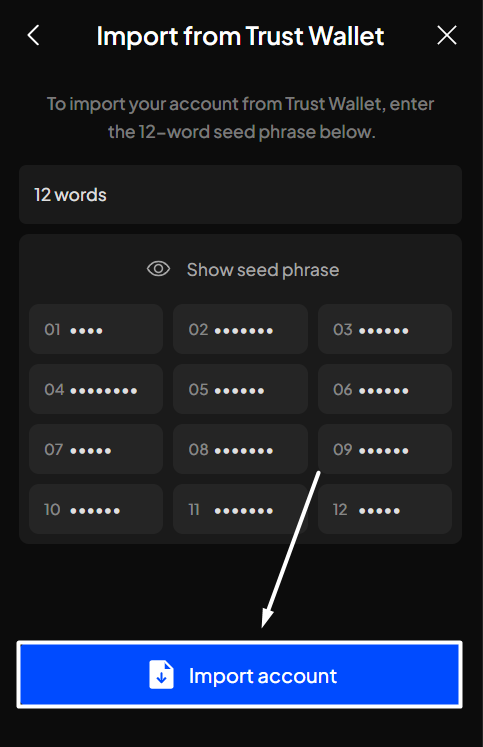
**Step 5**: Enter your Trust Wallet seed phrase by filling in the blank fields. Once done, click "**Import account**".
{% hint style="warning" %}
When you import a seed phrase generated from a non-native TON wallet into SubWallet, a popup will appear informing you that this phrase is incompatible with TON-native wallets:
* Click "**Import**" to proceed.
* Click "**Go back**" to cancel the process.

{% endhint %}
{% hint style="info" %}
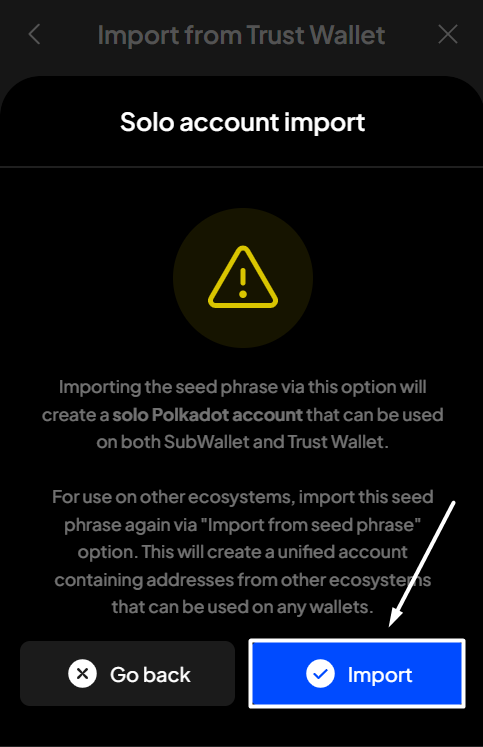
If you've previously imported the same seed phrase via the "**Import from seed phrase**" option (or you currently have one or more accounts in the wallet containing the information of that seed phrase), importing it again via the Trust Wallet option will generate/recover ***a Polkadot solo account*** that can be used on both SubWallet and Trust Wallet.
In this case, once the popup appears, read the information, then choose "**Import**" if you want to import that solo account.
{% endhint %}
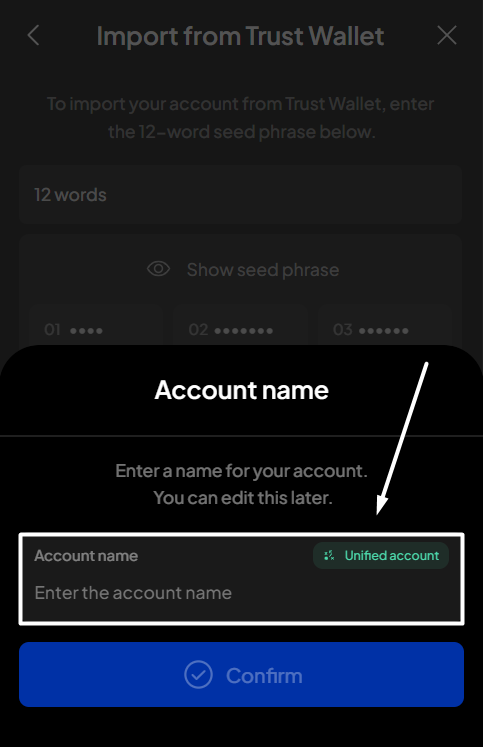
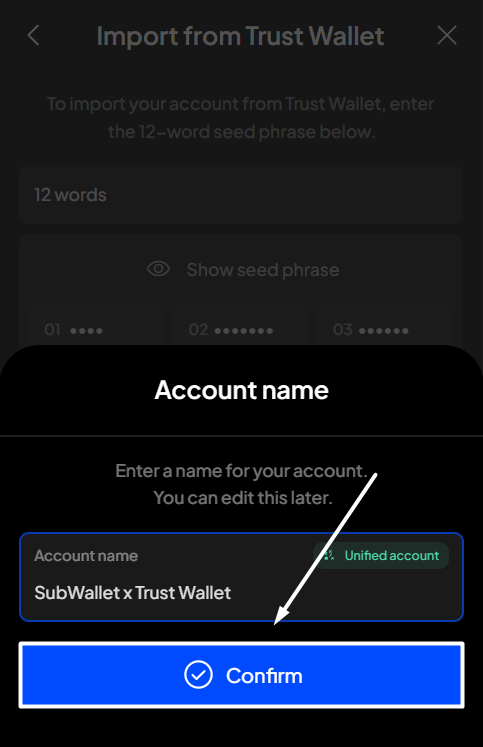
**Step 6**: Enter a name for your newly imported account, then click "**Confirm**".
You've successfully imported your Trust Wallet account into SubWallet!
### If you have not had any accounts with SubWallet
**Step 1**: Open the SubWallet extension and choose "**Import an account**".
**Step 2**: Choose "**Import from Trust Wallet**" as the chosen method to import your Trust Wallet account.
**Step 3:** Create a master password with at least 8 characters and tick the "**I understand that SubWallet can't recover the password**" field.
{% hint style="warning" %}
SubWallet is non-custodial, so you will be the only person who knows your password; we can't help you restore it if you lose it. Make sure that your password is well-kept.
{% endhint %}
Once done, click "**Continue**".
Once you create a master password, you can follow the import procedure provided in [If you are currently using SubWallet](#if-you-are-currently-using-subwallet), starting from **Step 5**.
 icon at the bottom of the screen.
 {% endhint %}
**Step 6**: Enter a name for your newly imported account, then click "**Confirm**".
{% endhint %}
**Step 6**: Enter a name for your newly imported account, then click "**Confirm**".