# Withdraw unstaked funds

### **Track the withdrawal time**

After successfully unstaking your tokens, you must wait for the unstaking process to finish before you can withdraw and make them transferable.

{% hint style="info" %}
The unstaking period varies depending on each token and network you've previously staked on.
{% endhint %}

**Step 1**: Open the SubWallet extension and choose the "**Earning**" tab at the bottom of the screen. In the Your earning positions screen, select the funds for which you've previously unstaked.

<div><figure><img src="https://631687399-files.gitbook.io/~/files/v0/b/gitbook-x-prod.appspot.com/o/spaces%2F-Lh39Kwxa1xxZM9WX_Bs%2Fuploads%2F98E0kUns6TKtqEiK8UNt%2FScreenshot_88.png?alt=media&#x26;token=eafb53c7-bca4-489f-b3a7-28e79ed1b053" alt="" width="363"><figcaption></figcaption></figure> <figure><img src="https://631687399-files.gitbook.io/~/files/v0/b/gitbook-x-prod.appspot.com/o/spaces%2F-Lh39Kwxa1xxZM9WX_Bs%2Fuploads%2FysNmHEafJk3kB8xmTfyp%2FScreenshot_113.png?alt=media&#x26;token=dcda66a9-beb5-4f62-add0-c59da2b15d29" alt="" width="363"><figcaption></figcaption></figure></div>

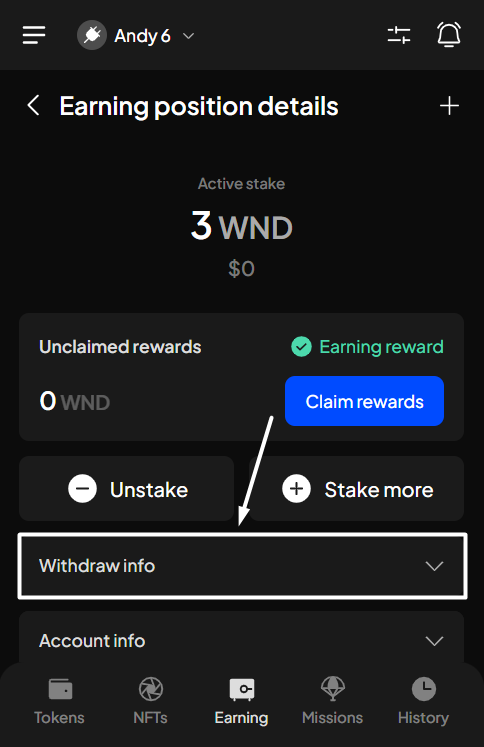
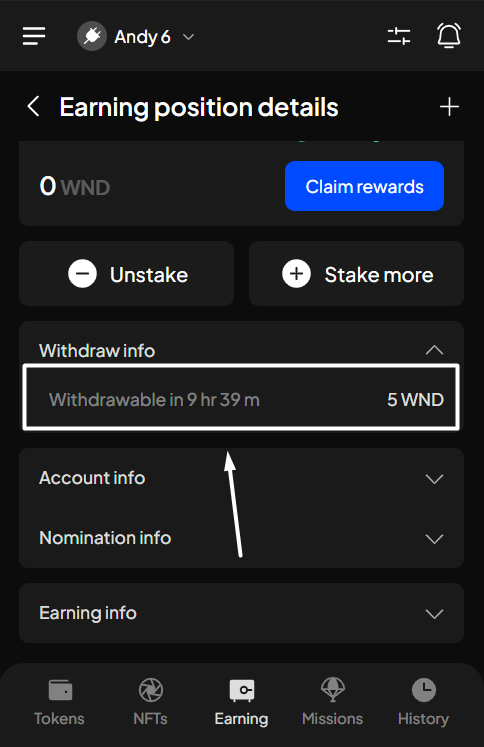
**Step 2**: In the Earning position details screen, click the "**Withdraw info**" section to see the countdown for the withdrawal.

<div><figure><img src="https://631687399-files.gitbook.io/~/files/v0/b/gitbook-x-prod.appspot.com/o/spaces%2F-Lh39Kwxa1xxZM9WX_Bs%2Fuploads%2FZPwjhCC4gjrNi4XB3k1y%2FScreenshot_136.png?alt=media&#x26;token=d42f78ff-5798-4421-ada1-35efb499b5e1" alt="" width="363"><figcaption></figcaption></figure> <figure><img src="https://631687399-files.gitbook.io/~/files/v0/b/gitbook-x-prod.appspot.com/o/spaces%2F-Lh39Kwxa1xxZM9WX_Bs%2Fuploads%2FqiuS1H20sehpDygXc8mG%2FScreenshot_137.png?alt=media&#x26;token=74919fe7-debf-4e9b-8c1d-adee62e603ec" alt="" width="363"><figcaption></figcaption></figure></div>

### Withdraw your funds

{% hint style="info" %}
**On**ce the unstaking process ends, you need to withdraw your funds manually to make them transferable.
{% endhint %}

**Step 1**: Open the SubWallet extension and choose the "**Earning**" tab at the bottom of the screen. In the Your earning positions screen, select the funds you've previously unstaked.

<div><figure><img src="https://631687399-files.gitbook.io/~/files/v0/b/gitbook-x-prod.appspot.com/o/spaces%2F-Lh39Kwxa1xxZM9WX_Bs%2Fuploads%2F98E0kUns6TKtqEiK8UNt%2FScreenshot_88.png?alt=media&#x26;token=eafb53c7-bca4-489f-b3a7-28e79ed1b053" alt="" width="363"><figcaption></figcaption></figure> <figure><img src="https://631687399-files.gitbook.io/~/files/v0/b/gitbook-x-prod.appspot.com/o/spaces%2F-Lh39Kwxa1xxZM9WX_Bs%2Fuploads%2FysNmHEafJk3kB8xmTfyp%2FScreenshot_113.png?alt=media&#x26;token=dcda66a9-beb5-4f62-add0-c59da2b15d29" alt="" width="363"><figcaption></figcaption></figure></div>

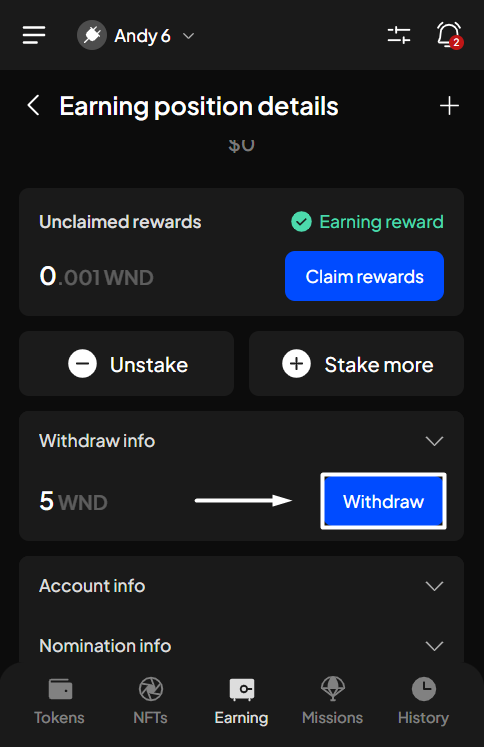
**Step 2**: In the Earning position details screen, click the "**Withdraw**" button under the Withdraw info section to start the withdrawal.

<figure><img src="https://631687399-files.gitbook.io/~/files/v0/b/gitbook-x-prod.appspot.com/o/spaces%2F-Lh39Kwxa1xxZM9WX_Bs%2Fuploads%2F5xNJBtm6UvPwcJZI7SvH%2FScreenshot_234.png?alt=media&#x26;token=637145f5-fc3f-4eb7-8044-7ff0d450348c" alt="" width="363"><figcaption></figcaption></figure>

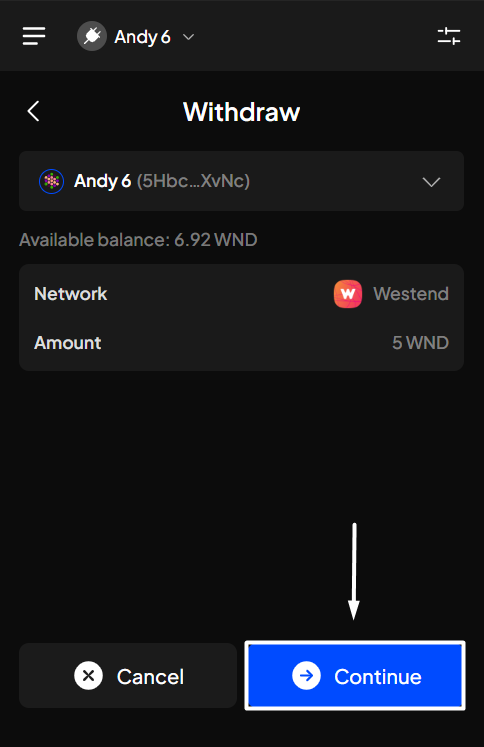
**Step 3:** Click "**Continue**" to proceed.

<figure><img src="https://631687399-files.gitbook.io/~/files/v0/b/gitbook-x-prod.appspot.com/o/spaces%2F-Lh39Kwxa1xxZM9WX_Bs%2Fuploads%2Fotb6W5JFMFXjuXaVlkgt%2FScreenshot_235.png?alt=media&#x26;token=51b6c932-f922-4dc0-970d-3dda3b73c725" alt="" width="363"><figcaption></figcaption></figure>

{% hint style="info" %}
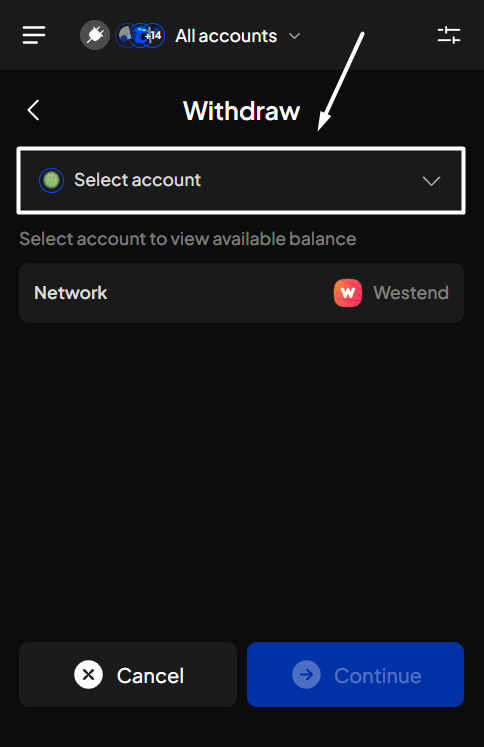
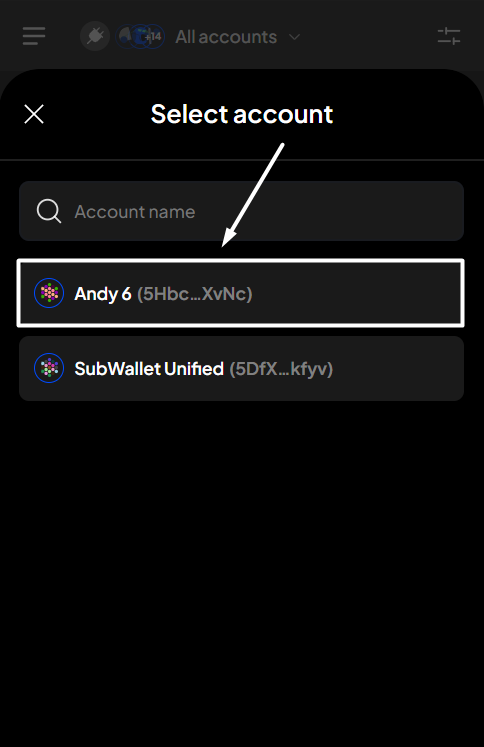
If you are in "**All accounts**" mode, you will need to select the account you want to withdraw.

<img src="https://631687399-files.gitbook.io/~/files/v0/b/gitbook-x-prod.appspot.com/o/spaces%2F-Lh39Kwxa1xxZM9WX_Bs%2Fuploads%2FSLI4ajVsxgcudtNW8t7R%2FScreenshot_237.png?alt=media&#x26;token=a104679e-5ba9-4a52-8fd0-fba01864108b" alt="" data-size="original"><img src="https://631687399-files.gitbook.io/~/files/v0/b/gitbook-x-prod.appspot.com/o/spaces%2F-Lh39Kwxa1xxZM9WX_Bs%2Fuploads%2FtiSVvyizCr038KP7lkeO%2FScreenshot_238.png?alt=media&#x26;token=4b4070aa-89b2-4c27-9696-4675014ed875" alt="" data-size="original">
{% endhint %}

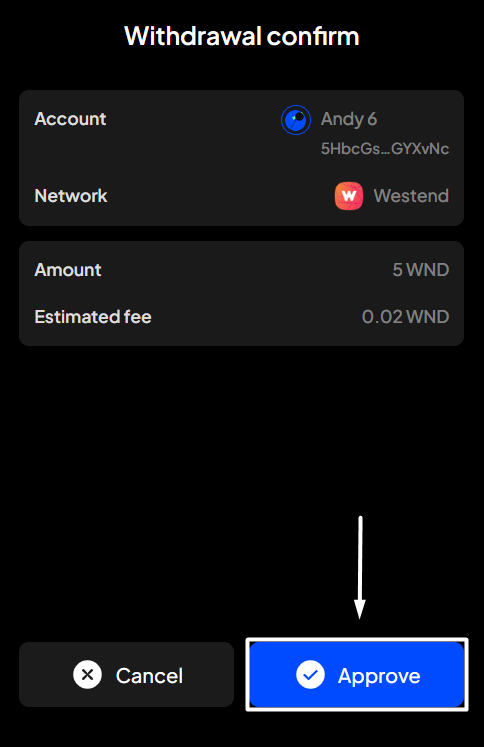
**Step 4**: Check the information and confirm your request by clicking "**Approve**".&#x20;

<figure><img src="https://631687399-files.gitbook.io/~/files/v0/b/gitbook-x-prod.appspot.com/o/spaces%2F-Lh39Kwxa1xxZM9WX_Bs%2Fuploads%2FGfgadUfUFQJiGk5buICE%2FScreenshot_236.png?alt=media&#x26;token=f963d0c0-1894-4fa5-b2ec-092e9826de4d" alt="" width="363"><figcaption></figcaption></figure>

**Step 5:** Your request has been submitted!

<figure><img src="https://631687399-files.gitbook.io/~/files/v0/b/gitbook-x-prod.appspot.com/o/spaces%2F-Lh39Kwxa1xxZM9WX_Bs%2Fuploads%2FQi7RoVTTWQEKzWAeI6M9%2Fimage.png?alt=media&#x26;token=cb91eae0-99e1-4fc4-b6dc-fe7abbc6bef8" alt="" width="363"><figcaption></figcaption></figure>

You can either click "**Back to home**" to return to the homepage or "**View transaction**" to see transaction details in the History tab.

{% hint style="info" %}
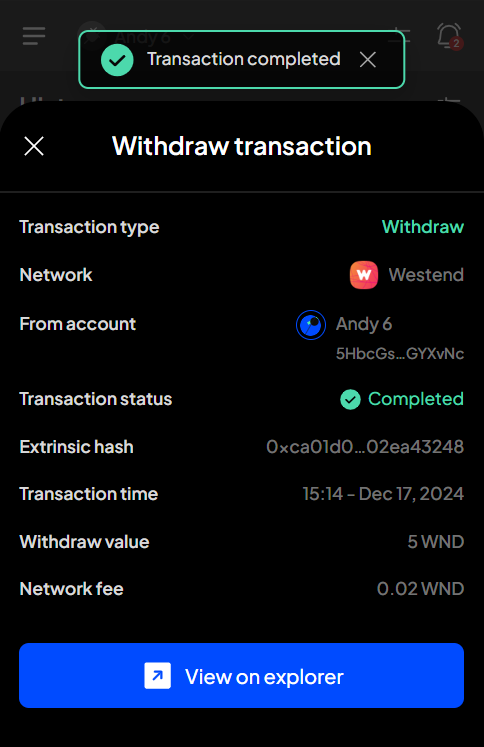
If you click "**View transaction**", SubWallet will show you the latest transaction record in your transaction history along with the extrinsic hash of the transfer.&#x20;

<img src="https://631687399-files.gitbook.io/~/files/v0/b/gitbook-x-prod.appspot.com/o/spaces%2F-Lh39Kwxa1xxZM9WX_Bs%2Fuploads%2FvjuHZNJUAUdldhL90xr0%2FScreenshot_239.png?alt=media&#x26;token=e176eabc-80c4-4381-af21-ee9809f98149" alt="" data-size="original">
{% endhint %}