---
description: Earn your reward payout after staking your tokens on SubWallet.
---
# Claim staking rewards
### Supported tokens for claiming
This action is only available for these 2 tokens:
* MYTH (Mythos)
* MUSE (Muse Testnet)
{% hint style="info" %}
Unlike earning via Nomination pool, your rewards will automatically be sent to your transferable balance once claimed.
{% endhint %}
### Claim rewards
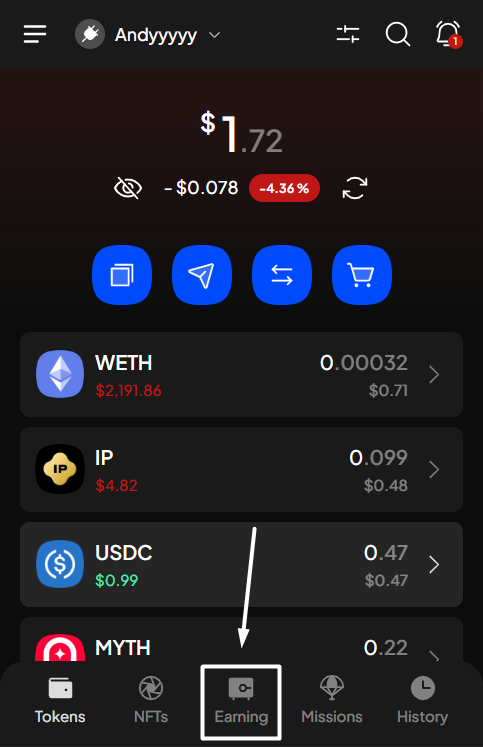
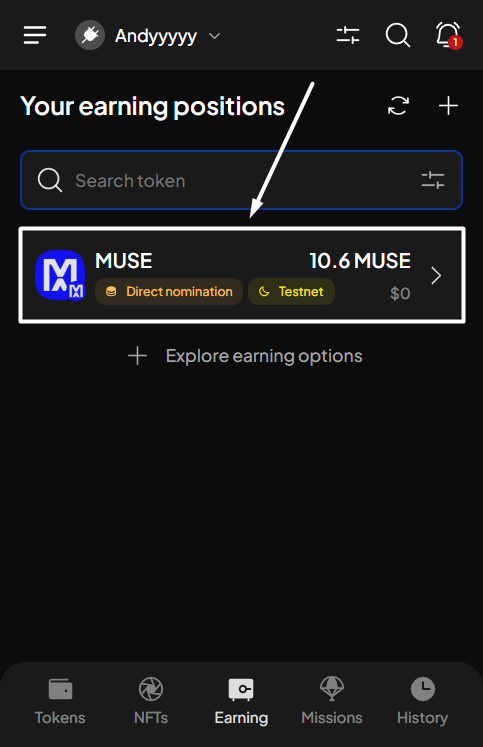
**Step 1**: Open the SubWallet extension and choose the "**Earning**" tab at the bottom of the screen. In the Your earning positions screen, select the funds for which you want to claim rewards.
_In this case, we will be claiming rewards from staking MUSE on Muse Testnet - the testnet network of Mythos._
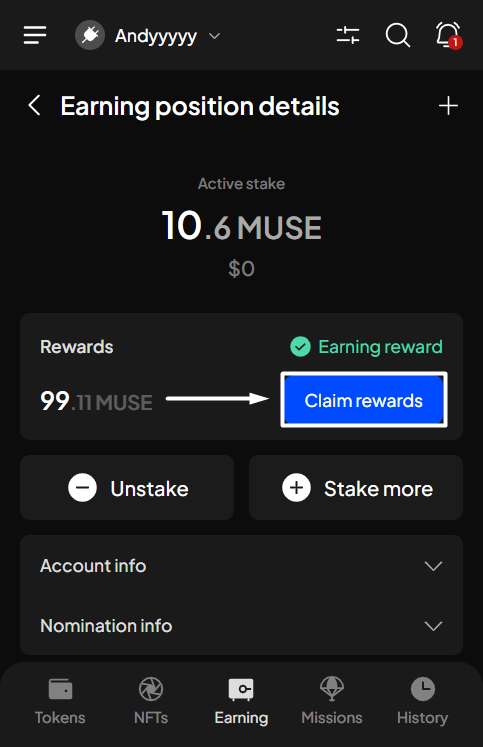
**Step 2**: Select "**Claim rewards**" to start the claiming process.
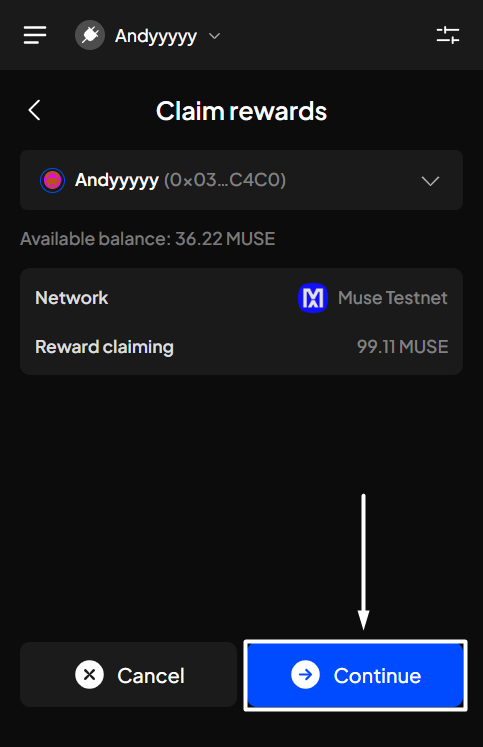
**Step 3:** Click "**Continue**" to proceed.
{% hint style="info" %}
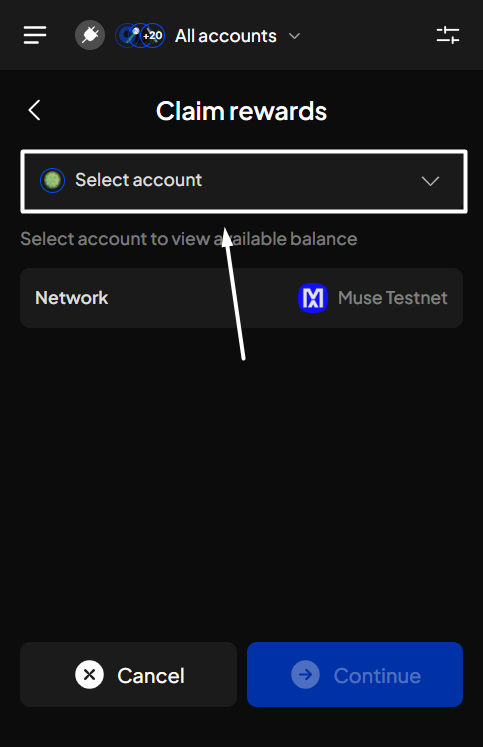
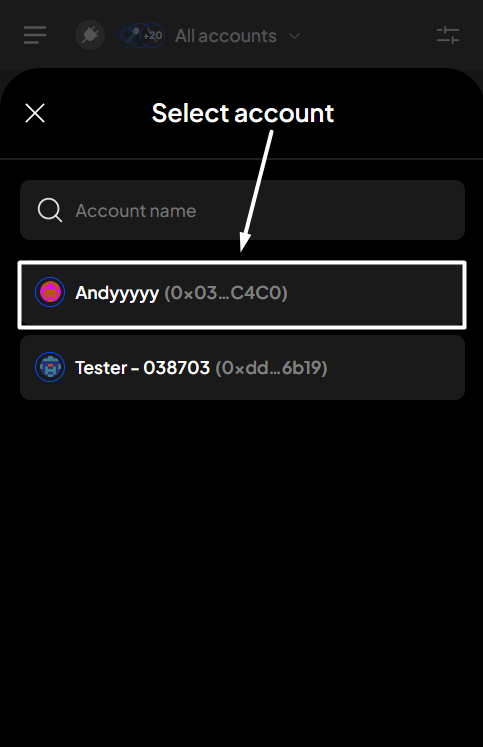
If you are in "All accounts" mode, you will need to select the account for which you want to claim rewards.
{% endhint %}
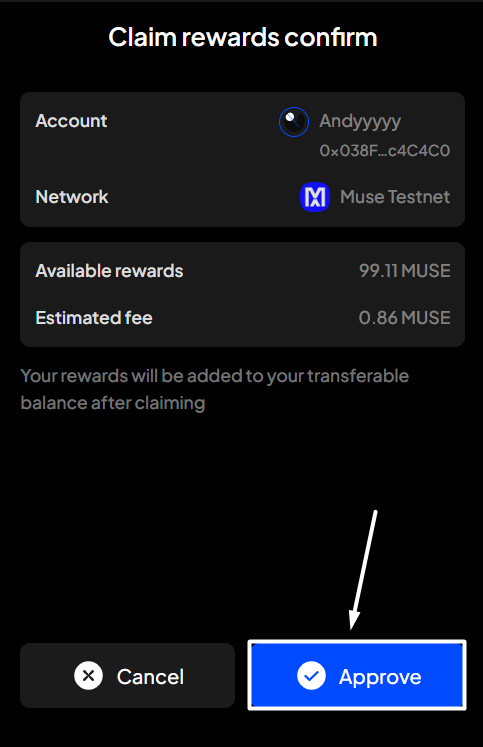
**Step 4**: Check the information and confirm your request by clicking "**Approve**".
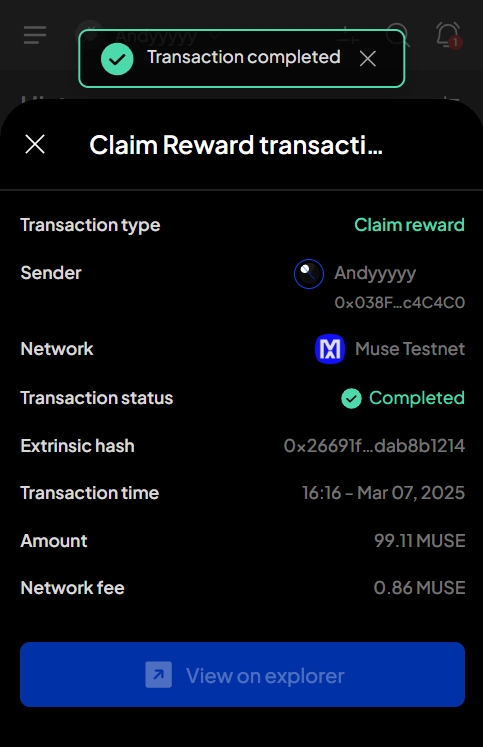
**Step 5:** Your request has been submitted!
You can either click "**Back to home**" to return to the homepage or "**View transaction**" to see transaction details in the History tab.
{% hint style="info" %}
If you click "**View transaction**", SubWallet will show you the latest transaction record in your transaction history along with the extrinsic hash of the transfer.
{% endhint %}
 {% endhint %}
**Step 4**: Check the information and confirm your request by clicking "**Approve**".
{% endhint %}
**Step 4**: Check the information and confirm your request by clicking "**Approve**".

 {% endhint %}