> For the complete documentation index, see [llms.txt](https://docs.subwallet.app/main/llms.txt). Markdown versions of documentation pages are available by appending `.md` to page URLs; this page is available as [Markdown](https://docs.subwallet.app/main/extension-user-guide/votes-in-governance/revote-for-a-referendum.md).
# Revote for a referendum
Update your choice on an active referendum by submitting a new vote.
{% hint style="info" %}
Same as you would for voting, you can revote for a referendum in any direction—**Aye, Nay, Split & Abstain**.
In addition, you can **unvote** at any time to remove votes from a referendum you’ve previously voted on.
{% endhint %}
**Step 1**: Open the SubWallet extension and select the "**Governance**" tab at the bottom of the screen.
{% hint style="danger" %}
The Governance feature is available only for Polkadot-supported accounts. If you are currently in either single-account mode or all-accounts mode and none of your accounts support the Polkadot ecosystem, you will see a toast error when trying to click on the tab.
{% endhint %}
**Step 2**: In the Governance screen, select the network in which you want to see referendums.
*In this case, we'll select the Polkadot Asset Hub network*.
You'll see the referenda list for the chosen network.
**Step 3**: Select an ongoing referendum by clicking the "**Ongoing**" tab, scrolling down, or searching using the icon. Once done, click on that referendum to view its details.
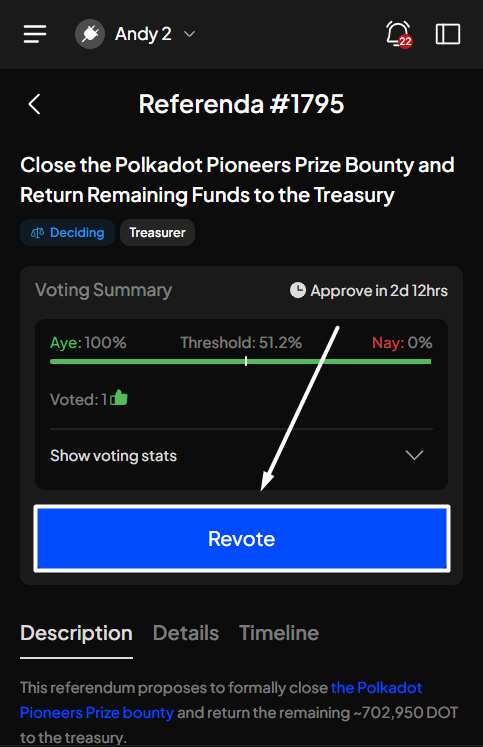
**Step 4**: In the Referendum details screen, select "**Revote**" to adjust your voting for the chosen referendum.
{% hint style="info" %}
If you're in "**All accounts**" mode, you can revote by clicking the "**Vote**" button and then selecting any voted account from the list.

{% endhint %}
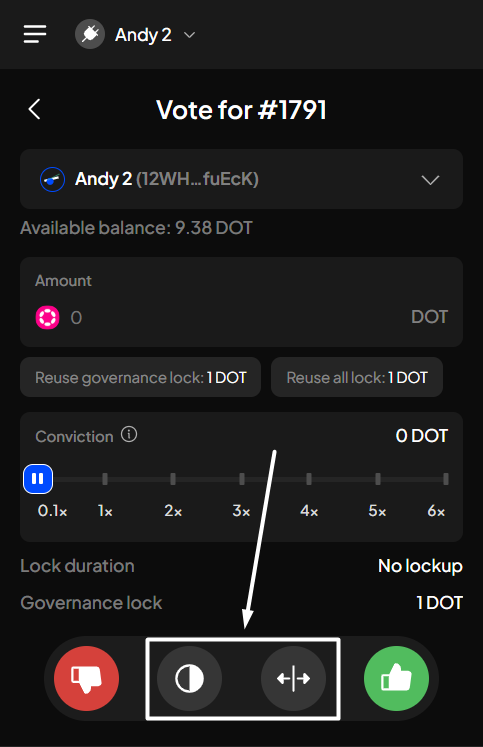
**Step 5**: Fill in the required information, such as voting amount and voting multiplier (conviction).
{% hint style="success" %}
You can select either "**Use governance lock**" or "**Use all locks**" to fill in the Amount field.
* Use governance lock: your entire current lock balance due to on-chain voting/delegating will be used to vote.
* Use all locks: your entire locked balance (due to staking, governance, etc.) will be used to vote.

{% endhint %}
Once done, select the direction you want to vote, or click the "**Unvote**" button at the top right corner of the screen to remove your votes.
*In this example, we will vote "Aye" for the referendum.*
{% hint style="warning" %}
If you want to vote "Abstain" or "Split", as your vote is always counted with the fixed conviction multiplier (0.1×), **you will need to choose the vote direction first, then enter the amount you want to vote**:
* For "*Split*": enter **Aye & Nay** amount
* For "*Abstain*": enter **Aye, Nay & Abstain** amount
***Your total voting power will be calculated as the sum of the entered amounts multiplied by the fixed conviction multiplier (0.1×).***
Once you have entered the desired amounts, click **“Vote”** to proceed.
{% endhint %}
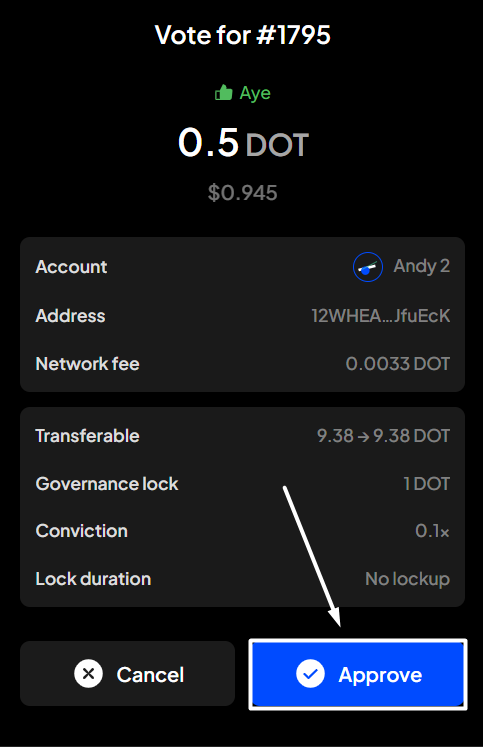
**Step 6**: Check the information and confirm your re-voting request by clicking "**Approve**".
**Step 7**: Your voting request has been submitted!
You can either click "**Back to home**" to return to the homepage or "**View transaction**" to see transaction details in the History tab.
{% hint style="info" %}
If you click "**View transaction**", SubWallet will display the latest transaction record in your transaction history, along with the extrinsic hash of the transfer.
{% endhint %}
To view your updated votes on the referendum, repeat the first 3 steps of the guide. Your votes will then appear on that referendum page.


 icon. Once done, click on that referendum to view its details.

 {% endhint %}
**Step 5**: Fill in the required information, such as voting amount and voting multiplier (conviction).
{% endhint %}
**Step 5**: Fill in the required information, such as voting amount and voting multiplier (conviction).


 {% endhint %}
**Step 6**: Check the information and confirm your re-voting request by clicking "**Approve**".
{% endhint %}
**Step 6**: Check the information and confirm your re-voting request by clicking "**Approve**".

 {% endhint %}
To view your updated votes on the referendum, repeat the first 3 steps of the guide. Your votes will then appear on that referendum page.
{% endhint %}
To view your updated votes on the referendum, repeat the first 3 steps of the guide. Your votes will then appear on that referendum page.
