> For the complete documentation index, see [llms.txt](https://docs.subwallet.app/main/llms.txt). Markdown versions of documentation pages are available by appending `.md` to page URLs; this page is available as [Markdown](https://docs.subwallet.app/main/extension-user-guide/votes-in-governance/view-and-manage-referendums.md).
# View & manage referendums
Quickly see all ongoing and past proposals in Polkadot OpenGov to easily follow what’s being voted on and check each referendum’s details at a glance.
## Search & filter referendums
### Search referendums
**Step 1**: Open the SubWallet extension and select the "**Governance**" tab at the bottom of the screen.
{% hint style="danger" %}
The Governance feature is available only for Polkadot-supported accounts. If you are currently in either single-account mode or all-accounts mode and none of your accounts support the Polkadot ecosystem, you will see a toast error when trying to click on the tab.
{% endhint %}
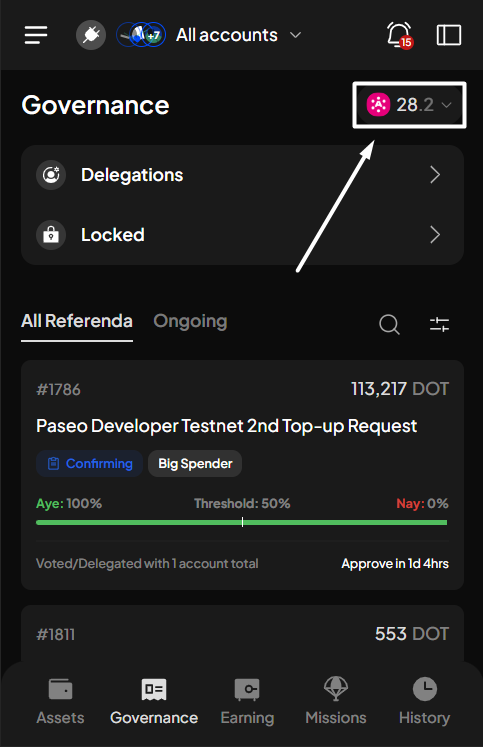
**Step 2**: In the Governance screen, select the network in which you want to see referendums.
You'll see the list of referenda for the chosen network.
**Step 3**: Click the icon to open the Referenda list screen.
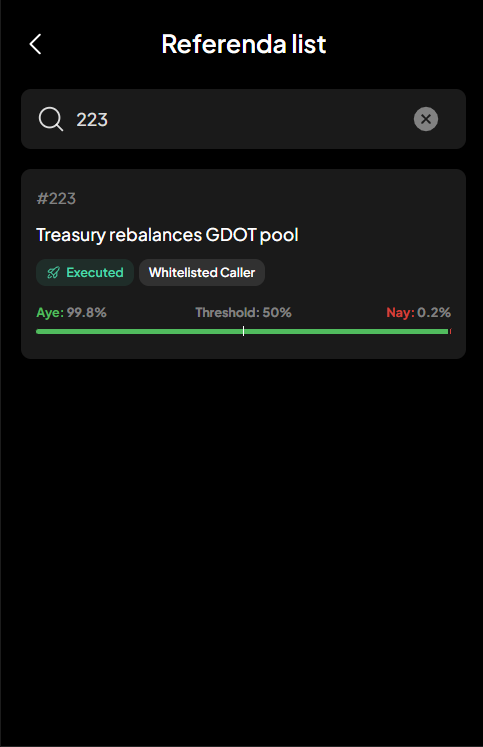
**Step 4**: On this screen, type the referendum ID or a part of the referendum title in the search bar.
Any referendums that match the number or keywords you entered will appear.
### Filter referendums
**Step 1**: Open the SubWallet extension and select the "**Governance**" tab at the bottom of the screen.
{% hint style="danger" %}
The Governance feature is available only for Polkadot-supported accounts. If you are currently in either single-account mode or all-accounts mode and none of your accounts support the Polkadot ecosystem, you will see a toast error when trying to click on the tab.
{% endhint %}
**Step 2**: In the Governance screen, select the network in which you want to see referendums.
You'll see the list of referenda for the chosen network.
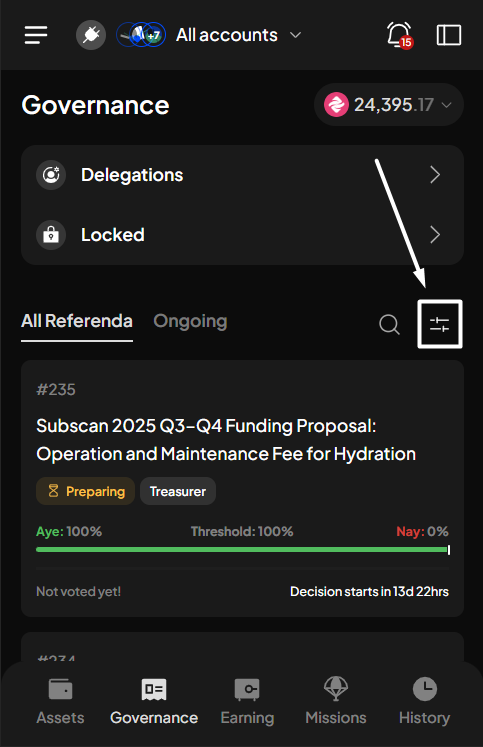
**Step 3**: Click the icon to open the Filter popup screen.
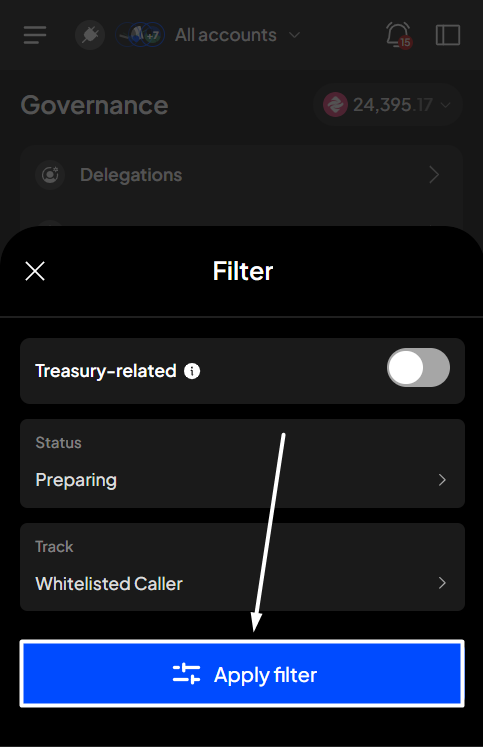
You can filter referendums with the following criteria:
> * *Treasury-related only*: this toggle, when enabled, will only display referendums that request treasury
> * *Status*: Every referendum has a current status (for example, ongoing or completed). You can view only referendums with a specific status by selecting it in the filter.
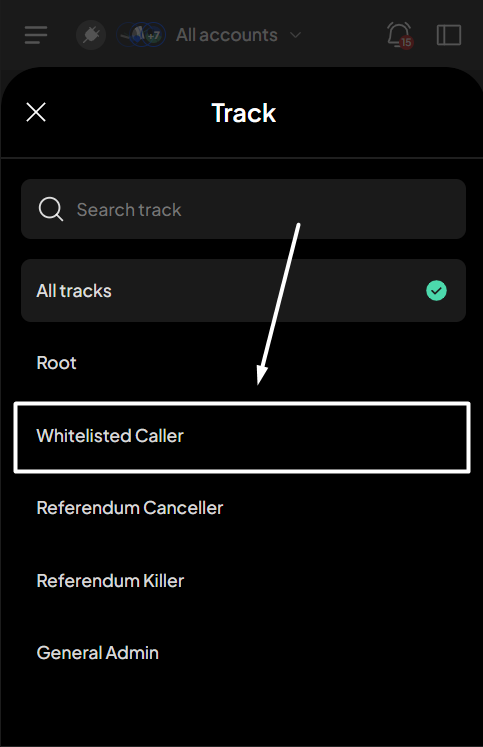
> * *Track*: Every referendum belongs to a specific track. You can view only referendums from a chosen track by selecting it in the filter.
{% hint style="info" %}
You can filter referendums by applying all 3 criteria.
{% endhint %}
**Step 4**: Select how you'd like to filter referendums and then click "**Apply filter**".
If you want to filter referendums by status
In the Filter screen, click on the "**Status**" field. Select the status you want to filter referendums.
Once done, if you don't want to also filter referendums by track, click "**Apply filter**".
If you want to filter referendums by track
In the Filter screen, click on the "**Track**" field. Select the track you want to filter referendums.
Once done, if you don't want to also filter referendums by status, click "**Apply filter**".
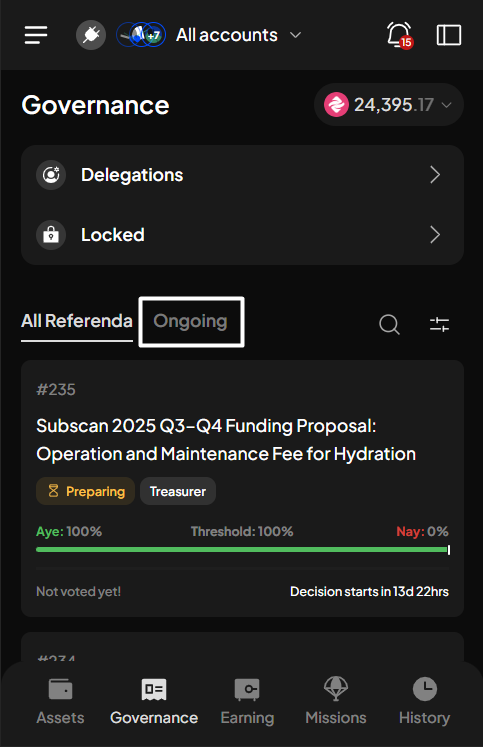
Once you’ve applied the filter, all referenda that match your criteria will appear.
{% hint style="info" %}
You can also filter ongoing referendums by selecting the "Ongoing" tab in the Governance screen. Once selected, only referendums that are currently ongoing will show up.

{% endhint %}
## View referendum details
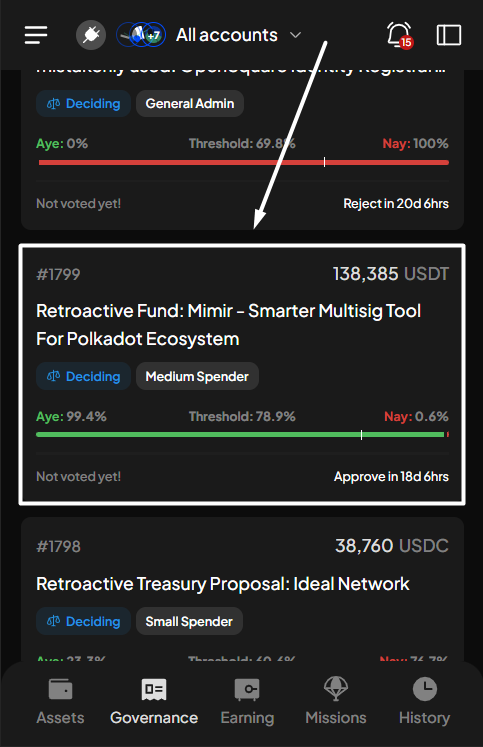
After you've done searching & filtering referendums, you can view referendum details by clicking on that referendum.
Once you've selected a referendum, the Referenda details screen will appear, where you can view all information related to that referendum, such as:
* Voting stats & voting details
* Referendum description, details & timeline
* The corresponding Polkassembly & Subsquare page of the referendum


 icon to open the Referenda list screen.




 icon to open the Filter popup screen.




{% endhint %}
## View referendum details
After you've done searching & filtering referendums, you can view referendum details by clicking on that referendum.

{% endhint %}
## View referendum details
After you've done searching & filtering referendums, you can view referendum details by clicking on that referendum.