# Update network metadata
Given that your Polkadot Vault device is always offline and separated from any networks (air-gapped), you'll need to engage in a specific process to ensure your transactions remain valid by updating the chain metadata.
This can be done through the use of QR codes found on the [Novasama Metadata Portal](https://metadata.novasama.io/#/polkadot), which will provide your device with the information required to update the chain metadata.
To update the chain metadata, please follow the instructions below:
{% hint style="info" %}
Please look at the following example for your perusal. Here, we are updating the metadata of the Avail network.
{% endhint %}
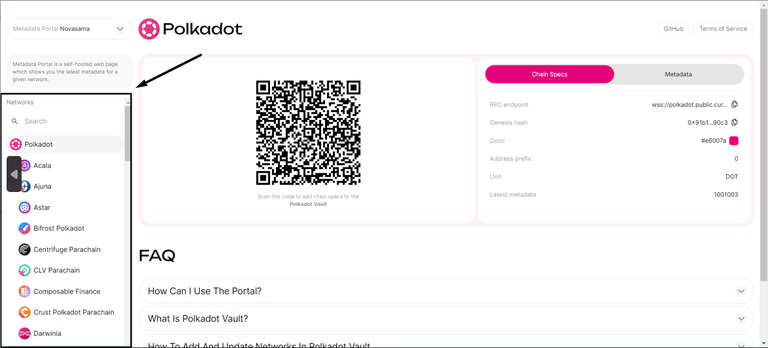
**Step 1**: Navigate to the [Novasama Metadata Portal](https://metadata.novasama.io/#/polkadot). The interface should be like the image below.
{% hint style="info" %}
This should be done on a device that is **not** your Polkadot Vault device (PC recommended).
{% endhint %}
_In this example, we are using a PC._
**Step 2**: Choose the network you need to update in the "**Network**" tab on the sidebar.
{% hint style="info" %}
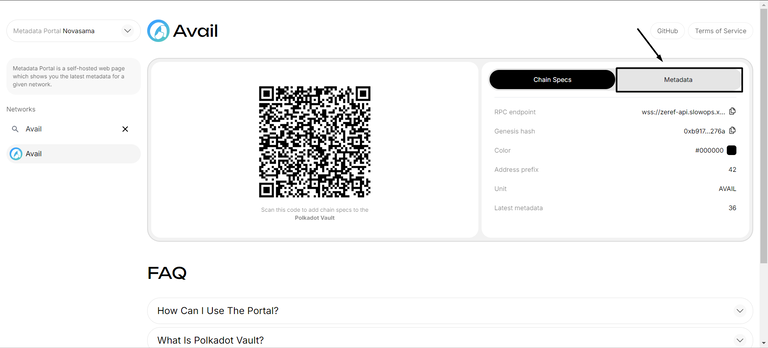
To make it easier, type the network you want to update in the "**Search**" bar.

{% endhint %}
**Step 3**: Go to the "**Metadata**" tab.
**Step 4**: Scan the Metadata Animated QR code using your Polkadot Vault device.
{% hint style="info" %}
Make sure your device remains stationary while the scanning process is in progress. This may take a few minutes to complete.

{% endhint %}
**Step 5**: Once you've completed, review the verifier certificate and select **"Approve**".
Now, you have successfully updated the network's metadata!