---
description: Start earning by staking tokens via nomination pool on SubWallet.
---
# Start staking
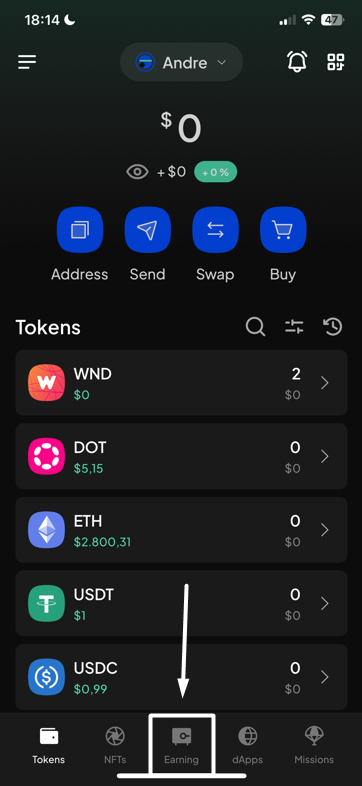
**Step 1**: On the SubWallet homepage, hit the "**Earning**" tab at the bottom of the screen.
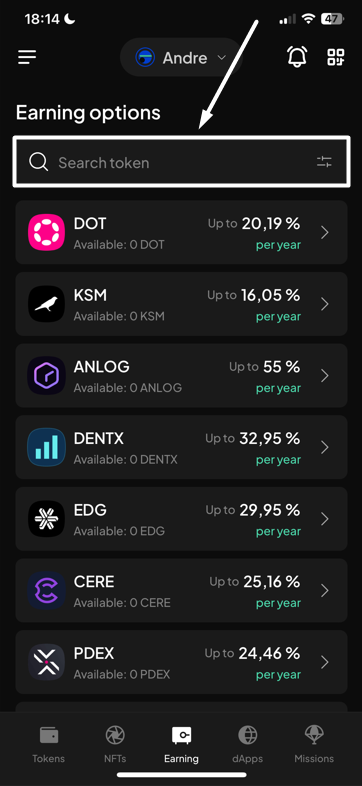
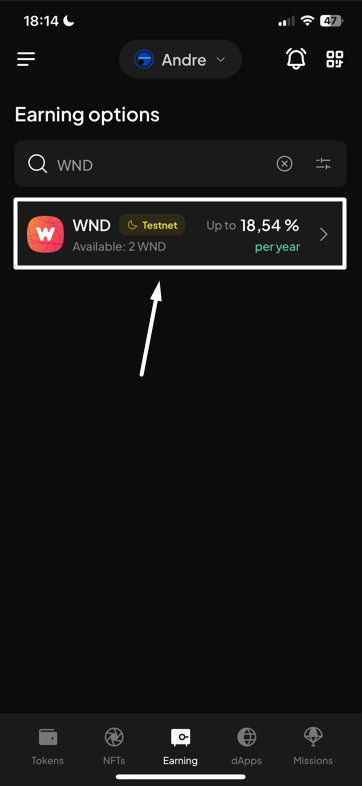
**Step 2**: In the Earning options screen, choose the token you want to stake by searching the list or typing the token name on the search bar.
_In this example, we want to stake WND tokens._
{% hint style="info" %}
If you have previously staked funds on the account, after choosing the "**Earning**" tab, you will be directed to the Your earning positions screen. From there, tap the "**+**" icon at the upper right corner to get to the Earning options screen.
{% endhint %}
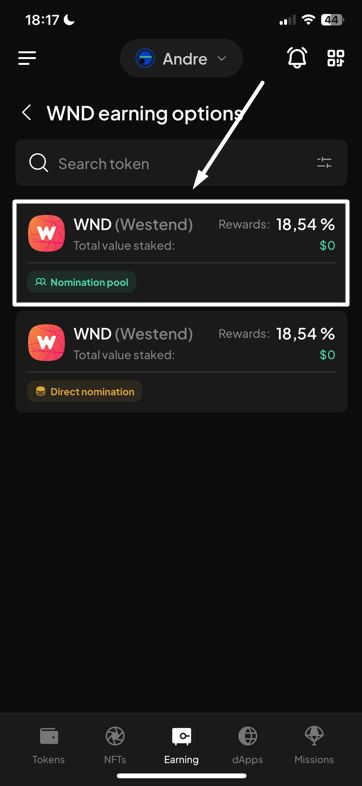
**Step 3**: In the WND earning options screen, select "**Nomination pool"** as your earning type**.**
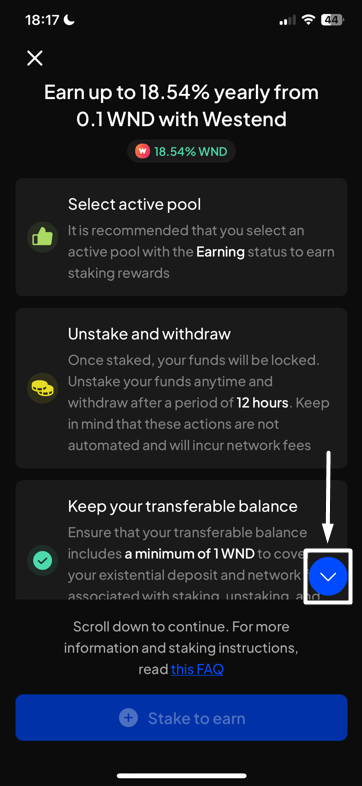
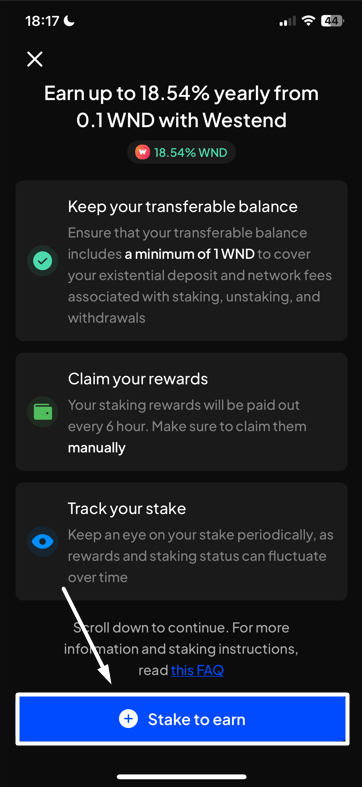
A pop-up will appear. Read carefully, scroll down, then choose "**Stake to earn**" to proceed.
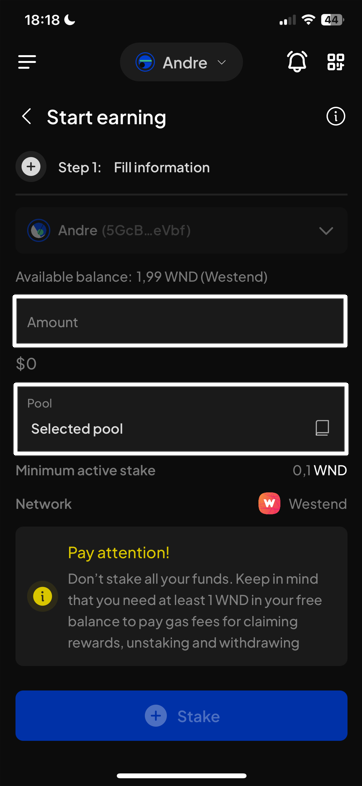
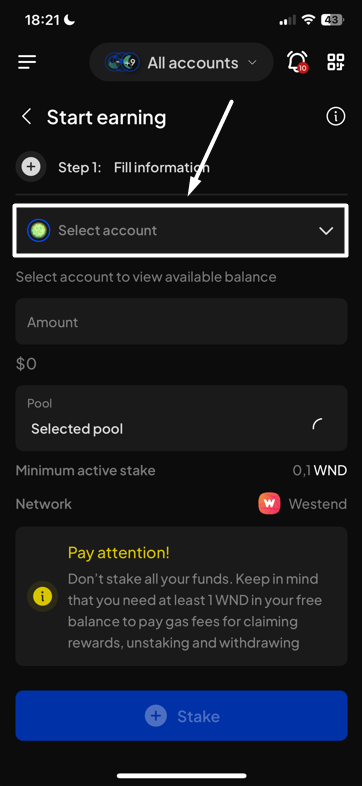
You will be directed to the following Start earning screen.
{% hint style="warning" %}
Make sure you have more than the minimum amount required for staking in your transferable balance to start staking and earning.
{% endhint %}
**Step 4**: Enter the required earning information.
Tips on selecting a pool
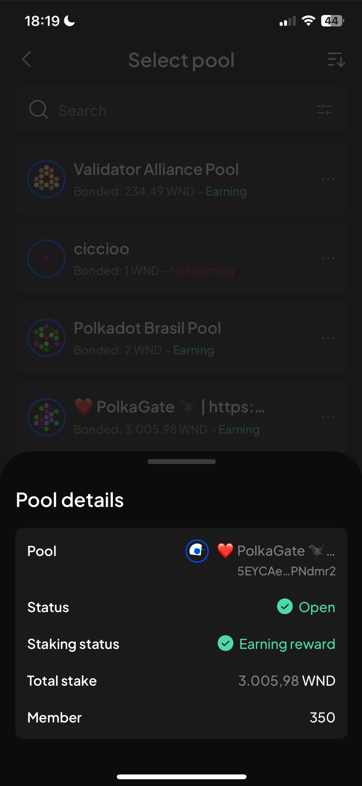
We suggest you pay close attention to the pool you are choosing. When selecting a pool, SubWallet supports you with the latest record of pool details.
Click the three-dot icon on each pool's right side to see the details.
Identify destroyed/inactive pools
**We suggest that you always choose an active (open) pool to stake with**.
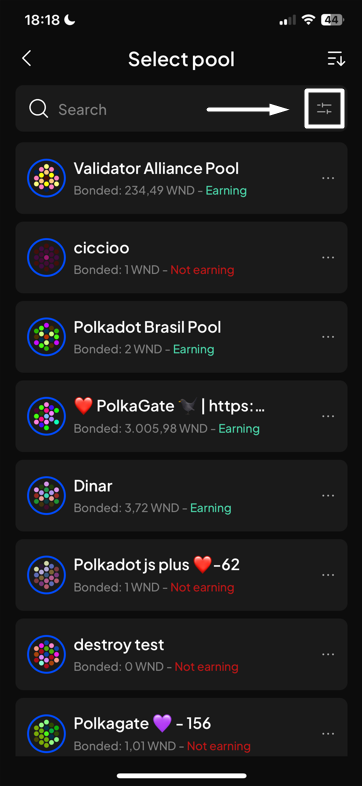
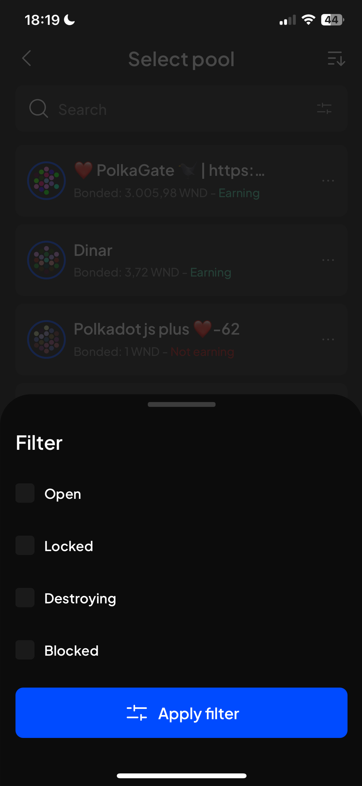
To filter out the open/active pool(s), click the fader icon on the right-hand side of the search bar. Click the checkbox "**Open**", then click "**Apply filter**" to start filtering.
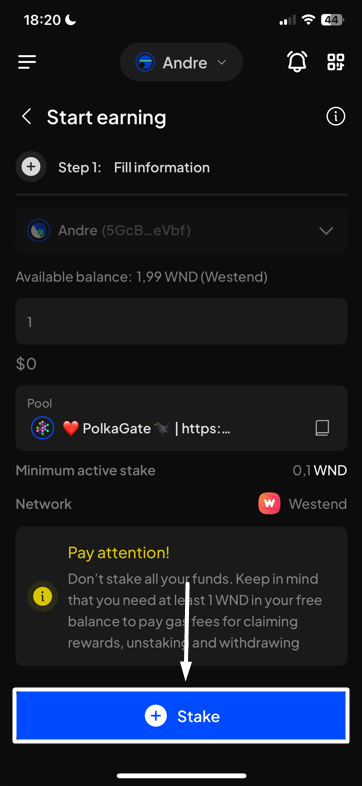
A completed earning request will look like the following picture. Hit "**Stake**" to proceed.
{% hint style="info" %}
If you are in the "**All accounts**" mode, in addition to the above information, you will also need to select the staking account.
{% endhint %}
{% hint style="warning" %}
Make sure you leave enough tokens to pay gas fees for rewards claims, unstaking, or withdrawal.
{% endhint %}
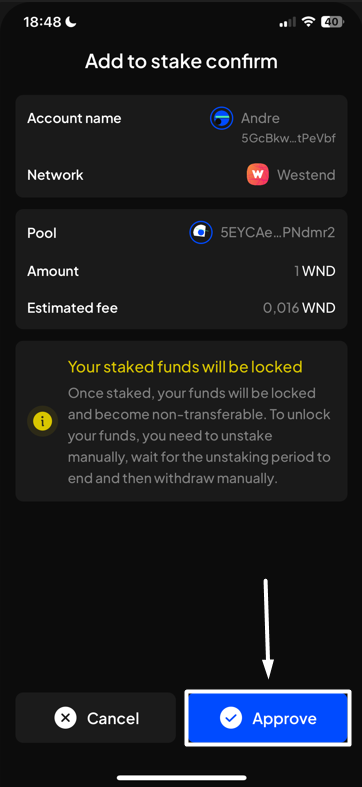
**Step 5**: Check the information and confirm your staking request by pressing "**Approve**".
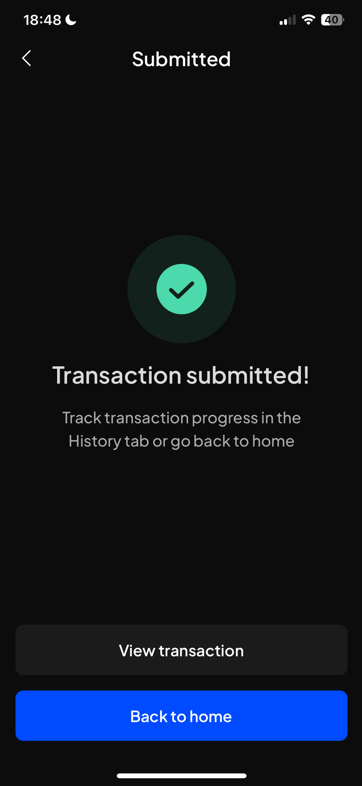
**Step 6:** Your staking request has been submitted!
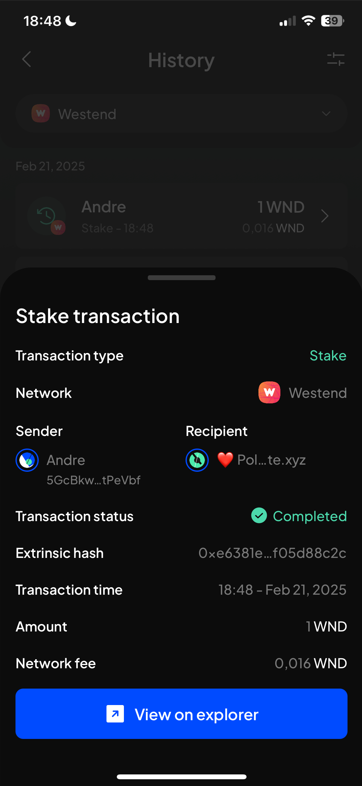
You can either select "**Back to home**" to return to the homepage or "**View transaction**" to see transaction details in the History tab.
{% hint style="info" %}
If you click "**View transaction**", SubWallet will show you the latest transaction record in your transaction history along with the extrinsic hash of the transfer.
{% endhint %}
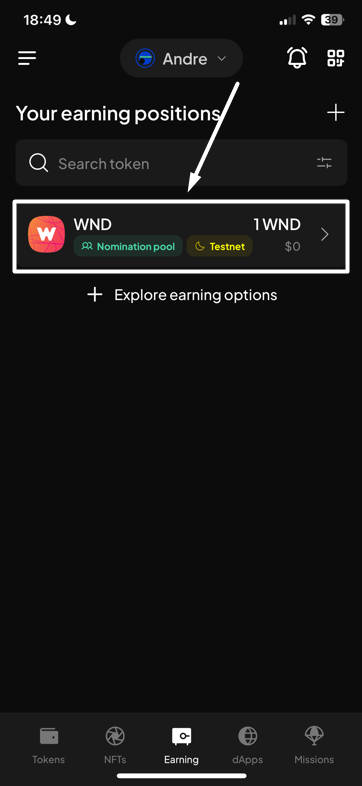
To check the status of your staked funds, after selecting "**Back to home**", click the Earning tab as per Step 1. In the Your earning positions screen, tap your newly staked funds.
Check out this step-by-step video on how to stake DOT via Nomination pool with SubWallet mobile app:
{% embed url="https://www.youtube.com/watch?v=_4HK18d1F1I" %}
 {% endhint %}
**Step 3**: In the WND earning options screen, select "**Nomination pool"** as your earning type**.**
{% endhint %}
**Step 3**: In the WND earning options screen, select "**Nomination pool"** as your earning type**.**

 {% endhint %}
{% hint style="warning" %}
Make sure you leave enough tokens to pay gas fees for rewards claims, unstaking, or withdrawal.
{% endhint %}
**Step 5**: Check the information and confirm your staking request by pressing "**Approve**".
{% endhint %}
{% hint style="warning" %}
Make sure you leave enough tokens to pay gas fees for rewards claims, unstaking, or withdrawal.
{% endhint %}
**Step 5**: Check the information and confirm your staking request by pressing "**Approve**".
 {% endhint %}
To check the status of your staked funds, after selecting "**Back to home**", click the Earning tab as per Step 1. In the Your earning positions screen, tap your newly staked funds.
{% endhint %}
To check the status of your staked funds, after selecting "**Back to home**", click the Earning tab as per Step 1. In the Your earning positions screen, tap your newly staked funds.