# Unstake

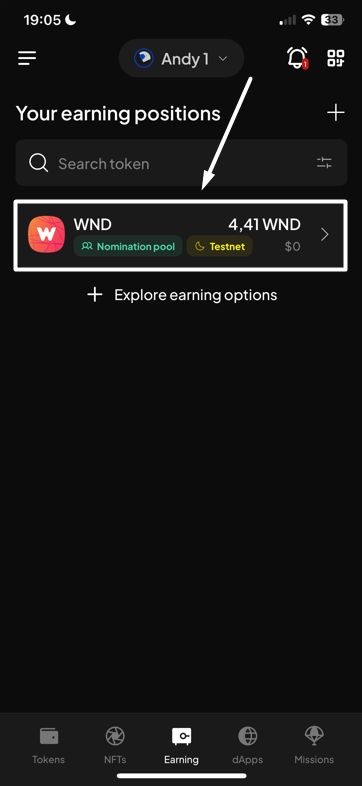
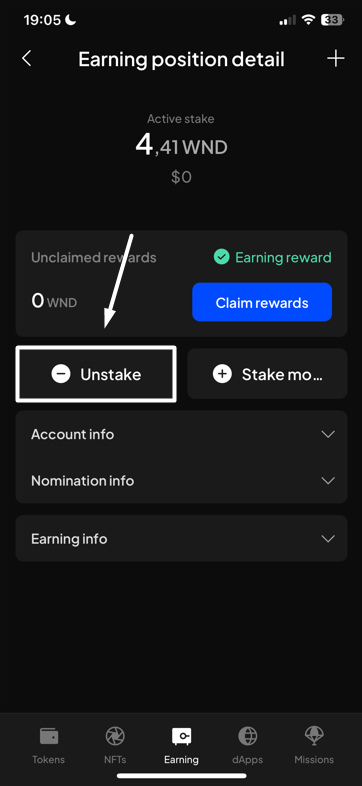
**Step 1**: On the SubWallet homepage, hit the "**Earning**" tab at the bottom of the screen. In the Your earning positions screen, select the funds you want to unstake.

<div><figure><img src="https://631687399-files.gitbook.io/~/files/v0/b/gitbook-x-prod.appspot.com/o/spaces%2F-Lh39Kwxa1xxZM9WX_Bs%2Fuploads%2FbNqiDEjcXTSo5mUDJdus%2FScreenshot_7.png?alt=media&#x26;token=0d1fe3ef-858c-4184-a1e9-55012b7685fc" alt="" width="272"><figcaption></figcaption></figure> <figure><img src="https://631687399-files.gitbook.io/~/files/v0/b/gitbook-x-prod.appspot.com/o/spaces%2F-Lh39Kwxa1xxZM9WX_Bs%2Fuploads%2FmarOtuBsAeRFcDagmZga%2FScreenshot_16.png?alt=media&#x26;token=33c944b2-abb5-465a-9b83-54b5ab89aed5" alt="" width="272"><figcaption></figcaption></figure></div>

**Step 2**: Press "**Unstake**" to start the unstaking process.

<figure><img src="https://631687399-files.gitbook.io/~/files/v0/b/gitbook-x-prod.appspot.com/o/spaces%2F-Lh39Kwxa1xxZM9WX_Bs%2Fuploads%2F8xnIROxjPu1uS7vDb5JE%2FScreenshot_18.png?alt=media&#x26;token=2683a2d5-60a9-4c55-a5fa-ed5e809bf031" alt="" width="272"><figcaption></figcaption></figure>

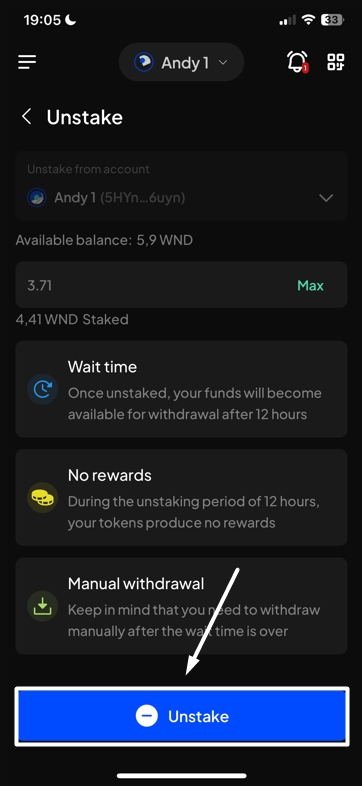
**Step 3:** Enter the amount you want to unstake, then hit "**Unstake**" to proceed.

<div><figure><img src="https://631687399-files.gitbook.io/~/files/v0/b/gitbook-x-prod.appspot.com/o/spaces%2F-Lh39Kwxa1xxZM9WX_Bs%2Fuploads%2FH6sP3xlfaVv4fKWzQy53%2FScreenshot_19.png?alt=media&#x26;token=c73c5057-07c8-4a3d-82c5-6f0e6d3ec255" alt=""><figcaption></figcaption></figure> <figure><img src="https://631687399-files.gitbook.io/~/files/v0/b/gitbook-x-prod.appspot.com/o/spaces%2F-Lh39Kwxa1xxZM9WX_Bs%2Fuploads%2FIbiUt0cLy0Ed2vz27S1g%2FScreenshot_20.png?alt=media&#x26;token=35a8c9cc-c52d-41b5-8a4d-27f5d2b5252b" alt=""><figcaption></figcaption></figure></div>

{% hint style="info" %}
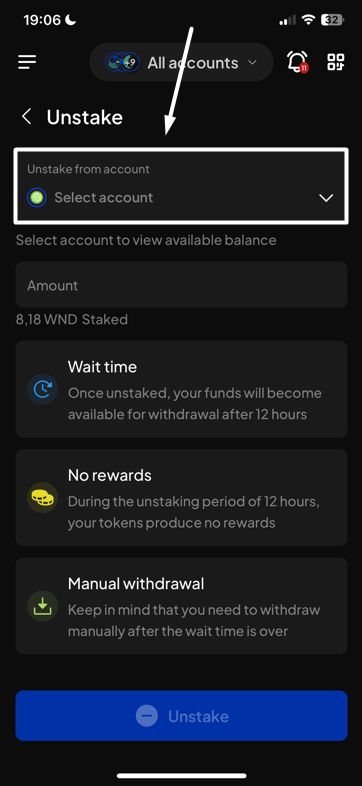
If you are in "**All accounts**" mode, you will need to select the account for which you want to unstake.

<img src="https://631687399-files.gitbook.io/~/files/v0/b/gitbook-x-prod.appspot.com/o/spaces%2F-Lh39Kwxa1xxZM9WX_Bs%2Fuploads%2FehFxsYuM5MS0CFLbeaVl%2FScreenshot_22.png?alt=media&#x26;token=d550c3d8-4f22-4cb3-9349-adf3dc63269a" alt="" data-size="original"><img src="https://631687399-files.gitbook.io/~/files/v0/b/gitbook-x-prod.appspot.com/o/spaces%2F-Lh39Kwxa1xxZM9WX_Bs%2Fuploads%2FnDIc3c0mj7j2K4mVlO7h%2FScreenshot_23.png?alt=media&#x26;token=aab404bf-3e70-47c1-aa44-f39d2d8eac23" alt="" data-size="original">
{% endhint %}

**Step 4**: Check the information and confirm your request by hitting "**Approve**".&#x20;

<figure><img src="https://631687399-files.gitbook.io/~/files/v0/b/gitbook-x-prod.appspot.com/o/spaces%2F-Lh39Kwxa1xxZM9WX_Bs%2Fuploads%2FBgMlgQZmMRkiwzrKrBpI%2FScreenshot_26.png?alt=media&#x26;token=091464d6-97b9-4867-b418-82f2240b5590" alt="" width="272"><figcaption></figcaption></figure>

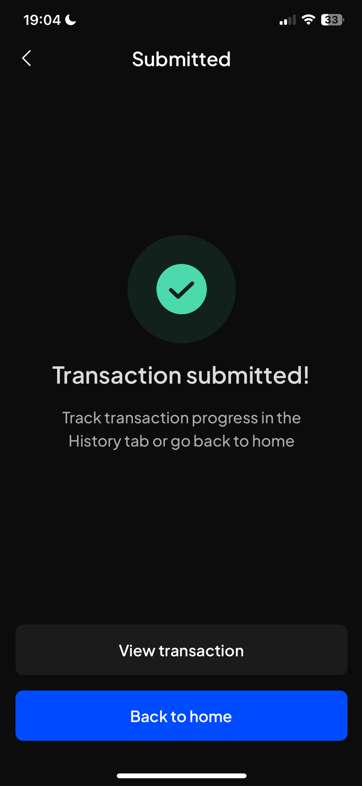
**Step 5:** Your request has been submitted!

<figure><img src="https://631687399-files.gitbook.io/~/files/v0/b/gitbook-x-prod.appspot.com/o/spaces%2F-Lh39Kwxa1xxZM9WX_Bs%2Fuploads%2FhF4uom9moe2QbFkyiVZd%2FScreenshot_25.png?alt=media&#x26;token=3a0ec03f-4f82-4fad-bb1f-effabb7a43fb" alt="" width="272"><figcaption></figcaption></figure>

You can either click "**Back to home**" to return to the homepage or "**View transaction**" to see transaction details in the History tab.

{% hint style="info" %}
If you click "**View transaction**", SubWallet will show you the latest transaction record in your transaction history along with the extrinsic hash of the transfer.&#x20;

<img src="https://631687399-files.gitbook.io/~/files/v0/b/gitbook-x-prod.appspot.com/o/spaces%2F-Lh39Kwxa1xxZM9WX_Bs%2Fuploads%2FxgElfldvti6BySBzGNJZ%2FScreenshot_28.png?alt=media&#x26;token=374cbc55-2446-41f7-aa47-3470a9cd031e" alt="" data-size="original">
{% endhint %}