---
description: Streamlining the log-in process just by creating a master password.
---
# Create your master password
{% hint style="info" %}
At the start of your journey with us, we always ask you to create a master password (such as when you create a new account or import an existing account).
{% endhint %}
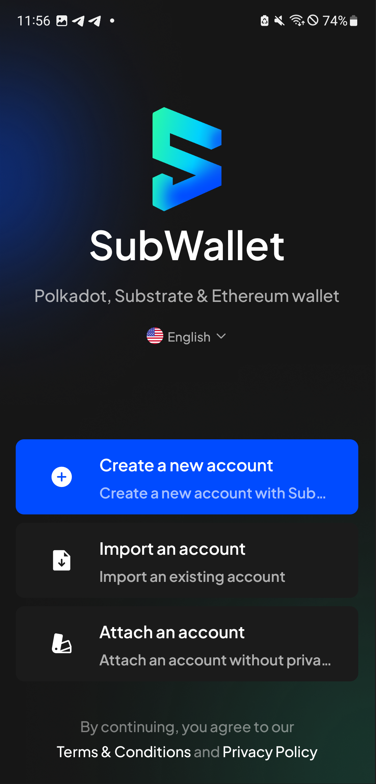
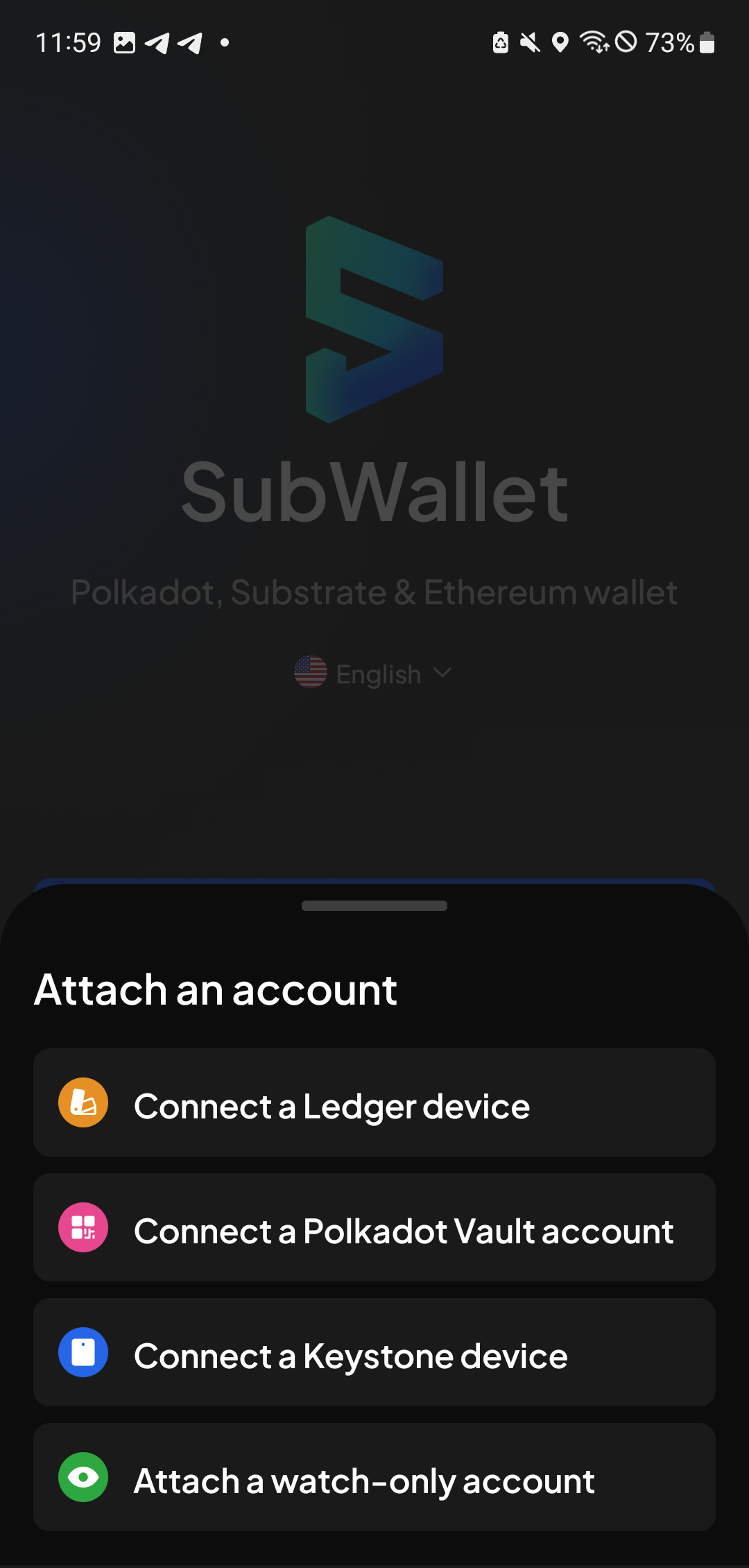
**Step 1**: After installing SubWallet, open the app. On the Welcome screen, select your preferred option.
{% hint style="info" %}
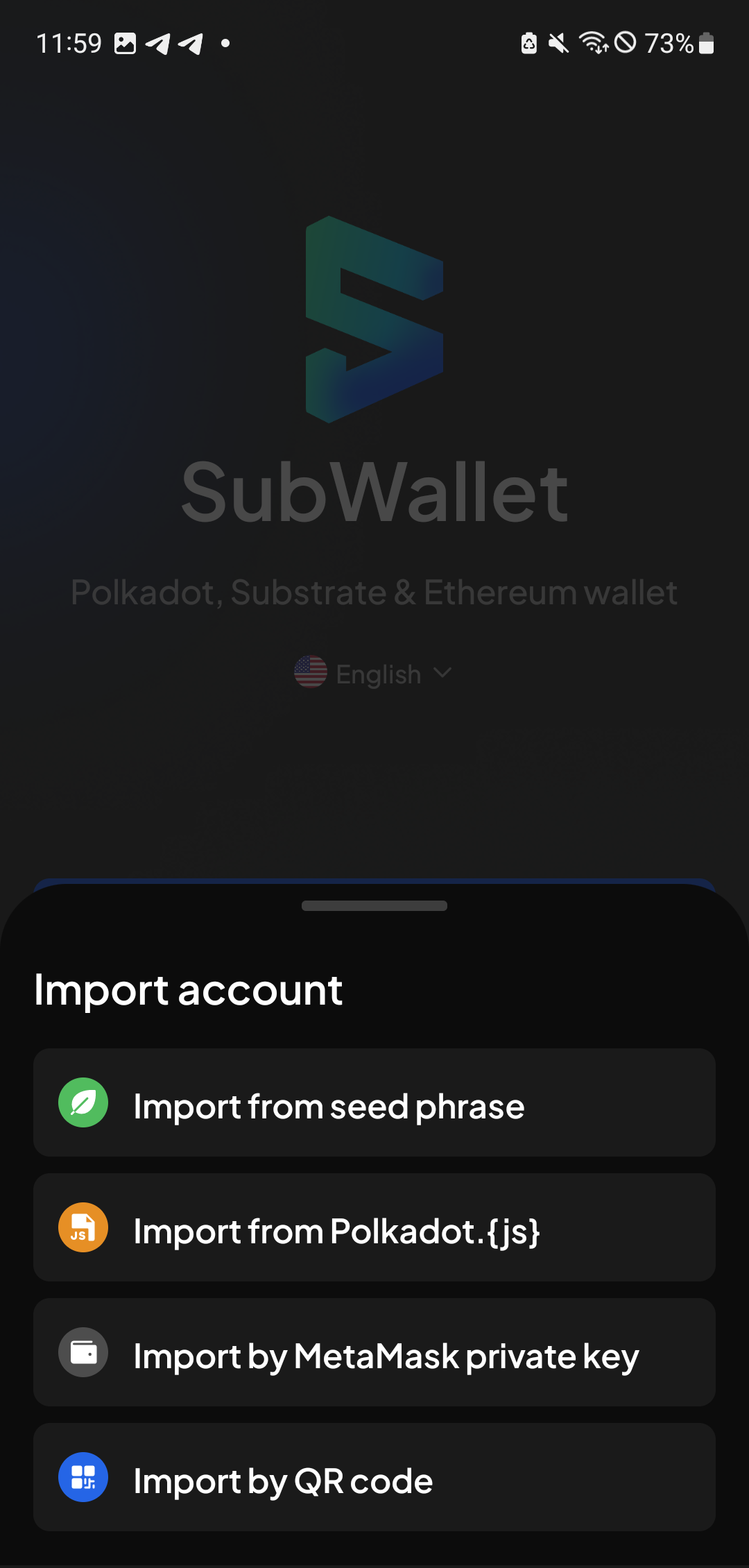
If you choose "**Import an account**" or "**Attach an account**", you will need to select your preferred option.
{% endhint %}
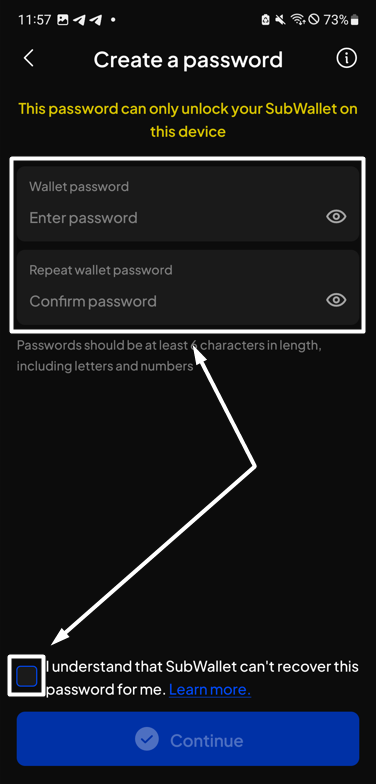
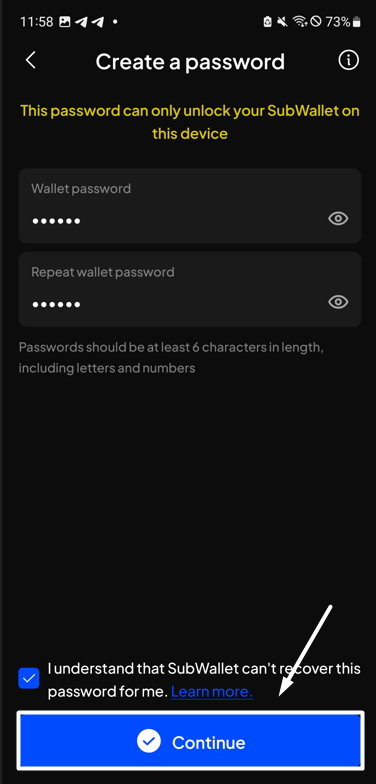
**Step 2:** Enter a strong password with at least 6 characters and hit the "**I understand that SubWallet can't recover the password for me**" box.
{% hint style="info" %}
The password should contain numbers & letters.
{% endhint %}
Once done, hit "**Continue**".
You've successfully created a master password in SubWallet! Now, you have the power to manage multiple accounts with just one master password effortlessly.
{% hint style="info" %}
Depending on the option you chose in Step 1, read the corresponding guide after creating a master password to complete the setup:
* If you chose "**Create a new account**", read this guide.
* If you chose "**Import an account**", read this guide.
{% endhint %}
 {% endhint %}
**Step 2:** Enter a strong password with at least 6 characters and hit the "**I understand that SubWallet can't recover the password for me**" box.
{% hint style="info" %}
The password should contain numbers & letters.
{% endhint %}
{% endhint %}
**Step 2:** Enter a strong password with at least 6 characters and hit the "**I understand that SubWallet can't recover the password for me**" box.
{% hint style="info" %}
The password should contain numbers & letters.
{% endhint %}