---
description: >-
See all your past transactions across multiple networks in one place on
SubWallet.
---
# View transaction history
## Supported types of transactions for display
{% hint style="info" %}
SubWallet supports 2 types of transactions for display in the History tab:
* All transactions made directly within the wallet will be **saved and displayed**.
* Transactions from networks that have their block explorer will be **retrieved and displayed**.
{% endhint %}
## View the transaction history of your accounts
### View from Settings
**Step 1**: Open the SubWallet app and tap the list item at the top left of the screen to get to the Settings section.
**Step 2**: In the Settings section, choose "**History**".
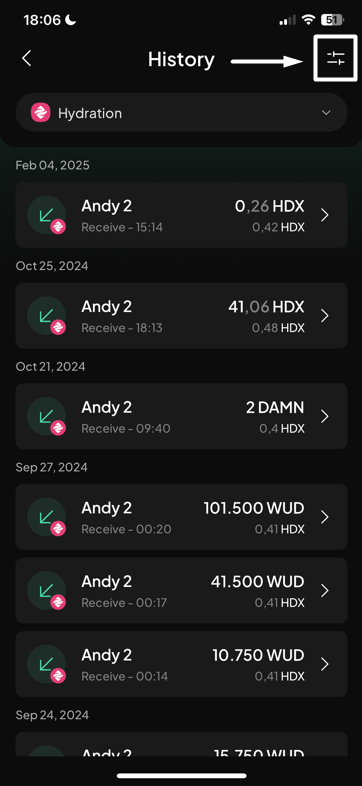
**Step 3**: In the History screen, select the network you want to check the transaction history.
_In this example, we want to check the transaction history of the "Andy 2" account on the Hydration network._
If you're in the "All accounts" mode
In this case, you will also need to select the account for which you want to view the transaction history.
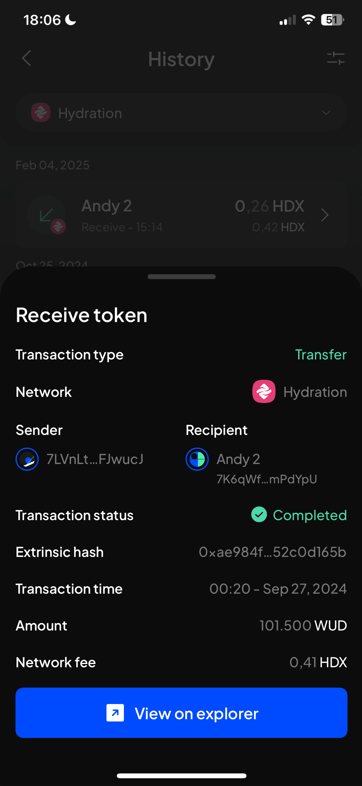
**Step 4**: You can now see all the transactions that happened in the account. Tap on the transaction you want to view the details.
You can also use the filter feature to see transactions in a particular category by pressing on the icon at the upper right corner. Choose the type(s) of the transaction you want to view and tap the "**Apply filter**" button below.
### View from SubWallet homepage
**Step 1**: Open the SubWallet app and tap the counter-clockwise icon to access the History screen.
**Step 2**: In the History screen, select the network you want to check the transaction history.
If you're in the "All accounts" mode
In this case, you will also need to select the account for which you want to view the transaction history.
**Step 3**: You can now see all the transactions that happened in the account. Tap on the transaction you want to view the details.
You can also use the filter feature to see transactions in a particular category by pressing on the icon at the upper right corner. Choose the type(s) of the transaction you want to view and tap the "**Apply filter**" button below.


 icon at the upper right corner. Choose the type(s) of the transaction you want to view and tap the "**Apply filter**" button below.