# Config Subscan API key

## Why do you need Subscan API key

To provide a more stable and secure experience for the Polkadot & Kusama ecosystems, Subscan (the primary block explorer used to track your transactions) has updated its access policies (check out [this announcement](https://x.com/subscan_io/status/2027688499684810931?s=20) for detailed information).

Previously, some data could be retrieved anonymously. However, Subscan now requires an official API Key to prevent service abuse and ensure high-speed data delivery. Without this key configured in SubWallet, certain advanced operations—such as detailed transaction histories or specific on-chain data visualizations—may fail to load or appear restricted.

{% hint style="info" icon="key" %}

## Key changes to note:

* Mandatory authentication: As of March 9, Subscan has restricted all unauthenticated access (requests without a key).
* Enhanced stability: Using your own API key ensures your data requests are prioritized and unaffected by general network traffic or public limits.
* Privacy & security: Registering for a key allows Subscan to provide a more secure environment for ecosystem partners and developers.
  {% endhint %}

To continue viewing full transaction details and a seamless operational history within SubWallet, you must generate a free API key on the Subscan dashboard and enter it in your wallet settings.

{% hint style="success" icon="lightbulb" %}
**Pro Tip**: Subscan offers a Free Plan specifically designed for individual developers and ecosystem enthusiasts so that you can maintain full visibility of your assets at no cost.
{% endhint %}

## Generate & config Subscan API key on SubWallet

### Generate your Subscan API key on Subscan

Before configuring the API key on SubWallet, you must obtain it from the Subscan developer portal.

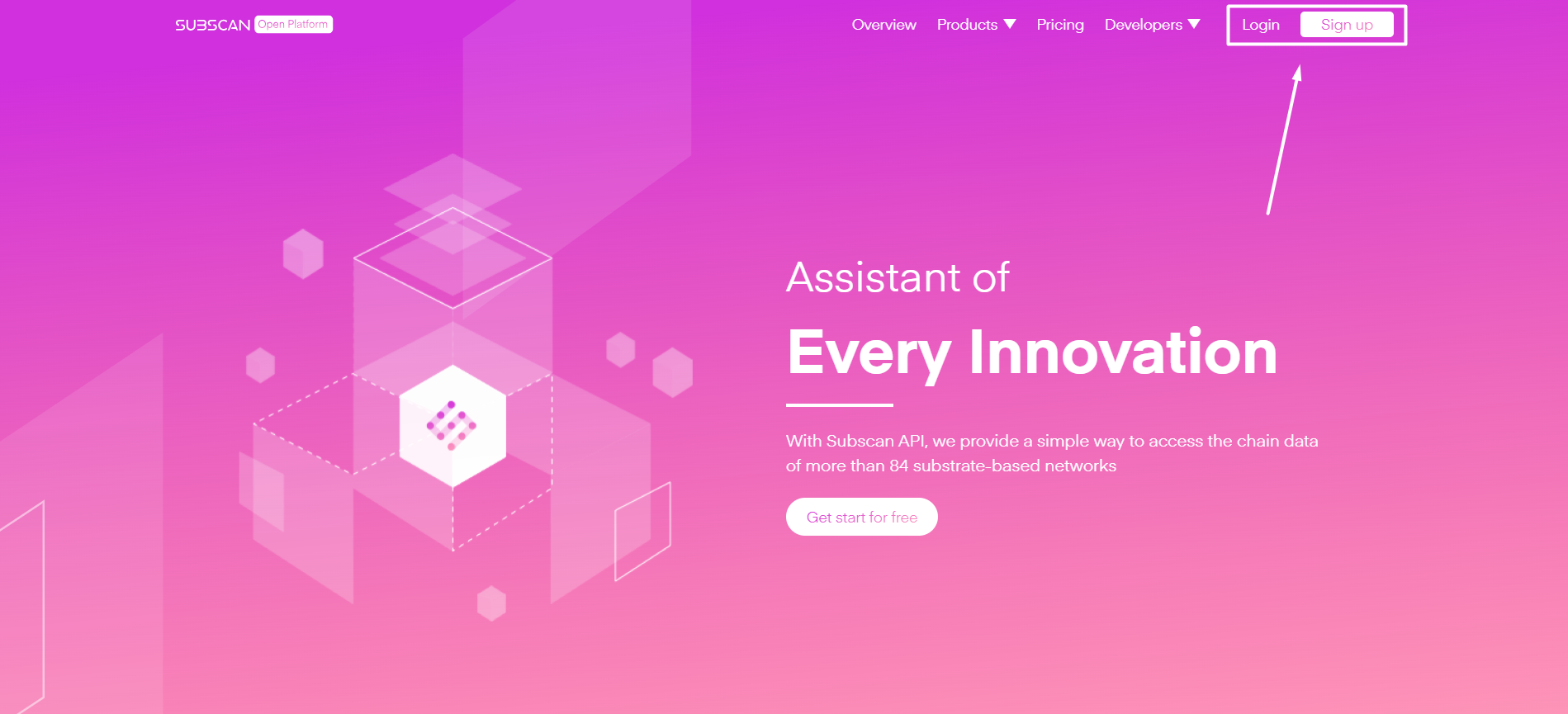
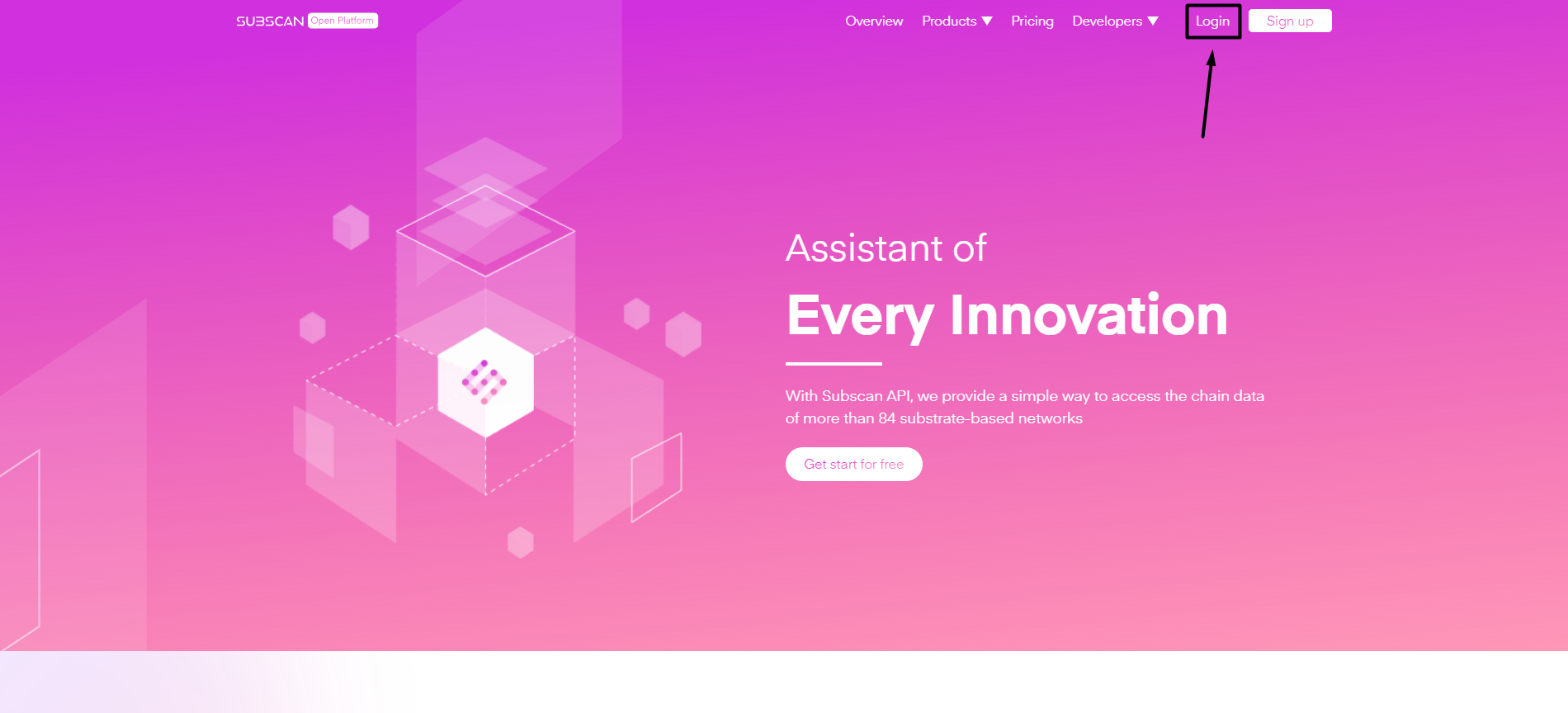
**Step 1**: Go to [pro.subscan.io](https://pro.subscan.io/) and sign up for a new account or login.

<figure><img src="https://631687399-files.gitbook.io/~/files/v0/b/gitbook-x-prod.appspot.com/o/spaces%2F-Lh39Kwxa1xxZM9WX_Bs%2Fuploads%2FOWLhvdmjo8DGAM9W3zUU%2Fimage.png?alt=media&#x26;token=2b247acc-25cd-4f84-9ce1-69e4ac949c2c" alt=""><figcaption></figcaption></figure>

Depending on whether you have an account, select the tab that best suits your needs.

{% tabs %}
{% tab title="Sign up" %}
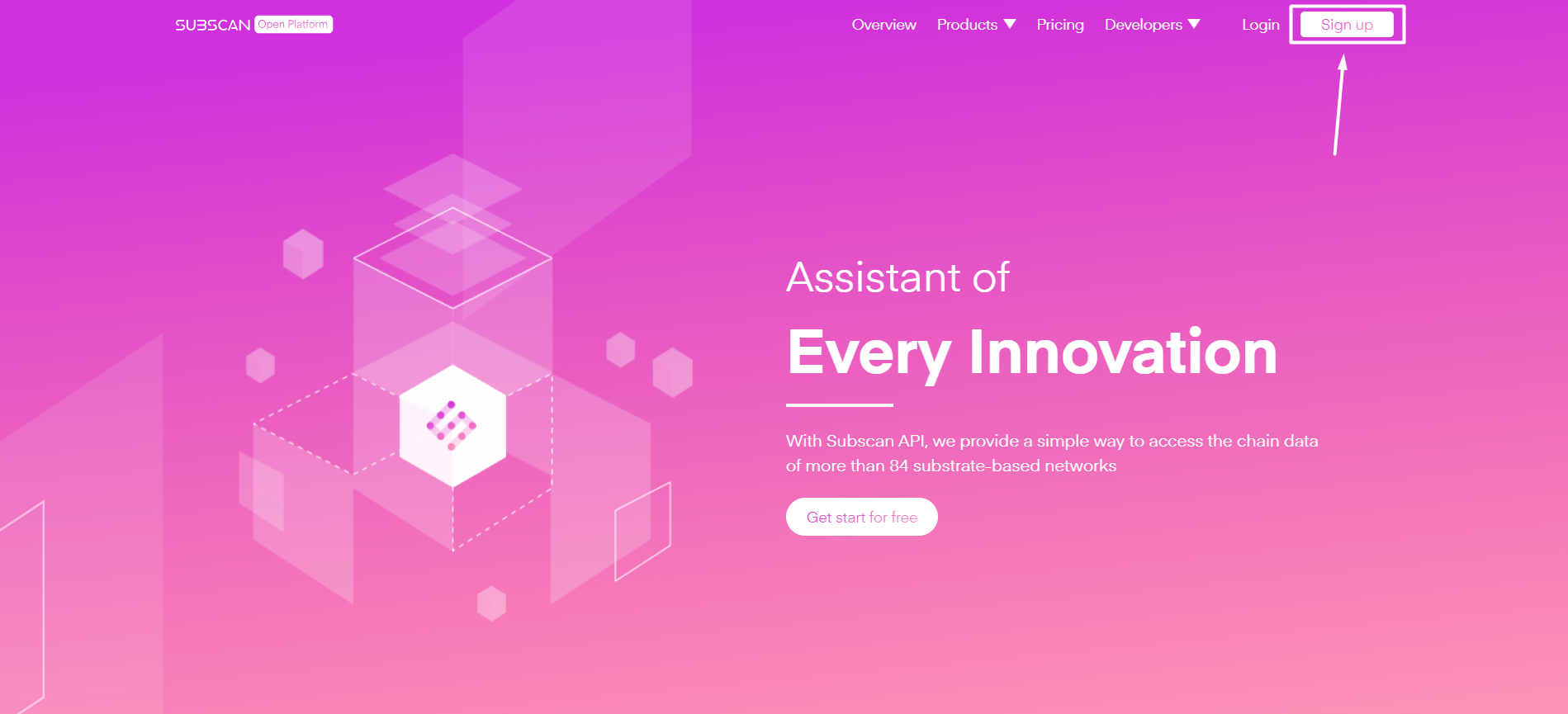
**Step 2**: Click the "**Sign up**" button if you don't have an account.

<figure><img src="https://631687399-files.gitbook.io/~/files/v0/b/gitbook-x-prod.appspot.com/o/spaces%2F-Lh39Kwxa1xxZM9WX_Bs%2Fuploads%2FQRxublrtIuVHMJukwqgX%2Fimage.png?alt=media&#x26;token=4b5e1a1f-6ab4-44f1-bb55-8e73f35d9c2c" alt=""><figcaption></figcaption></figure>

You'll be redirected to the Sign up screen.

**Step 3**: In the Sign up screen, you can choose to register using your email or your Substrate (Polkadot) address.&#x20;

{% hint style="info" %}
If you don't use the SubWallet browser extension, **registering via email is recommended**.
{% endhint %}

***3.1. If you want to register using your email***

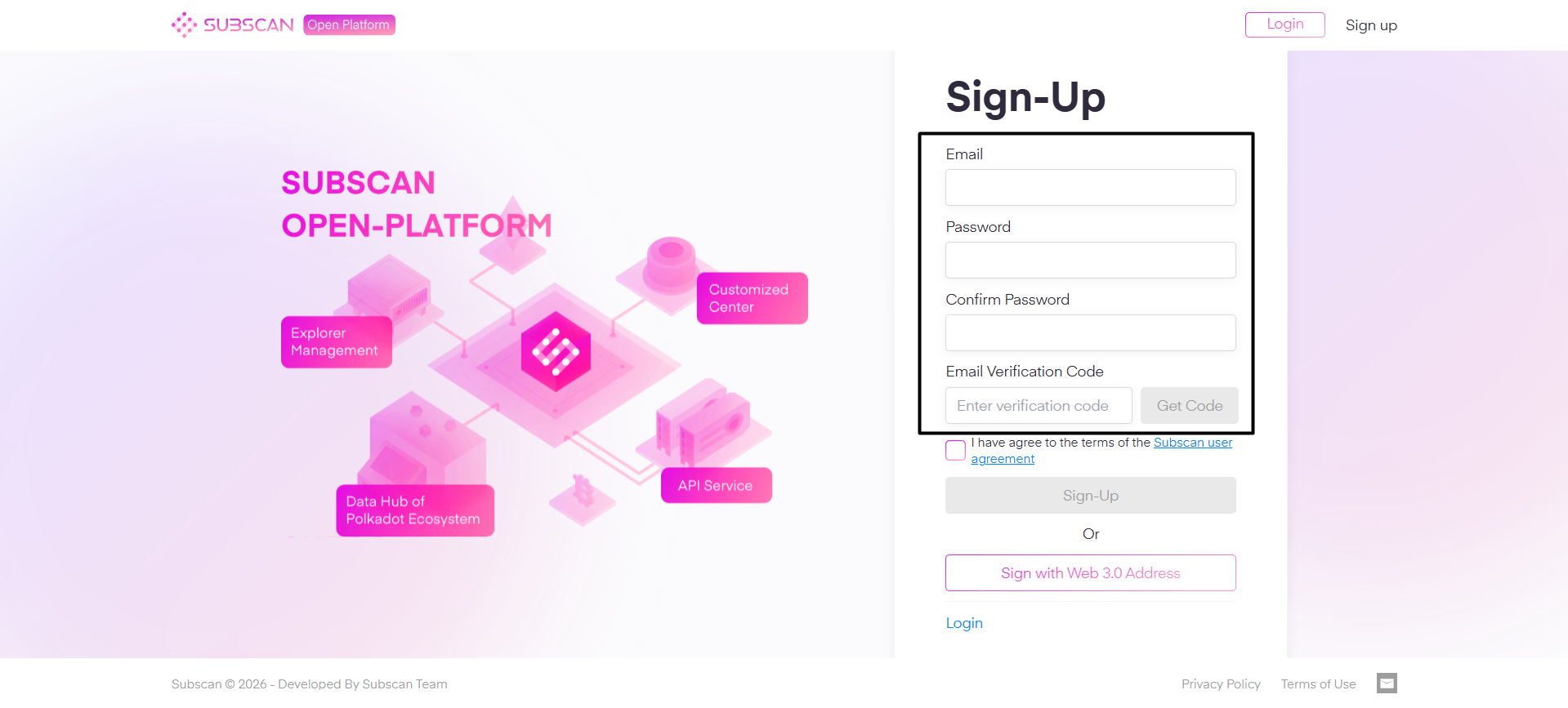
Provide the required information as listed upon signing up via email.&#x20;

<figure><img src="https://631687399-files.gitbook.io/~/files/v0/b/gitbook-x-prod.appspot.com/o/spaces%2F-Lh39Kwxa1xxZM9WX_Bs%2Fuploads%2FYYJF9yNqcq2i07cjRtLM%2Fimage.png?alt=media&#x26;token=cbefa810-b5aa-49e7-8d90-41e6a1809952" alt=""><figcaption></figcaption></figure>

Once done, tick the "**I have agree to the terms of the** [**Subscan user agreement**](https://www.subscan.io/term)" checkbox, then click "**Sign Up**".

<figure><img src="https://631687399-files.gitbook.io/~/files/v0/b/gitbook-x-prod.appspot.com/o/spaces%2F-Lh39Kwxa1xxZM9WX_Bs%2Fuploads%2FpdRXONS3RIfCa3OZce07%2FScreenshot_6%20(1).png?alt=media&#x26;token=4e2ab2e3-6165-4eac-871e-6ae897539988" alt=""><figcaption></figcaption></figure>

***3.2. If you want to register using your wallet address***

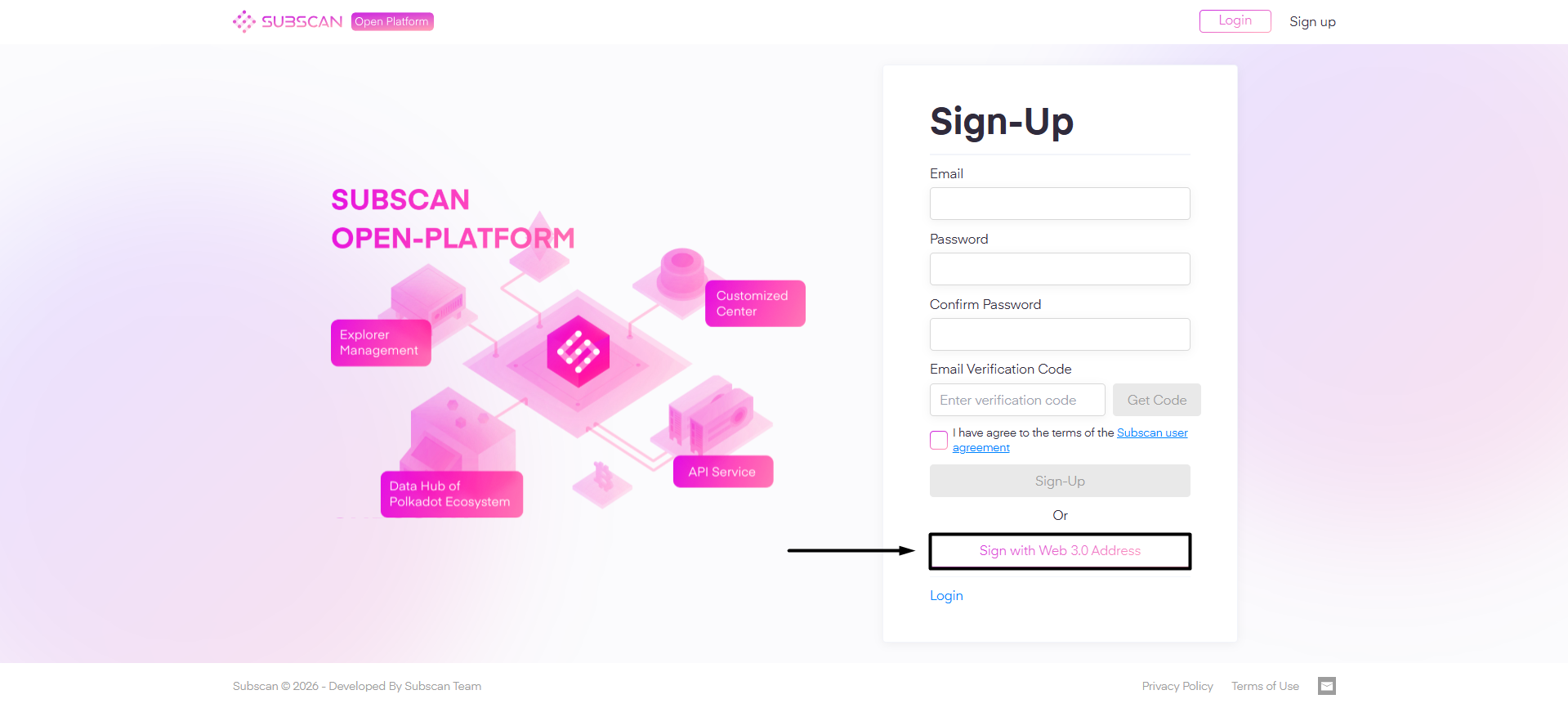
Select the "**Sign with Web 3.0 Address**" option.

<figure><img src="https://631687399-files.gitbook.io/~/files/v0/b/gitbook-x-prod.appspot.com/o/spaces%2F-Lh39Kwxa1xxZM9WX_Bs%2Fuploads%2FwYfN04EMmSqco5HQ1Iw5%2Fimage.png?alt=media&#x26;token=17c374ee-c312-4424-9efb-d68069d1f6c5" alt=""><figcaption></figcaption></figure>

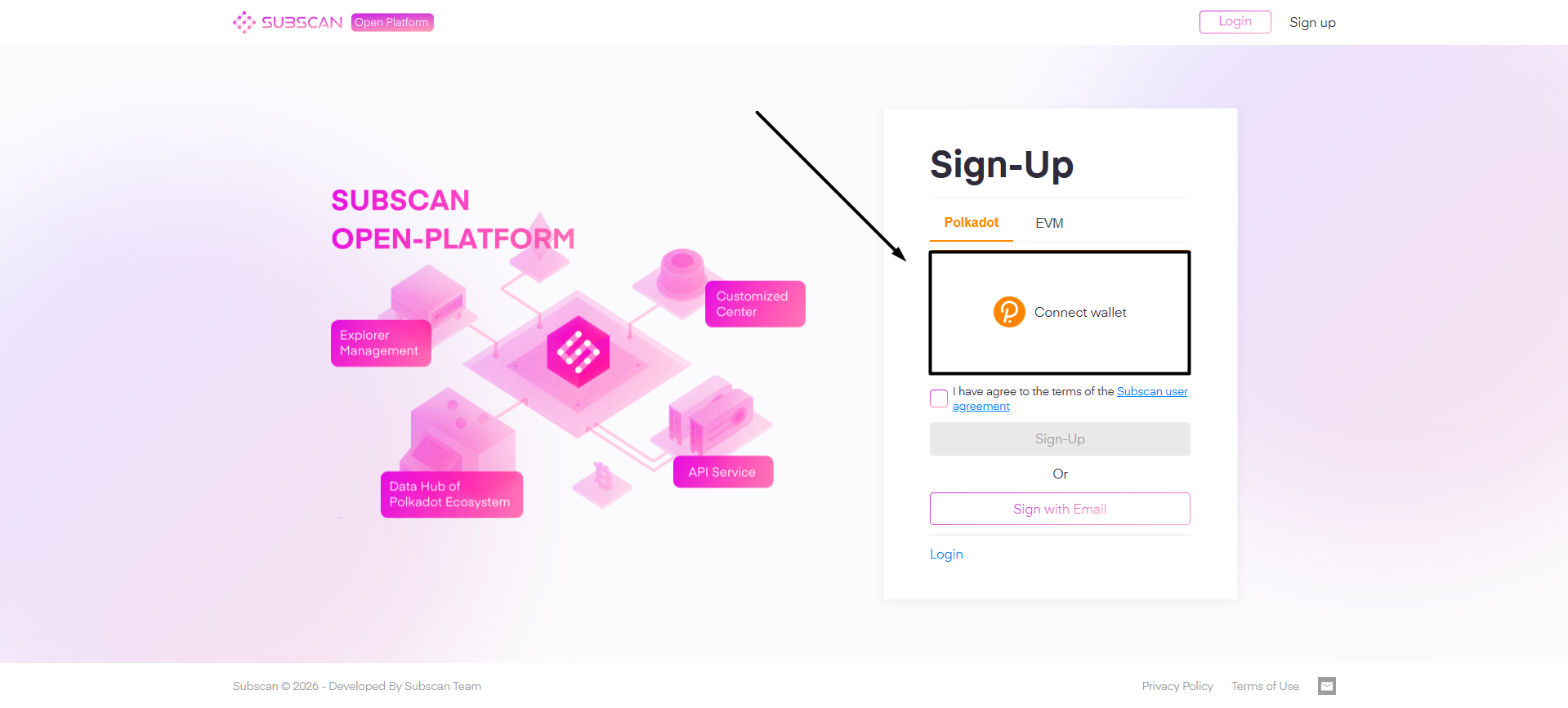
You'll be redirected to a wallet signing screen. Choose the wallet-connect option (Polkadot or EVM) you'd like to connect with, then click "**Connect wallet**".

<figure><img src="https://631687399-files.gitbook.io/~/files/v0/b/gitbook-x-prod.appspot.com/o/spaces%2F-Lh39Kwxa1xxZM9WX_Bs%2Fuploads%2FchcNehDcdP6IFeArE2Nb%2Fimage.png?alt=media&#x26;token=32099114-2903-4c65-ae7b-64ea94a7e8e2" alt=""><figcaption></figcaption></figure>

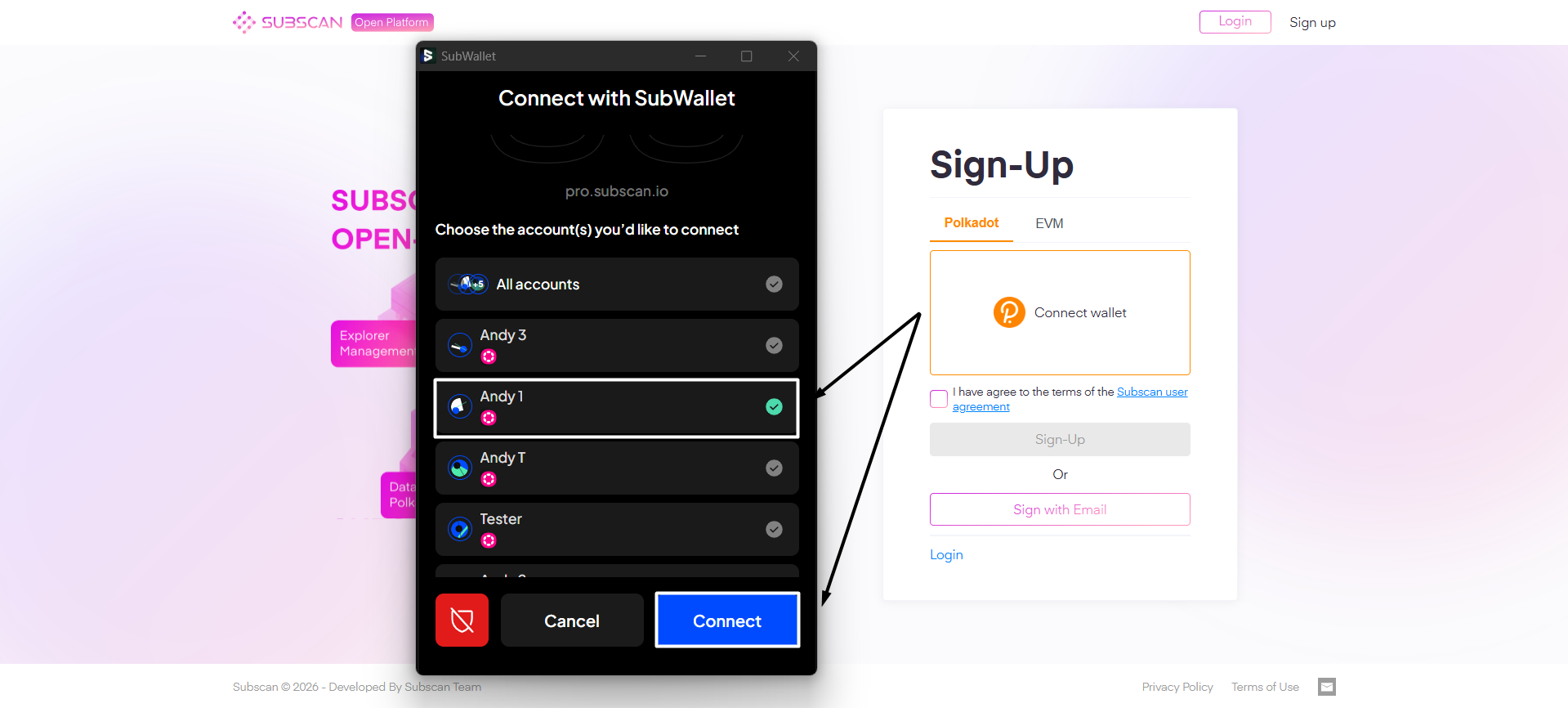
The SubWallet browser extension will appear. Select the account you'd want to connect, then click "**Connect**".

<figure><img src="https://631687399-files.gitbook.io/~/files/v0/b/gitbook-x-prod.appspot.com/o/spaces%2F-Lh39Kwxa1xxZM9WX_Bs%2Fuploads%2F9LtR1ifjTNMiz4GfMC0R%2Fimage.png?alt=media&#x26;token=ca165360-7f11-4b13-b3ac-204d04242fbf" alt=""><figcaption></figcaption></figure>

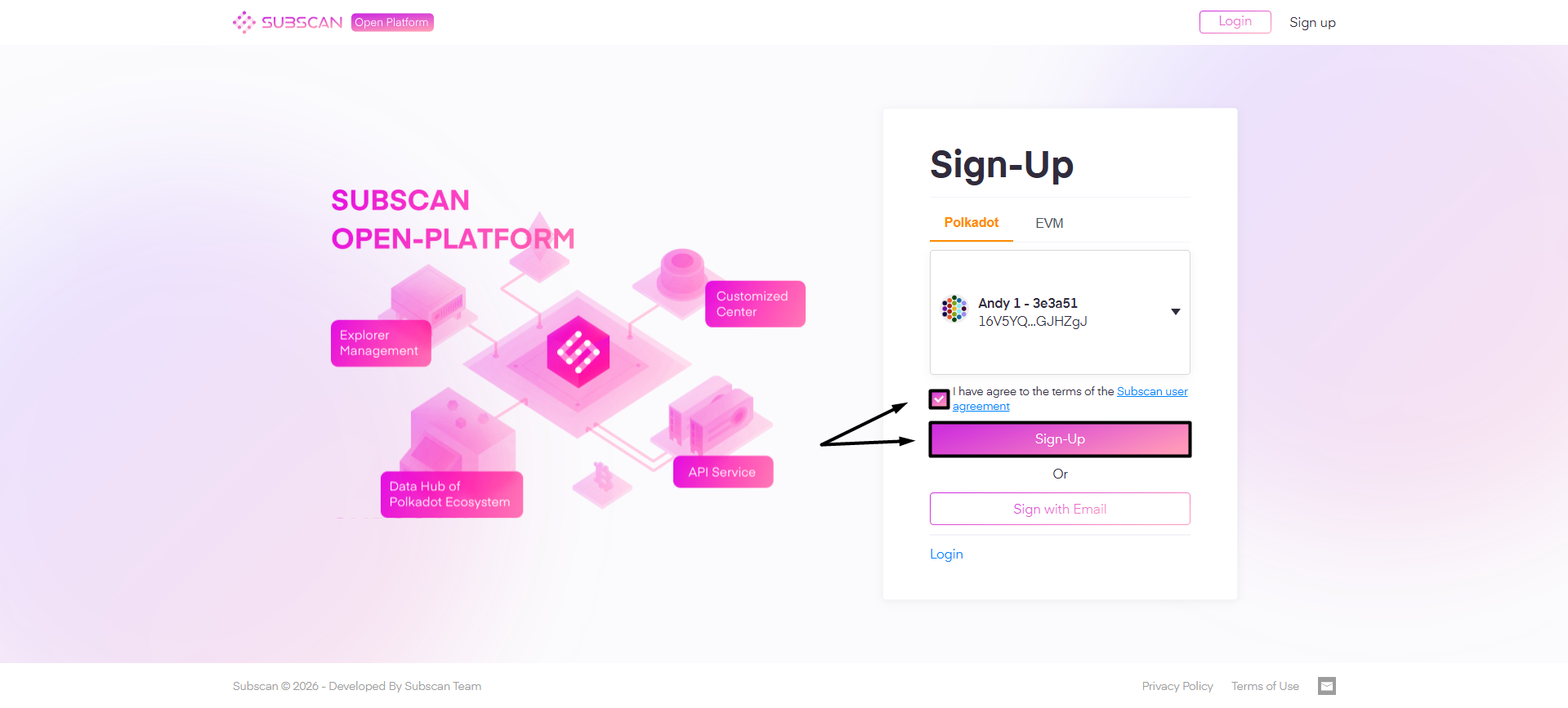
Once connected, tick the "**I have agree to the terms of the** [**Subscan user agreement**](https://www.subscan.io/term)" checkbox, then click "**Sign Up**".

<figure><img src="https://631687399-files.gitbook.io/~/files/v0/b/gitbook-x-prod.appspot.com/o/spaces%2F-Lh39Kwxa1xxZM9WX_Bs%2Fuploads%2Fcq8PLaCgTfml0eNTwdhe%2Fimage.png?alt=media&#x26;token=25604e72-1414-4fbe-b169-7c52022f4d8a" alt=""><figcaption></figcaption></figure>

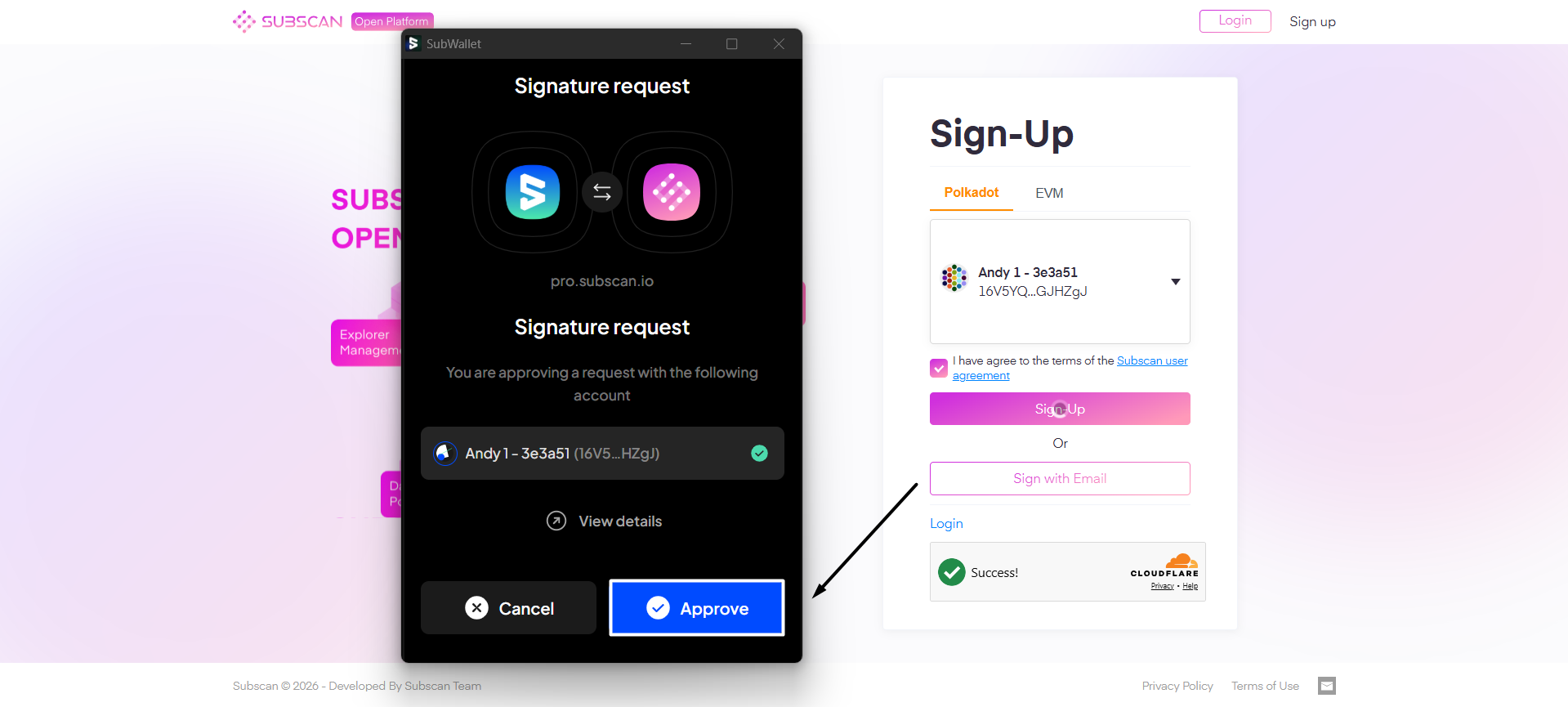
A signature request popup from SubWallet will appear, asking you to sign to prove you're the owner of the selected account. Click "**Approve**" to proceed.

<figure><img src="https://631687399-files.gitbook.io/~/files/v0/b/gitbook-x-prod.appspot.com/o/spaces%2F-Lh39Kwxa1xxZM9WX_Bs%2Fuploads%2FXxEXIOlGqnSg5V9nAgUT%2Fimage.png?alt=media&#x26;token=dc7164e2-3577-4afc-abbd-0bdf7d094afc" alt=""><figcaption></figcaption></figure>
{% endtab %}

{% tab title="Login" %}
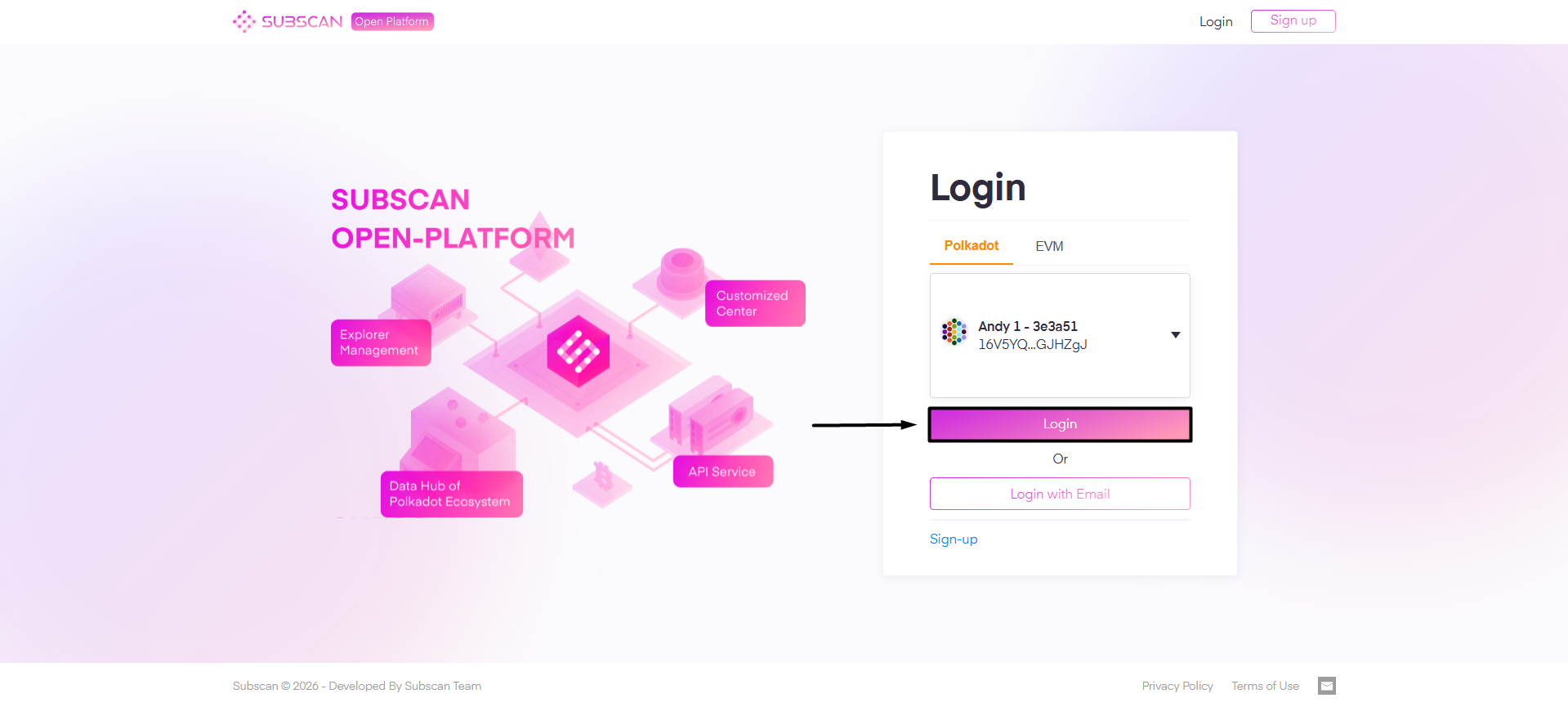
**Step 2**: Click the "**Login**" button if you already have a Subscan account.

<figure><img src="https://631687399-files.gitbook.io/~/files/v0/b/gitbook-x-prod.appspot.com/o/spaces%2F-Lh39Kwxa1xxZM9WX_Bs%2Fuploads%2FXSJcVEaEv1ckIYniXAIP%2Fimage.png?alt=media&#x26;token=535f8d89-2421-4b77-8b02-d7030b754530" alt=""><figcaption></figcaption></figure>

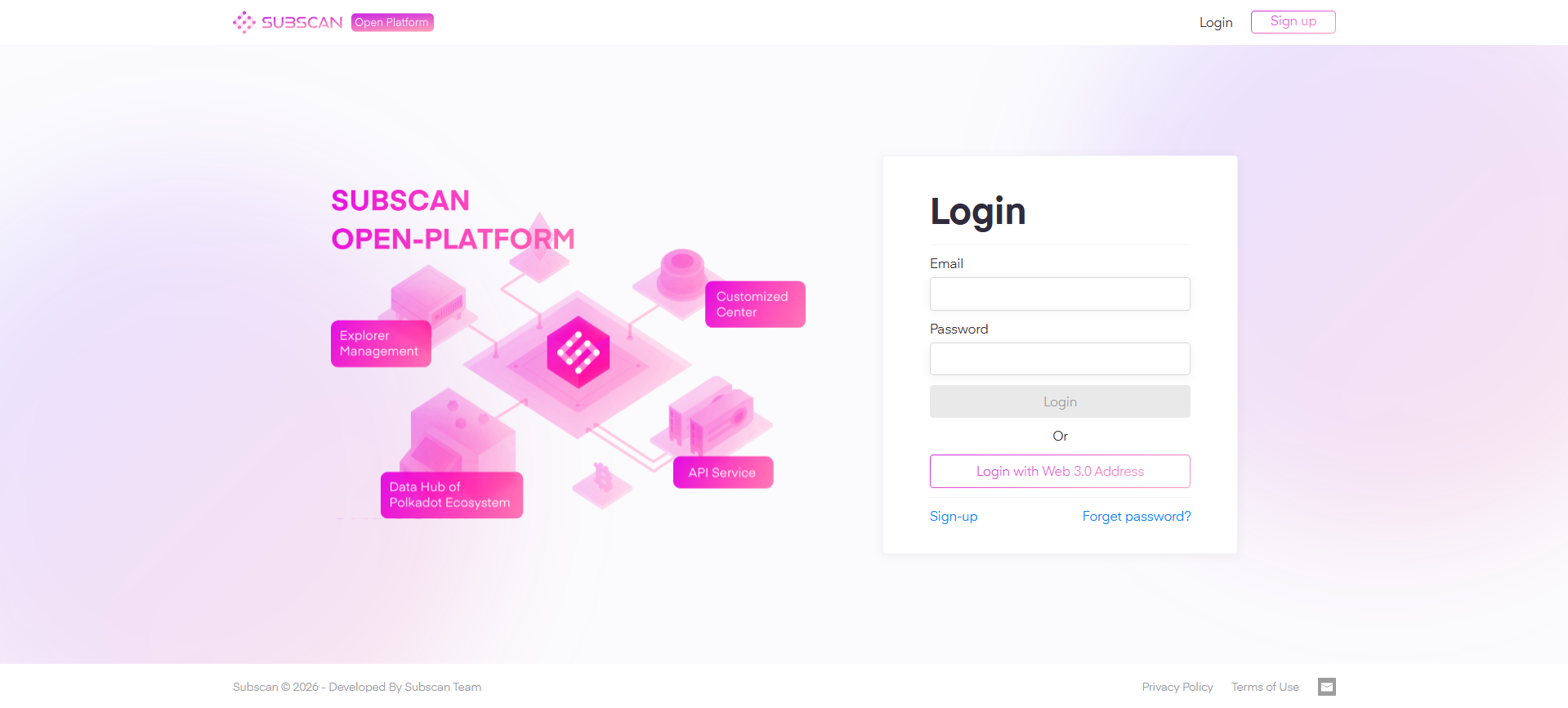
**Step 3**: You'll be redirected to the Login screen. From there, depending on the signing method you've used to create your account, choose the appropriate option.

{% hint style="info" %}
If you don't use the SubWallet browser extension, **logging in via email is recommended**.
{% endhint %}

<figure><img src="https://631687399-files.gitbook.io/~/files/v0/b/gitbook-x-prod.appspot.com/o/spaces%2F-Lh39Kwxa1xxZM9WX_Bs%2Fuploads%2FnJBZoI33awegvL6Kxn33%2Fimage.png?alt=media&#x26;token=9d66eb3d-c776-44f4-b3b2-eac27d5db392" alt=""><figcaption></figcaption></figure>

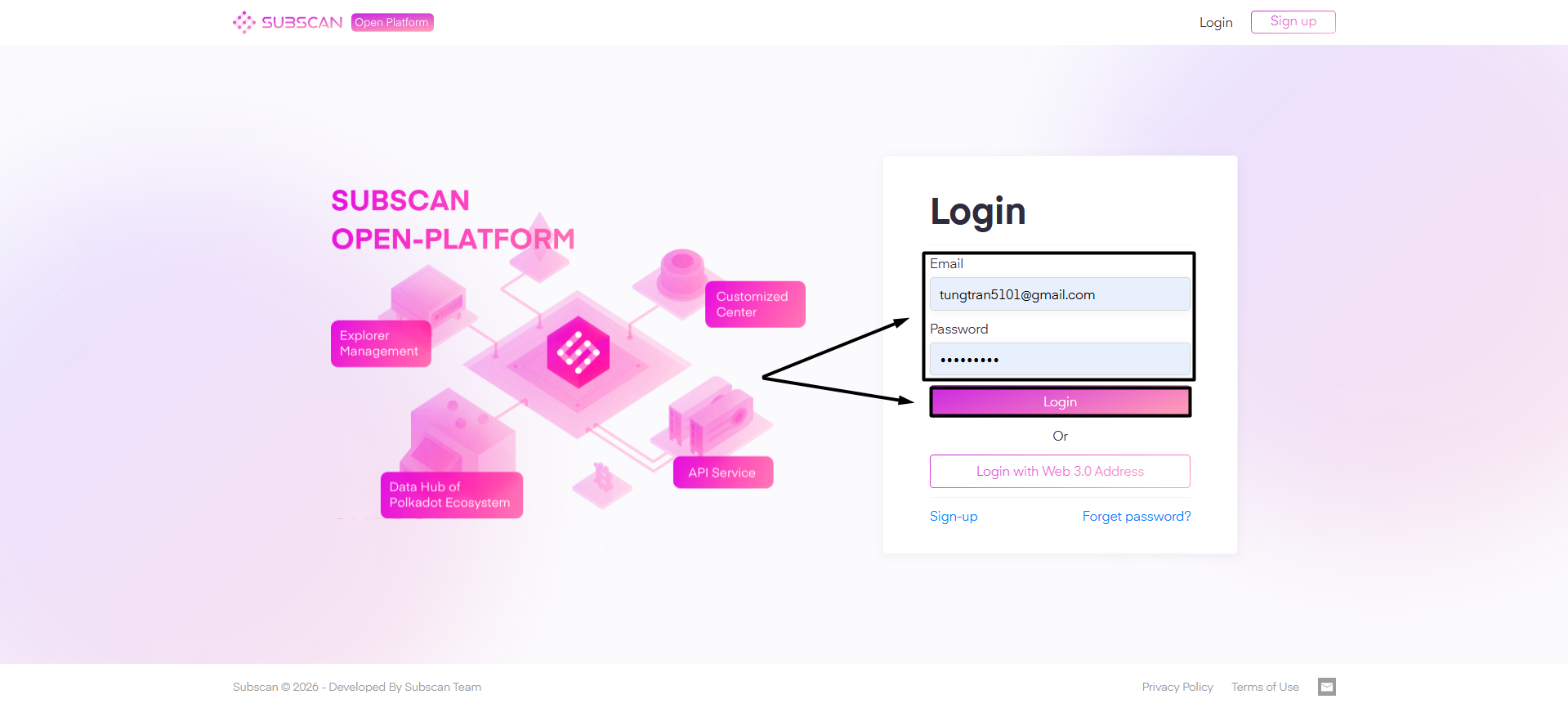
***3.1. If you want to login using your email address***

Provide your email address & password, then click "**Login**".

<figure><img src="https://631687399-files.gitbook.io/~/files/v0/b/gitbook-x-prod.appspot.com/o/spaces%2F-Lh39Kwxa1xxZM9WX_Bs%2Fuploads%2FlVNjvP0EJBkKEPTouP3S%2Fimage.png?alt=media&#x26;token=0e3c745e-b046-41c4-9708-ff280a30fdbf" alt=""><figcaption></figcaption></figure>

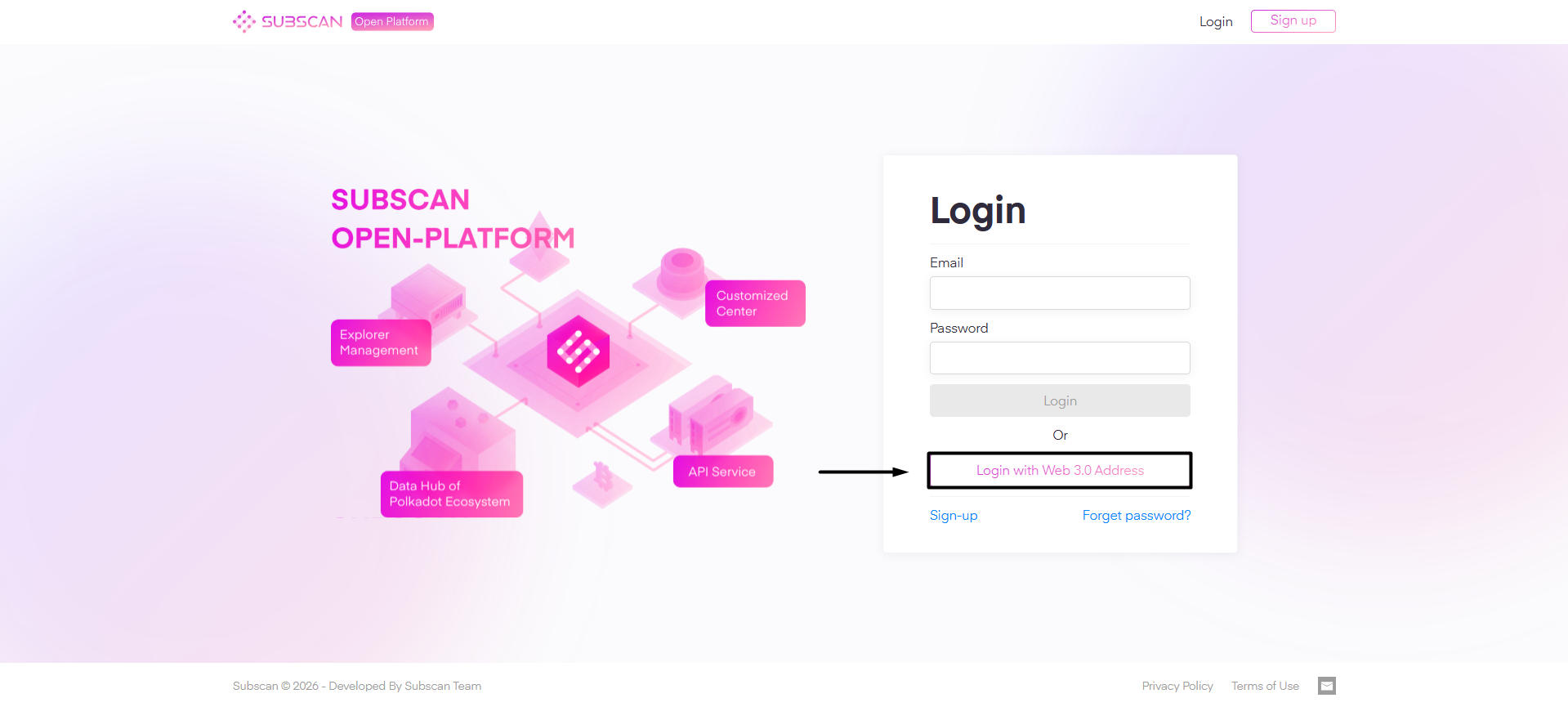
***3.2. If you want to login using your wallet address***

Select the "**Sign with Web 3.0 Address**" option.

<figure><img src="https://631687399-files.gitbook.io/~/files/v0/b/gitbook-x-prod.appspot.com/o/spaces%2F-Lh39Kwxa1xxZM9WX_Bs%2Fuploads%2FeTPn6aiqeGmfvWNMxv7Y%2Fimage.png?alt=media&#x26;token=36b828ee-defd-42ff-93ee-e34969ef0fed" alt=""><figcaption></figcaption></figure>

You'll be redirected to a wallet signing screen. Choose the wallet-connect option (Polkadot or EVM) you'd like to connect with, then click "**Login**".

<figure><img src="https://631687399-files.gitbook.io/~/files/v0/b/gitbook-x-prod.appspot.com/o/spaces%2F-Lh39Kwxa1xxZM9WX_Bs%2Fuploads%2FzudilIfobPbfP0izZtlt%2Fimage.png?alt=media&#x26;token=215e50bd-dca5-49e1-a139-c2c9f6ec954d" alt=""><figcaption></figcaption></figure>

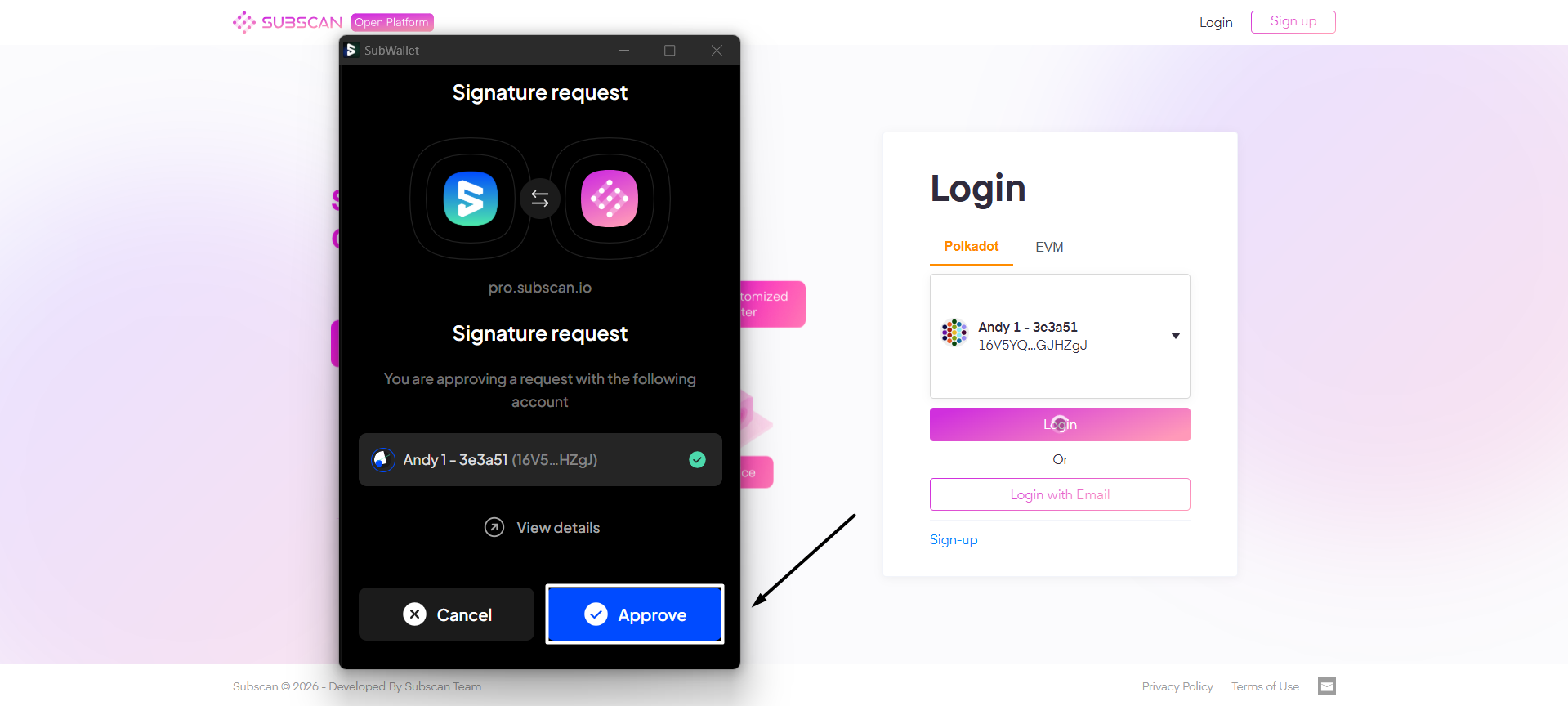
A signature request popup from SubWallet will appear, asking you to sign to prove you're the owner of the selected account. Click "**Approve**" to proceed.

<figure><img src="https://631687399-files.gitbook.io/~/files/v0/b/gitbook-x-prod.appspot.com/o/spaces%2F-Lh39Kwxa1xxZM9WX_Bs%2Fuploads%2FtLVI3mwh9KOaC1CiajJm%2Fimage.png?alt=media&#x26;token=9e3da16a-3697-421d-9fa7-ae518589dd96" alt=""><figcaption></figcaption></figure>
{% endtab %}
{% endtabs %}

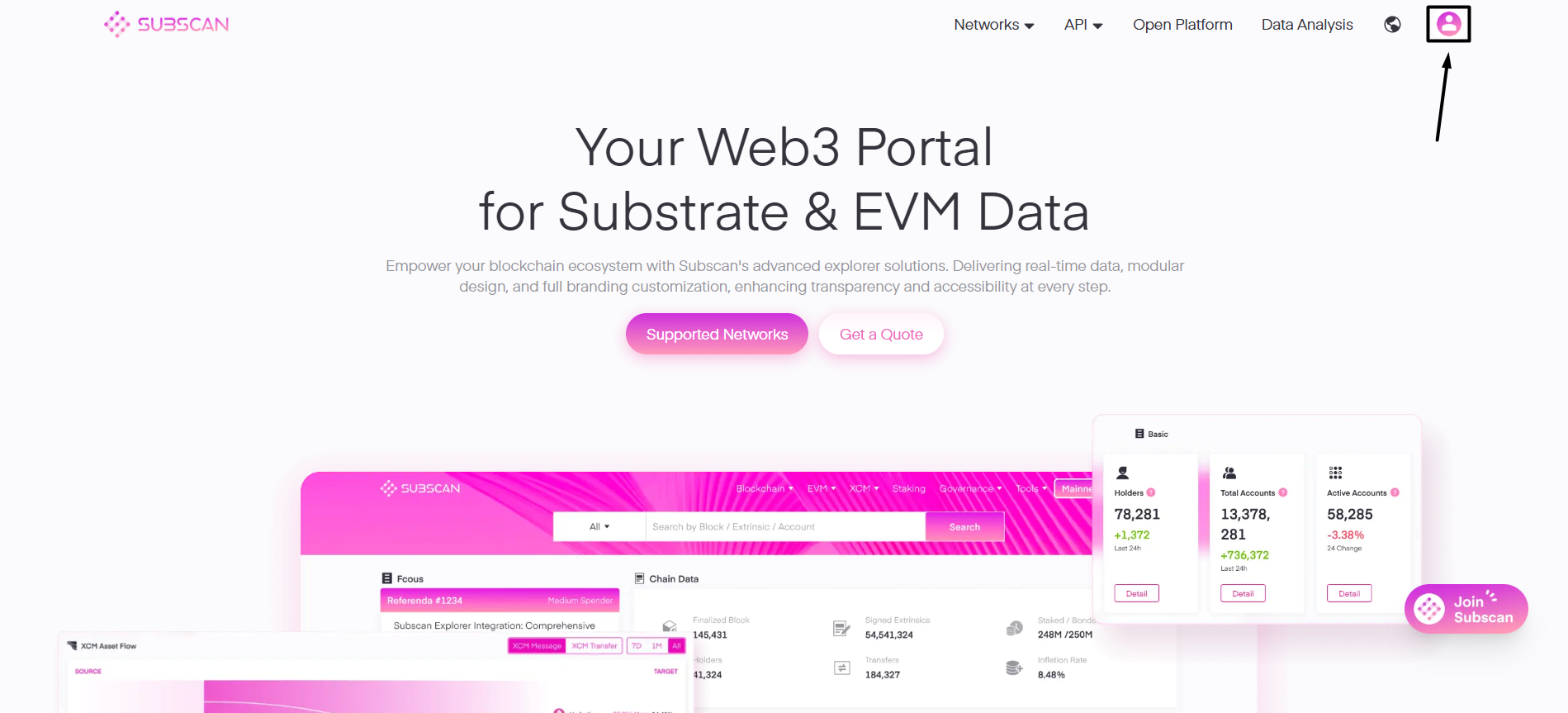
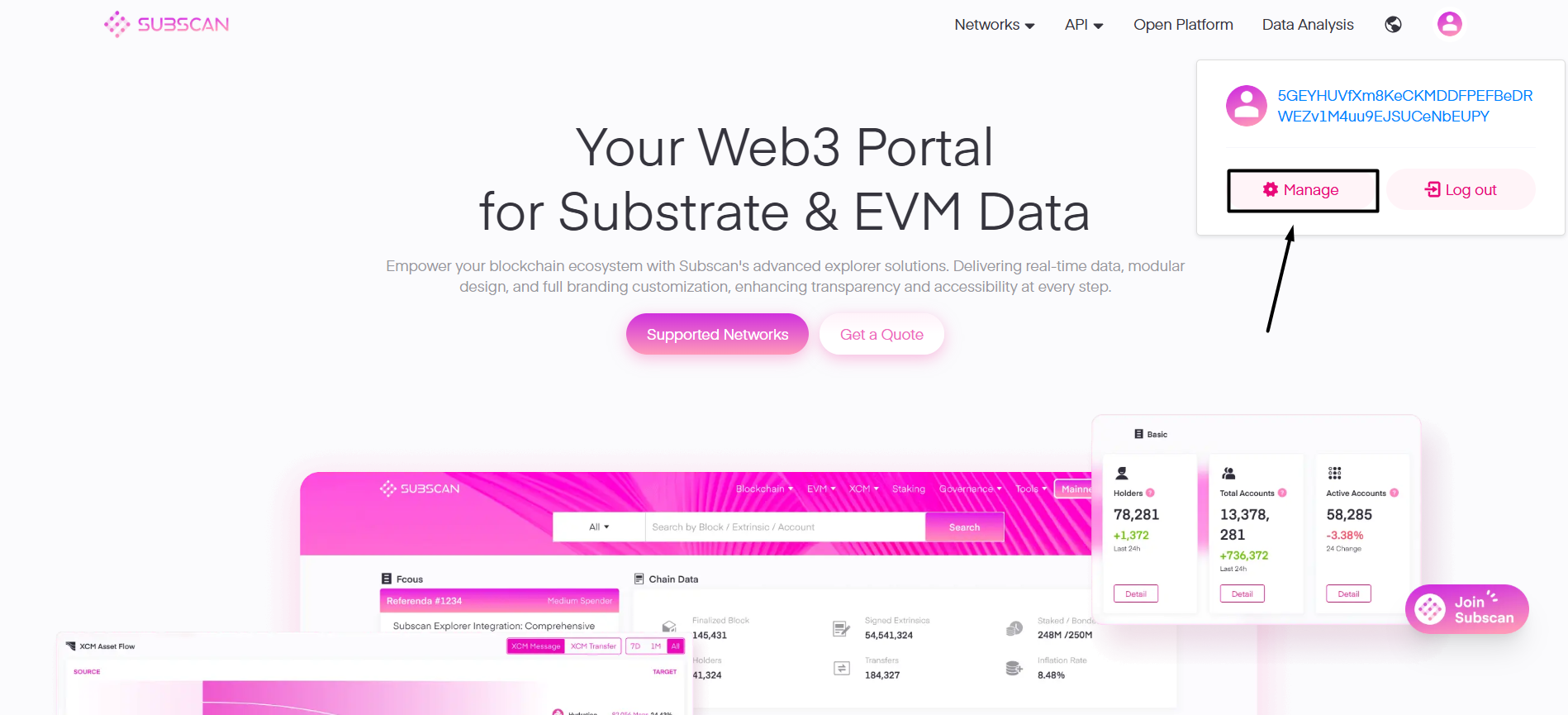
**Step 4**: Once you've logged in/signed up, you'll be redirected to the Subscan homepage. Click the Profile button at the top right of the screen, then choose "**Manage**" to access the account profile.

<figure><img src="https://631687399-files.gitbook.io/~/files/v0/b/gitbook-x-prod.appspot.com/o/spaces%2F-Lh39Kwxa1xxZM9WX_Bs%2Fuploads%2Fkdsv0ljZrLJ6uouo7d46%2Fimage.png?alt=media&#x26;token=0b874373-b002-4e64-b409-855c7a2260b9" alt=""><figcaption></figcaption></figure>

<figure><img src="https://631687399-files.gitbook.io/~/files/v0/b/gitbook-x-prod.appspot.com/o/spaces%2F-Lh39Kwxa1xxZM9WX_Bs%2Fuploads%2FTK5EgUMcemUcpvW3jfSI%2FScreenshot_7.png?alt=media&#x26;token=dae66cae-a757-49b3-9b65-d1a41e8ff74c" alt=""><figcaption></figcaption></figure>

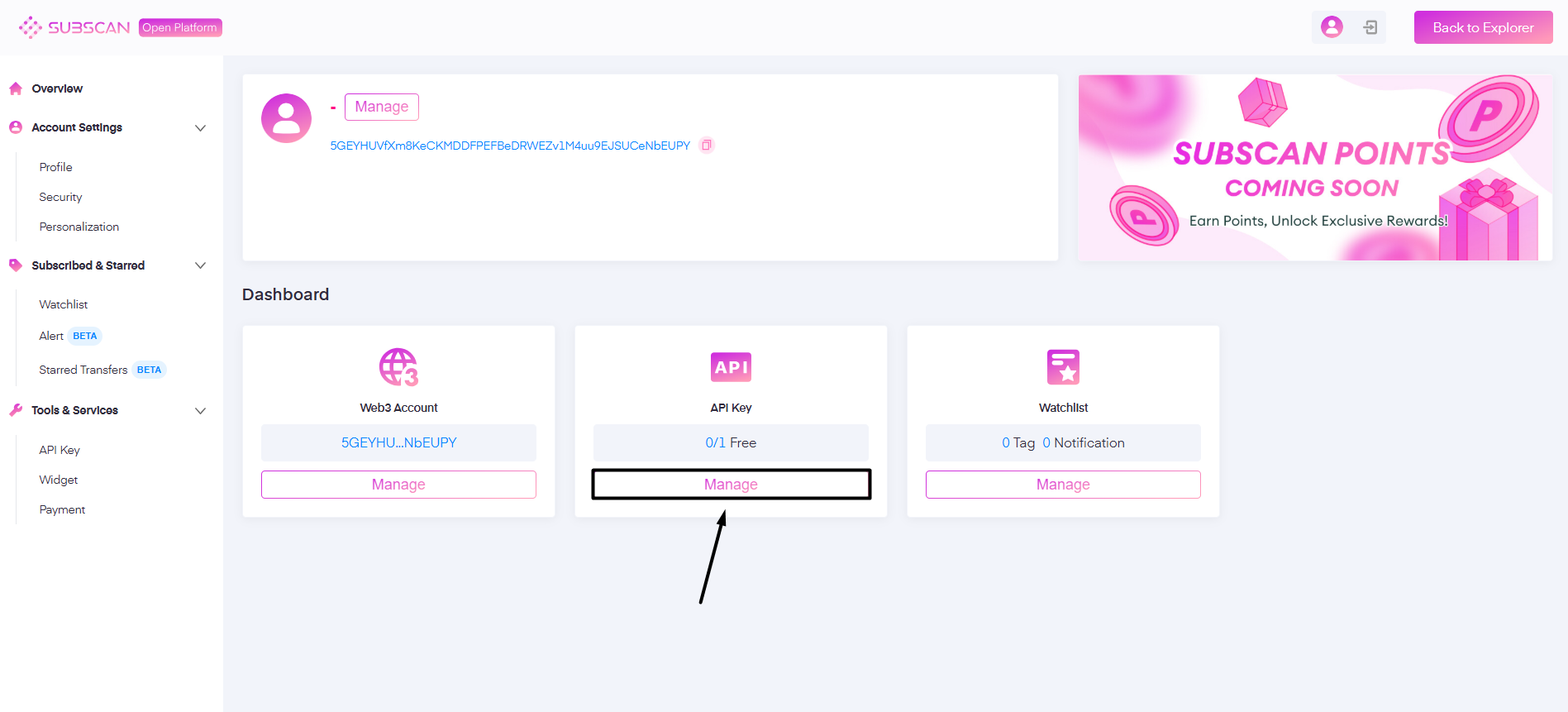
**Step 5**: In the Account profile screen, hover over the Dashboard section and then select the "**Manage**" button under the API key card.

<figure><img src="https://631687399-files.gitbook.io/~/files/v0/b/gitbook-x-prod.appspot.com/o/spaces%2F-Lh39Kwxa1xxZM9WX_Bs%2Fuploads%2FDNWtYCWv3CYuZRunMIaf%2FScreenshot_8.png?alt=media&#x26;token=8f34a48b-19ae-4f71-adc5-be29a076f667" alt=""><figcaption></figcaption></figure>

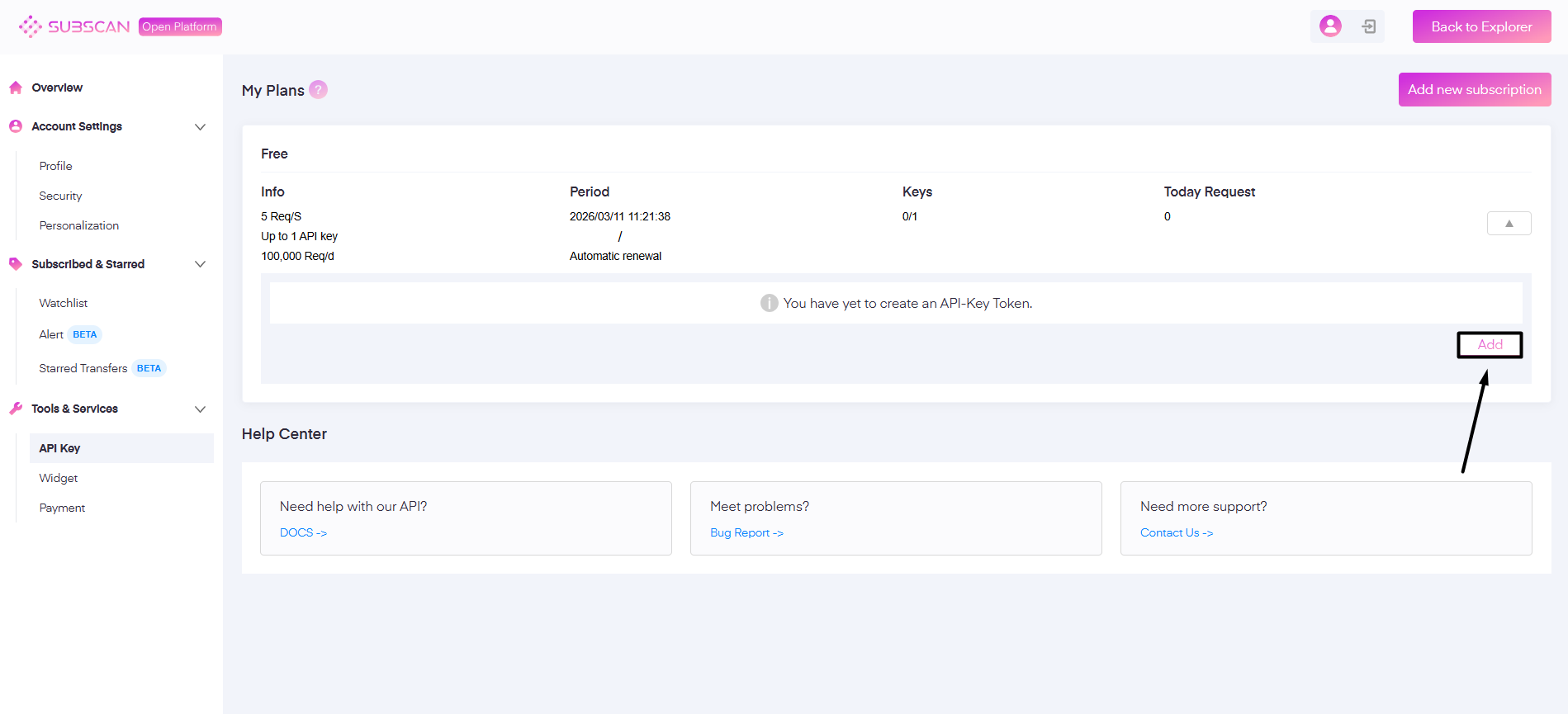
**Step 6**: In the API services screen, click the "**Add**" button to create your API key. Skip this step if you've already created it.

<figure><img src="https://631687399-files.gitbook.io/~/files/v0/b/gitbook-x-prod.appspot.com/o/spaces%2F-Lh39Kwxa1xxZM9WX_Bs%2Fuploads%2F5RDtHxHd0UPuKLn8xqjt%2FScreenshot_9.png?alt=media&#x26;token=30302b4f-2e31-4a58-834e-d51fa8d04b65" alt=""><figcaption></figcaption></figure>

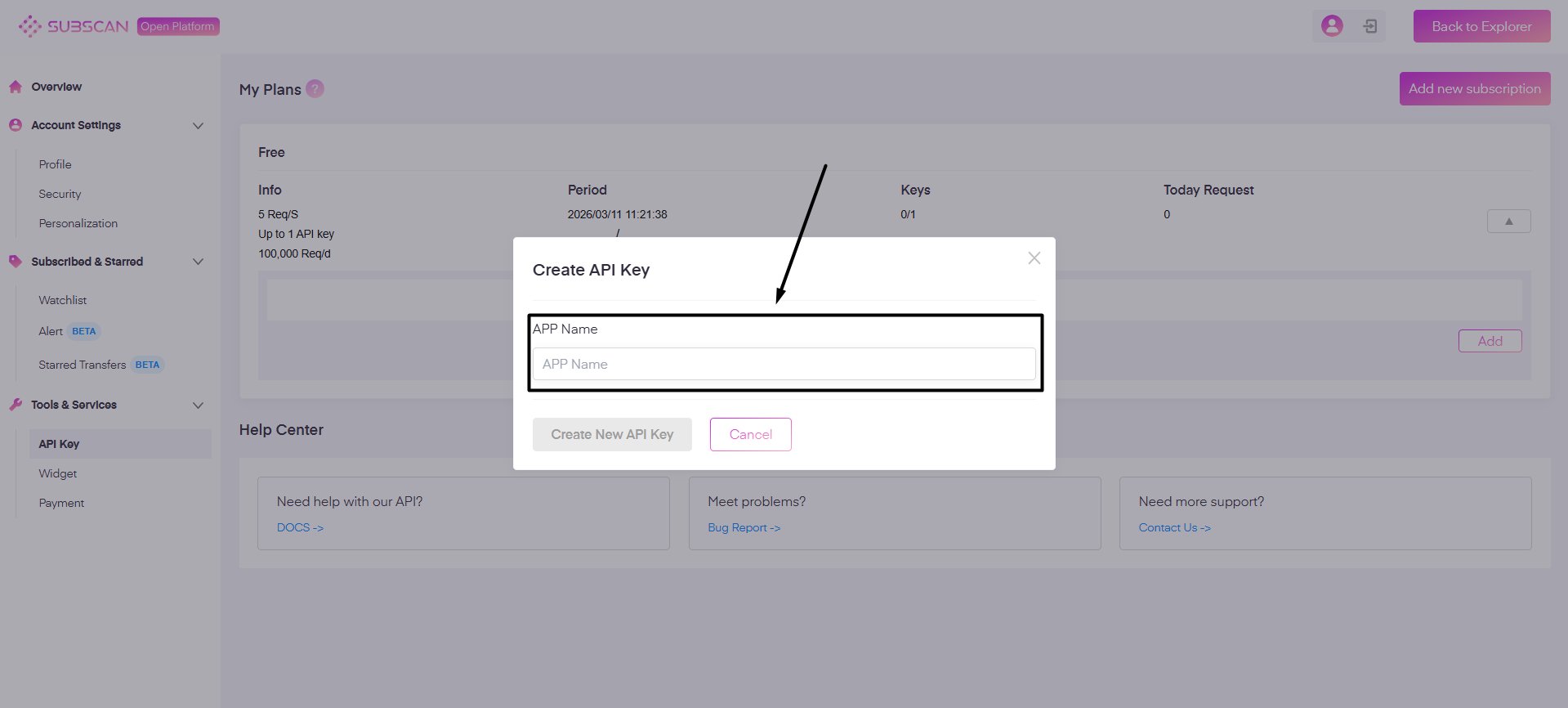
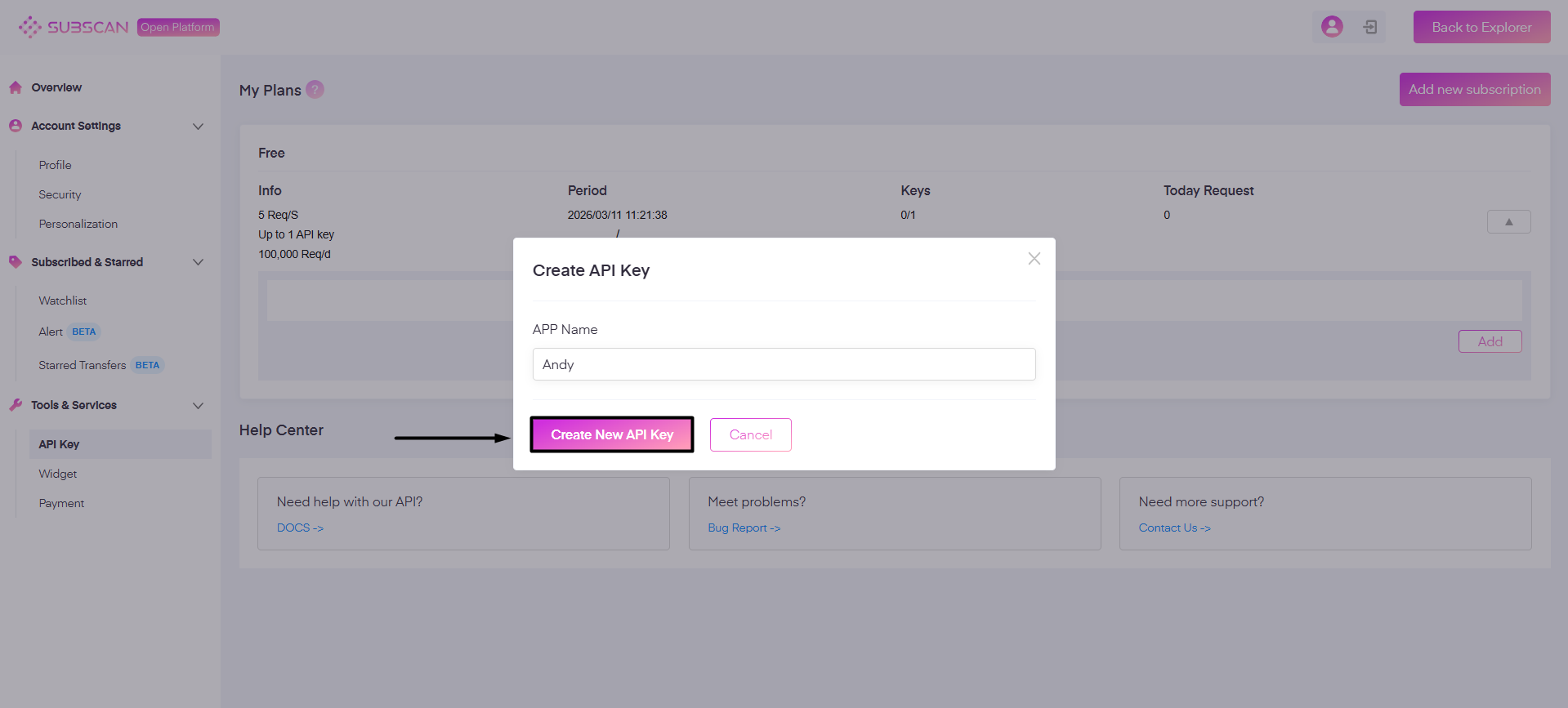
**Step 7**: Enter a name for your API key. Once done, click "**Create New API Key**".

<figure><img src="https://631687399-files.gitbook.io/~/files/v0/b/gitbook-x-prod.appspot.com/o/spaces%2F-Lh39Kwxa1xxZM9WX_Bs%2Fuploads%2F8RWhm1E715geqkjHxUmR%2FScreenshot_10.png?alt=media&#x26;token=393015e3-04d9-4053-a8e3-74c88afefc23" alt=""><figcaption></figcaption></figure>

<figure><img src="https://631687399-files.gitbook.io/~/files/v0/b/gitbook-x-prod.appspot.com/o/spaces%2F-Lh39Kwxa1xxZM9WX_Bs%2Fuploads%2FqnambVRi1nAJcc885dhz%2FScreenshot_11.png?alt=media&#x26;token=3256a407-d4bf-48b2-8941-7a839c00e7d4" alt=""><figcaption></figcaption></figure>

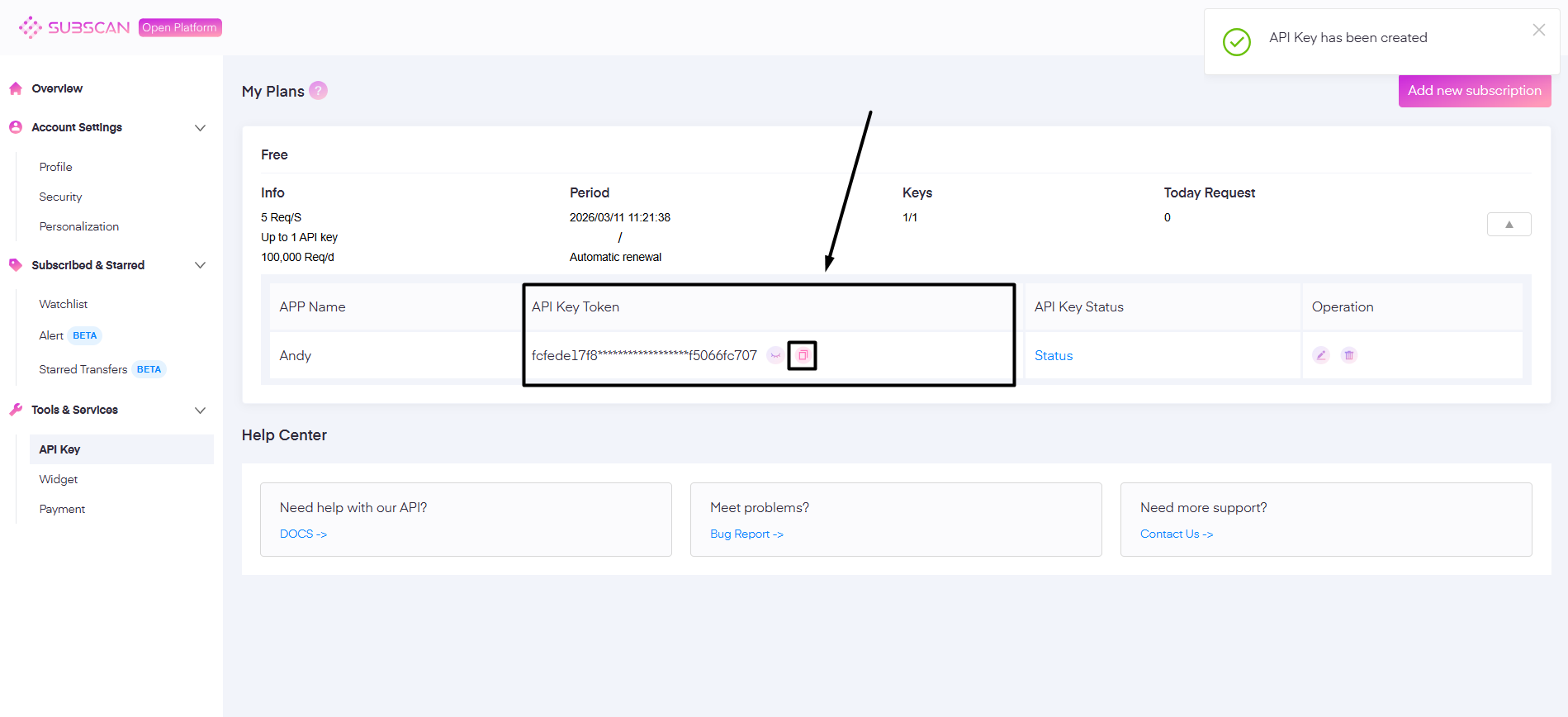
**Step 8**: Your Subscan API Key has been created! You can now get the key by clicking the Copy button. This action is needed so that you can paste it on SubWallet later.

<figure><img src="https://631687399-files.gitbook.io/~/files/v0/b/gitbook-x-prod.appspot.com/o/spaces%2F-Lh39Kwxa1xxZM9WX_Bs%2Fuploads%2FVdYb9sHC9kw0A2tERHGF%2FScreenshot_12.png?alt=media&#x26;token=2276fe6a-f269-467d-94ed-401d614555d7" alt=""><figcaption></figcaption></figure>

### Config API Key on SubWallet

**Step 9**: On the SubWallet homepage, click the "**Settings**" tab on the sidebar.

<figure><img src="https://631687399-files.gitbook.io/~/files/v0/b/gitbook-x-prod.appspot.com/o/spaces%2F-Lh39Kwxa1xxZM9WX_Bs%2Fuploads%2FncRsj0QiHsoHuRqesqiK%2Fimage.png?alt=media&#x26;token=a38868bf-470a-49dd-a78a-582c59005670" alt=""><figcaption></figcaption></figure>

**Step 10**: In the Settings screen, select "**Account settings**".

<figure><img src="https://631687399-files.gitbook.io/~/files/v0/b/gitbook-x-prod.appspot.com/o/spaces%2F-Lh39Kwxa1xxZM9WX_Bs%2Fuploads%2Ft59uw4tIapVXS1LYGNlT%2Fimage.png?alt=media&#x26;token=d9da38ae-2e78-4e44-b904-1ec26e121211" alt=""><figcaption></figcaption></figure>

{% hint style="info" %}
You can also open the Settings screen by clicking on the account name to access the account selection tab. Then click the <img src="https://631687399-files.gitbook.io/~/files/v0/b/gitbook-x-prod.appspot.com/o/spaces%2F-Lh39Kwxa1xxZM9WX_Bs%2Fuploads%2FjJ2yFPaSWgyHF8VfwGsZ%2FScreenshot_25.png?alt=media&#x26;token=ab40c8cc-1c82-4aff-b313-c08cd8085483" alt="" data-size="line"> icon to access the Settings section.

![](https://631687399-files.gitbook.io/~/files/v0/b/gitbook-x-prod.appspot.com/o/spaces%2F-Lh39Kwxa1xxZM9WX_Bs%2Fuploads%2FTTcUqGIakqIgbucAK8hg%2Fimage.png?alt=media\&token=591db516-39f2-4193-84ca-9cea12a4c17a)

![](https://631687399-files.gitbook.io/~/files/v0/b/gitbook-x-prod.appspot.com/o/spaces%2F-Lh39Kwxa1xxZM9WX_Bs%2Fuploads%2Fljbh7sUa0LtKJYt62YQa%2Fimage.png?alt=media\&token=d658145b-1ff2-4de5-b122-30ea520dccaf)
{% endhint %}

**Step 11**: In the Account settings screen, choose "**Config Subscan API key**".

<figure><img src="https://631687399-files.gitbook.io/~/files/v0/b/gitbook-x-prod.appspot.com/o/spaces%2F-Lh39Kwxa1xxZM9WX_Bs%2Fuploads%2Fg1K5lRIggNJHNTti6MHL%2Fimage.png?alt=media&#x26;token=40501f46-3143-4b85-9e3c-8d1e0dbccd96" alt=""><figcaption></figcaption></figure>

**Step 12**: Enter the key obtained in **Step 8**, then click "**Save**" to save it in SubWallet. Once saved, the key will then be used to retrieve Subscan data for transactions on Subscan-supported networks.

<figure><img src="https://631687399-files.gitbook.io/~/files/v0/b/gitbook-x-prod.appspot.com/o/spaces%2F-Lh39Kwxa1xxZM9WX_Bs%2Fuploads%2F3OV6svzxMog6RY3bPNJK%2Fimage.png?alt=media&#x26;token=c7fdda65-3929-49ba-9e78-1922c1becc92" alt=""><figcaption></figcaption></figure>

That’s it—you’re all set! You can now track your real-time balance, transaction history, and more directly in the wallet using your free Subscan API key.