> For the complete documentation index, see [llms.txt](https://docs.subwallet.app/main/llms.txt). Markdown versions of documentation pages are available by appending `.md` to page URLs; this page is available as [Markdown](https://docs.subwallet.app/main/web-dashboard-user-guide/cold-wallet-management/attach-polkadot-vault-prev.-parity-signer-accounts/update-network-metadata.md).
# Update network metadata
Given that your Polkadot Vault device is always offline and separated from any networks (air-gapped), you'll need to engage in a specific process to ensure your transactions remain valid by updating the chain metadata.
This can be done through the use of QR codes found on the [Novasama Metadata Portal](https://metadata.novasama.io/#/polkadot), which will provide your device with the information required to update the chain metadata.
To update the chain metadata, please follow the instructions below:
{% hint style="info" %}
Please look at the following example for your perusal. Here, we are updating the metadata of the Avail network.
{% endhint %}
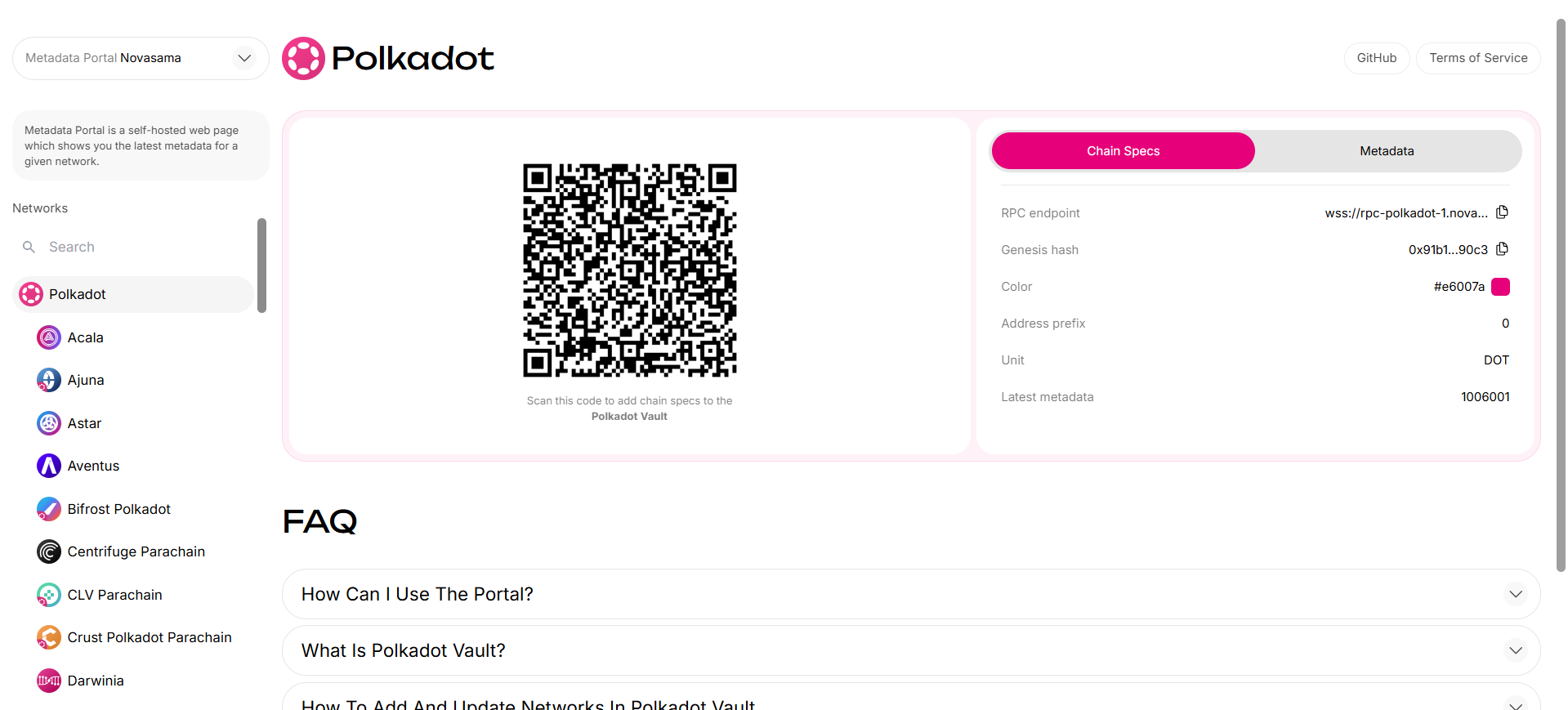
**Step 1**: Navigate to the [Novasama Metadata Portal](https://metadata.novasama.io/#/polkadot). The interface should be like the image below.
{% hint style="info" %}
This should be done on a device that is **not** your Polkadot Vault device (PC recommended).
{% endhint %}
In this case, we are using a PC.
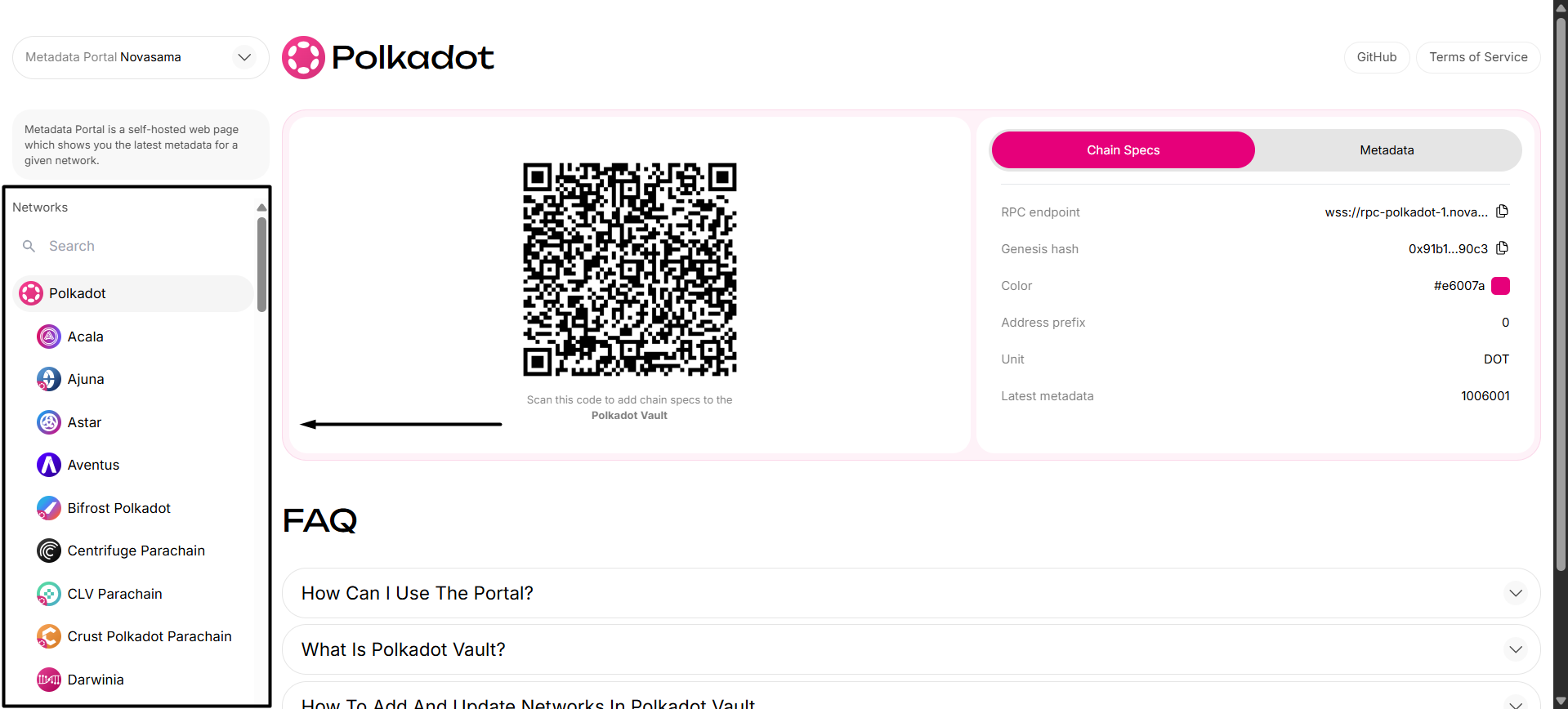
**Step 2**: Choose the network you want to add in the **Network** tab on the sidebar.
{% hint style="info" %}
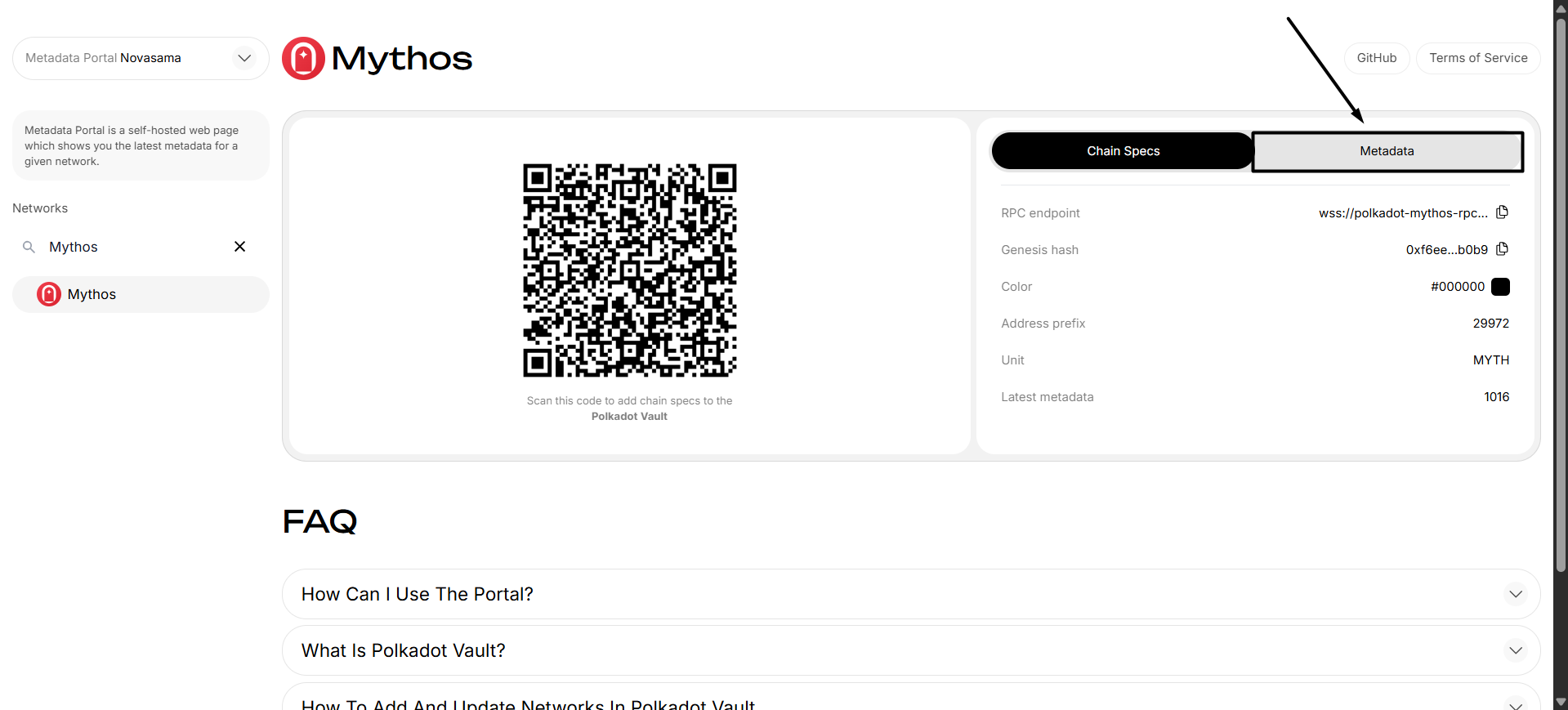
To make it easier, type the network you want to update in the **Search** bar.
*In this case, we want to add the Mythos network.*

{% endhint %}
**Step 3**: Go to the "**Metadata**" tab.
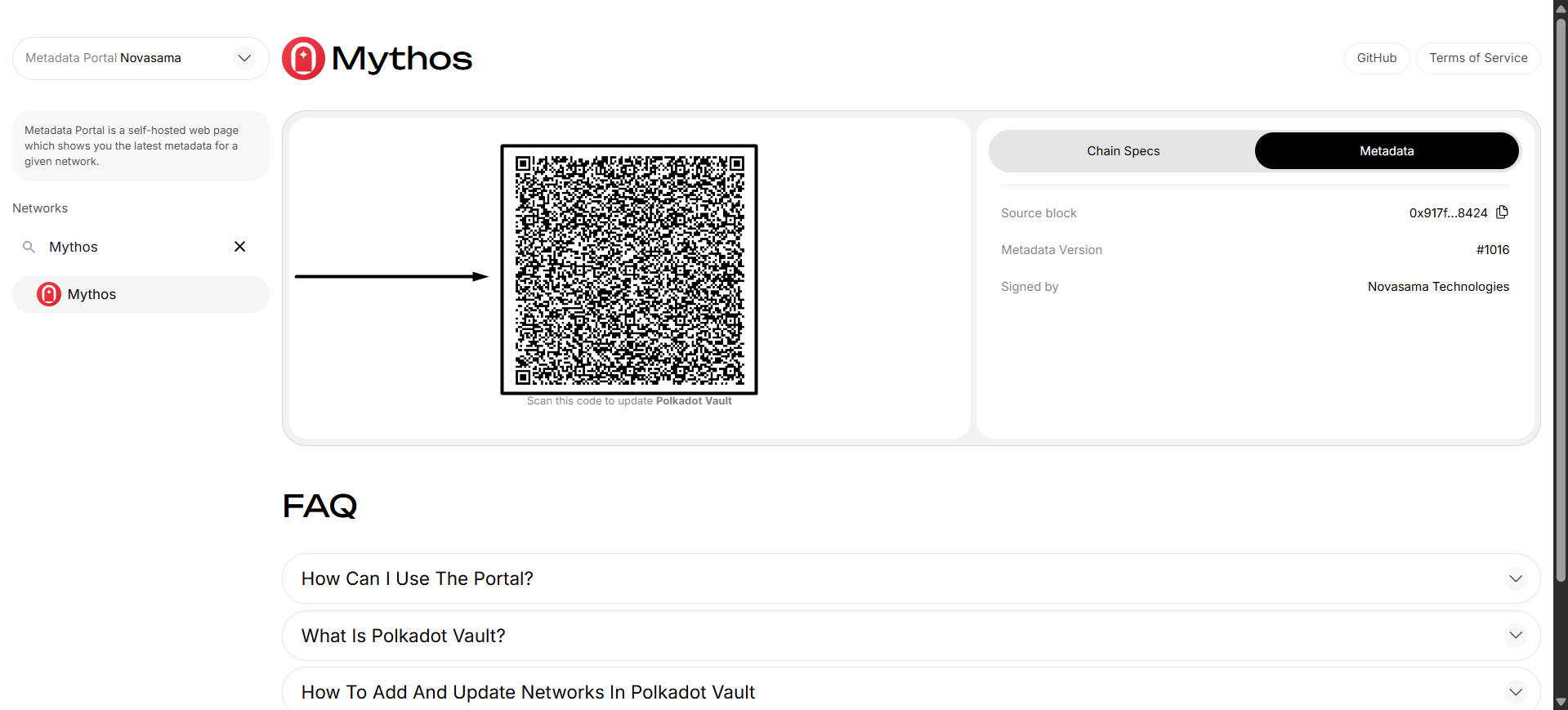
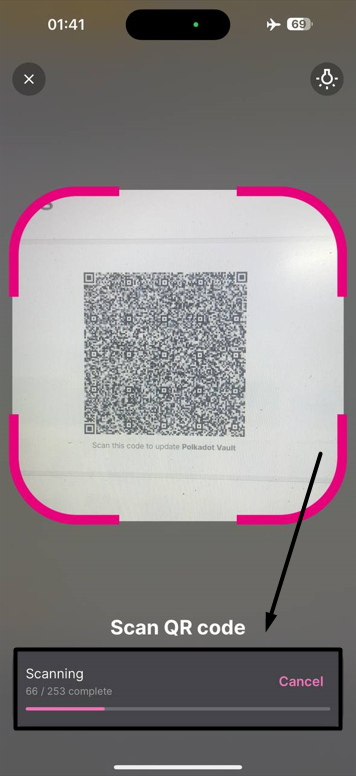
**Step 4**: Scan the Metadata Animated QR code using your Polkadot Vault device.
{% hint style="info" %}
Make sure your device remains stationary while the scanning process is in progress. This may take a few minutes to complete.
{% endhint %}
**Step 5**: Once you've completed, review the verifier certificate and select **"Approve**".
Now, you have successfully updated the network's metadata!