# Connect via EVM apps

**Step 1**: Have your Ledger device ready & connected to your computer. Choose the App on your Ledger.

*In this example, we will connect Ledger accounts to SubWallet by choosing the Ethereum app on the Ledger Nano S Plus device.*

<div><figure><img src="https://631687399-files.gitbook.io/~/files/v0/b/gitbook-x-prod.appspot.com/o/spaces%2F-Lh39Kwxa1xxZM9WX_Bs%2Fuploads%2FALWBFtHhEpLGxaJTNVwt%2FIMG_0943.jpg?alt=media&#x26;token=950d296d-ba0f-40ad-b46c-e6e47300b295" alt="" width="563"><figcaption></figcaption></figure> <figure><img src="https://631687399-files.gitbook.io/~/files/v0/b/gitbook-x-prod.appspot.com/o/spaces%2F-Lh39Kwxa1xxZM9WX_Bs%2Fuploads%2F0cdfCzoL0x2Zw7ex2xkn%2FIMG_0944.jpg?alt=media&#x26;token=411926c8-3178-4273-a04f-9f650398745e" alt="" width="563"><figcaption></figcaption></figure></div>

**Step 2:** On the SubWallet homepage, click on the account name in the upper-right corner to access the account selection tab.

<figure><img src="https://631687399-files.gitbook.io/~/files/v0/b/gitbook-x-prod.appspot.com/o/spaces%2F-Lh39Kwxa1xxZM9WX_Bs%2Fuploads%2FksZWbvoH2KXIoylac9c9%2Fimage.png?alt=media&#x26;token=4c239f7d-e044-46ae-9dda-3c1b7c081bc7" alt=""><figcaption></figcaption></figure>

**Step 3**: In the account selection tab, click the <img src="https://631687399-files.gitbook.io/~/files/v0/b/gitbook-x-prod.appspot.com/o/spaces%2F-Lh39Kwxa1xxZM9WX_Bs%2Fuploads%2FFiGMDTOg9S8t9pK5Ty8A%2FScreenshot_191.png?alt=media&#x26;token=0a583318-92e6-4dcc-a747-c92f918addcb" alt="" data-size="line"> button at the bottom right corner of the screen.

<figure><img src="https://631687399-files.gitbook.io/~/files/v0/b/gitbook-x-prod.appspot.com/o/spaces%2F-Lh39Kwxa1xxZM9WX_Bs%2Fuploads%2Fy3azrEOQGZxkly57n0Bb%2Fimage.png?alt=media&#x26;token=3e7e66cf-a83a-44b2-9e67-53cbf43ff101" alt=""><figcaption></figcaption></figure>

**Step 4**: Choose "**Connect a Ledger device**".

<figure><img src="https://631687399-files.gitbook.io/~/files/v0/b/gitbook-x-prod.appspot.com/o/spaces%2F-Lh39Kwxa1xxZM9WX_Bs%2Fuploads%2FHtZYvLgKJkdnX7w9JTmn%2Fimage.png?alt=media&#x26;token=77c8ef90-be42-45d3-adb8-9b39f0cb82a4" alt=""><figcaption></figcaption></figure>

**Step 5**: You will be directed to a new window. Select the app corresponding to the current App on your Ledger and click "**Connect**". Your extension will display the following pop-up:

<figure><img src="https://631687399-files.gitbook.io/~/files/v0/b/gitbook-x-prod.appspot.com/o/spaces%2F-Lh39Kwxa1xxZM9WX_Bs%2Fuploads%2FtjmPIGhSB8NCOrYfn1FS%2FScreenshot_23.png?alt=media&#x26;token=6779b5de-d8bb-4216-8031-3b0485ddfab5" alt=""><figcaption></figcaption></figure>

Click on the device name (Nano S Plus in this case) and click "**Connect**".

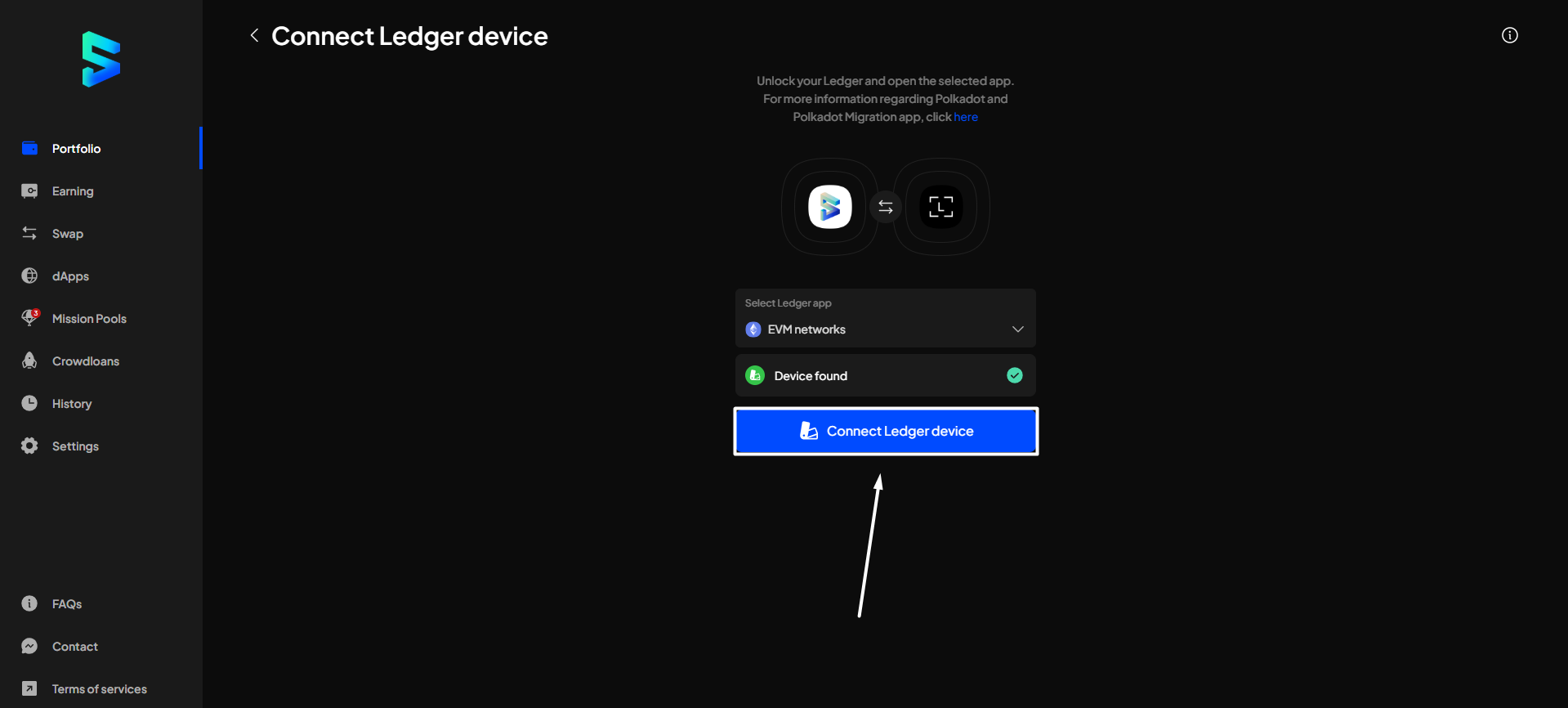
**Step 6**: After your Ledger has been successfully found by SubWallet, click "**Connect Ledger device**".

{% hint style="info" %}
Don't forget to turn on the corresponding app on the Ledger device.
{% endhint %}

<figure><img src="https://631687399-files.gitbook.io/~/files/v0/b/gitbook-x-prod.appspot.com/o/spaces%2F-Lh39Kwxa1xxZM9WX_Bs%2Fuploads%2FymHTeX2e5FXkX432UYRR%2Fimage.png?alt=media&#x26;token=49faa368-1ac6-4ccd-8363-dc5460049e24" alt=""><figcaption></figcaption></figure>

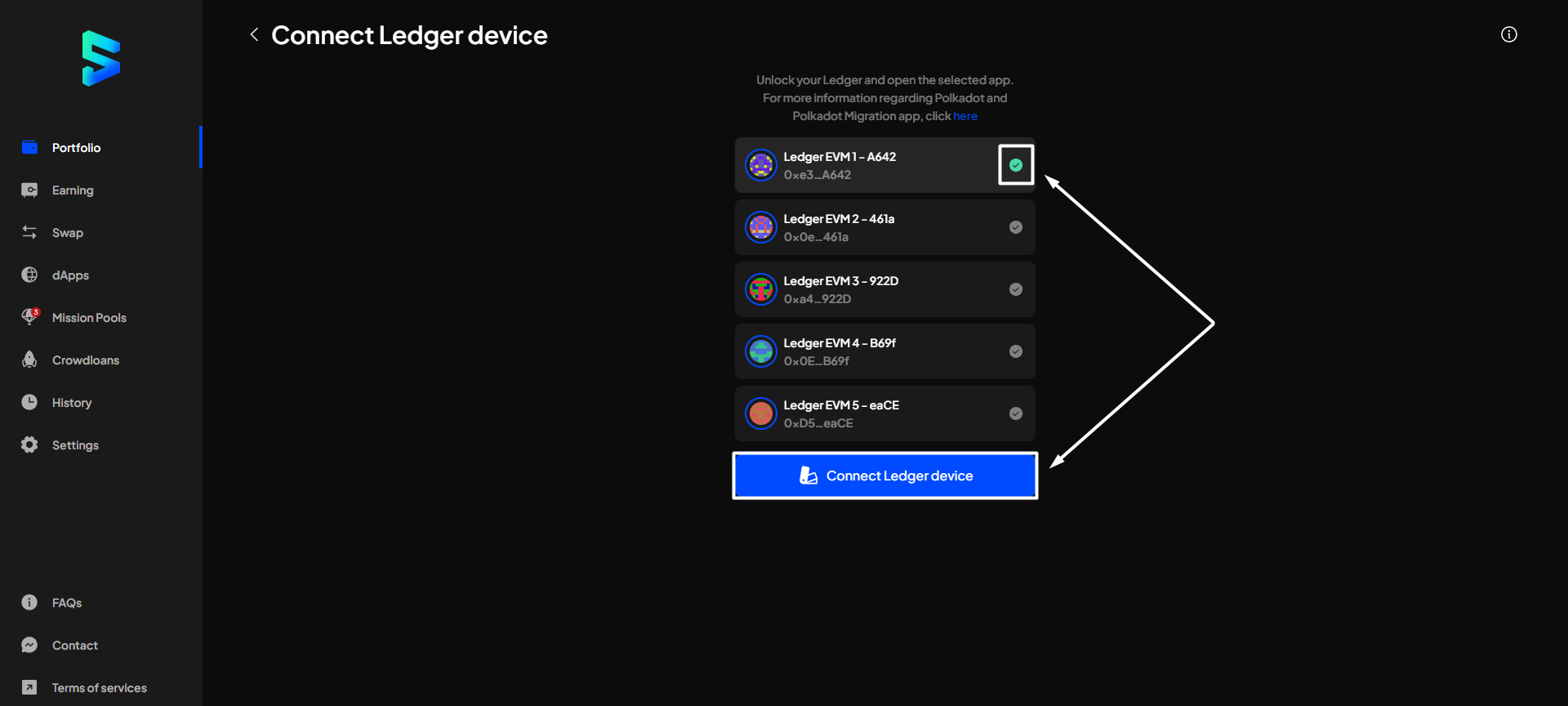
**Step 7**: Choose the account(s) you want to use, then click "**Connect Ledger device**".

<figure><img src="https://631687399-files.gitbook.io/~/files/v0/b/gitbook-x-prod.appspot.com/o/spaces%2F-Lh39Kwxa1xxZM9WX_Bs%2Fuploads%2FG6f9mgdqiIc7A5TfP2or%2Fimage.png?alt=media&#x26;token=ed0915fa-084a-40fe-a9b4-08841d2e9f89" alt=""><figcaption></figcaption></figure>

**Step 8**: Your Ledger account is ready!

If you repeat the action in **Step 2**, you will see your newly connected Ledger Polkadot accounts displayed in the "**Ledger Account**" section.

<figure><img src="https://631687399-files.gitbook.io/~/files/v0/b/gitbook-x-prod.appspot.com/o/spaces%2F-Lh39Kwxa1xxZM9WX_Bs%2Fuploads%2F2hEVSMDQEDeTVkzsrIr0%2Fimage.png?alt=media&#x26;token=f1ef9f3c-ba8a-462c-98cb-19ce912ba22c" alt=""><figcaption></figcaption></figure>