# Connect via the Polkadot app

## Understand the new Polkadot app

On July 1, 2024, the new Polkadot app was released (version 100.0.5). With this new app, you will be able to use a single Ledger account across any Substrate-based network.

To ensure compatibility with the new Polkadot app, all Substrate-based networks need to update their runtime logic. To check if a network has performed this action, visit the [Parachains Metadata dashboard](https://dashboards.data.paritytech.io/metadata.html). If it hasn't, continue using the corresponding Ledger app.

{% hint style="warning" %}
If your Polkadot app is on a version lower than 100.0.5, you're required to update the app in order to continue using and connecting to SubWallet.
{% endhint %}

## Select the right account type for use when connecting via Polkadot app

Starting from version [100.0.14](https://github.com/LedgerHQ/app-polkadot/releases/tag/v100.0.14), users will be able to connect and perform transactions on Substrate-based networks that use EVM addresses (e.g., *Mythos, Moonbeam, Moonriver*) through the Polkadot app. As these networks use a different signing method from those who fully Substrate-based, you will need to select a different account type to connect.

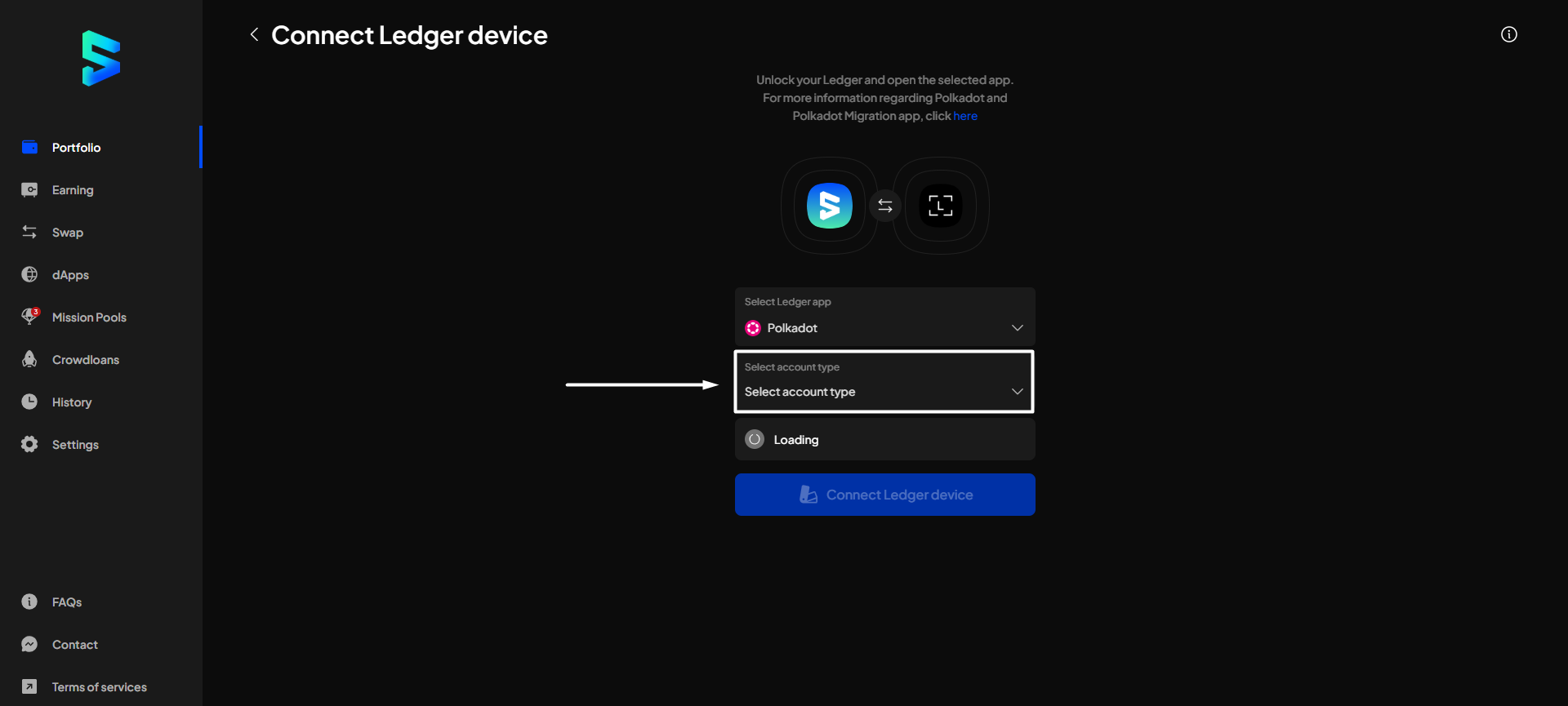
In particular, after selecting the Polkadot app option, depending on your needs, you will need to choose the account type you want:

<table><thead><tr><th width="172.40008544921875">Account type</th><th width="189.7999267578125" align="center">Default account name</th><th>Compatibility</th></tr></thead><tbody><tr><td>Polkadot account</td><td align="center">Ledger Polkadot</td><td>Manage, receive &#x26; transfer assets on <strong>fully Substrate-based networks</strong> (i.e., networks that use Substrate address format - starting with <strong>5</strong>)</td></tr><tr><td>Ethereum account</td><td align="center">Ledger Polkadot (EVM)</td><td>Manage, receive &#x26; transfer assets on <strong>Substrate-based networks that are EVM-compatible</strong> (i.e., networks that use EVM address format - starting with <strong>0x</strong>)</td></tr></tbody></table>

Unlike Ledger Polkadot accounts, Ledger Polkadot (EVM) accounts only support some tokens & networks. Check out the supported tokens & networks list below to send the correct token to this account type:

| Network                  | Token   |
| ------------------------ | ------- |
| Mythos                   | MYTH    |
| Moonbeam                 | GLMR    |
| Moonriver                | MOVR    |
| Crab2 Parachain          | CRAB    |
|                          | CKTON\* |
| Pangolin                 | PRING   |
|                          | PKTON\* |
| Darwinia 2               | RING    |
|                          | PINK\*  |
|                          | KTON\*  |
| LAOS Network             | LAOS    |
| Atleta Olympic (Testnet) | ATLA    |
| Moonbase Alpha (Testnet) | DEV     |
| Muse Testnet (Testnet)   | MUSE    |

*(\*): Non-native token*

## Connect your accounts via Polkadot app

**Step 1**: Have your Ledger device ready & connected to your computer. Choose the Polkadot App on your Ledger.

<div><figure><img src="https://631687399-files.gitbook.io/~/files/v0/b/gitbook-x-prod.appspot.com/o/spaces%2F-Lh39Kwxa1xxZM9WX_Bs%2Fuploads%2FIVnP4rv7d6PbejUxLMTJ%2Fphoto_2024-12-11_16-58-17.jpg?alt=media&#x26;token=d610c9d3-f817-4ca2-8d0a-db462a12ab08" alt="" width="563"><figcaption></figcaption></figure> <figure><img src="https://631687399-files.gitbook.io/~/files/v0/b/gitbook-x-prod.appspot.com/o/spaces%2F-Lh39Kwxa1xxZM9WX_Bs%2Fuploads%2FKqlp9jXjWdkaAEPoPsfQ%2Fphoto_2024-12-11_16-58-22.jpg?alt=media&#x26;token=6dd8ad11-792b-480f-a4b1-134999e9d695" alt="" width="563"><figcaption></figcaption></figure></div>

**Step 2:** On the SubWallet homepage, click on the account name in the upper-right corner to access the account selection tab.

<figure><img src="https://631687399-files.gitbook.io/~/files/v0/b/gitbook-x-prod.appspot.com/o/spaces%2F-Lh39Kwxa1xxZM9WX_Bs%2Fuploads%2FksZWbvoH2KXIoylac9c9%2Fimage.png?alt=media&#x26;token=4c239f7d-e044-46ae-9dda-3c1b7c081bc7" alt=""><figcaption></figcaption></figure>

**Step 3**: In the account selection tab, click the <img src="https://631687399-files.gitbook.io/~/files/v0/b/gitbook-x-prod.appspot.com/o/spaces%2F-Lh39Kwxa1xxZM9WX_Bs%2Fuploads%2FFiGMDTOg9S8t9pK5Ty8A%2FScreenshot_191.png?alt=media&#x26;token=0a583318-92e6-4dcc-a747-c92f918addcb" alt="" data-size="line"> button at the bottom right corner of the screen.

<figure><img src="https://631687399-files.gitbook.io/~/files/v0/b/gitbook-x-prod.appspot.com/o/spaces%2F-Lh39Kwxa1xxZM9WX_Bs%2Fuploads%2Fy3azrEOQGZxkly57n0Bb%2Fimage.png?alt=media&#x26;token=3e7e66cf-a83a-44b2-9e67-53cbf43ff101" alt=""><figcaption></figcaption></figure>

**Step 4**: Choose "**Connect a Ledger device**".

<figure><img src="https://631687399-files.gitbook.io/~/files/v0/b/gitbook-x-prod.appspot.com/o/spaces%2F-Lh39Kwxa1xxZM9WX_Bs%2Fuploads%2FHtZYvLgKJkdnX7w9JTmn%2Fimage.png?alt=media&#x26;token=77c8ef90-be42-45d3-adb8-9b39f0cb82a4" alt=""><figcaption></figcaption></figure>

**Step 5**: You will be directed to a new window. As the default app to connect is Polkadot, your extension will display the following pop-up:

<figure><img src="https://631687399-files.gitbook.io/~/files/v0/b/gitbook-x-prod.appspot.com/o/spaces%2F-Lh39Kwxa1xxZM9WX_Bs%2Fuploads%2FtjmPIGhSB8NCOrYfn1FS%2FScreenshot_23.png?alt=media&#x26;token=6779b5de-d8bb-4216-8031-3b0485ddfab5" alt=""><figcaption></figcaption></figure>

Click on the device name (Nano S Plus in this case) and click "**Connect**".

**Step 6**: After connecting, click on the "**Select account type**" field to choose the account type you want to connect.

<figure><img src="https://631687399-files.gitbook.io/~/files/v0/b/gitbook-x-prod.appspot.com/o/spaces%2F-Lh39Kwxa1xxZM9WX_Bs%2Fuploads%2FoT7L4vu0YlWSlQ8vu1Np%2Fimage.png?alt=media&#x26;token=7dd5d4f2-d4fd-4f4d-b626-3c31ceb47fad" alt=""><figcaption></figcaption></figure>

A popup screen will appear on the right side. Choose the account type you want to connect.&#x20;

*In this example, we will choose "Ethereum account", which will then later be called "Ledger Polkadot (EVM)".*

<figure><img src="https://631687399-files.gitbook.io/~/files/v0/b/gitbook-x-prod.appspot.com/o/spaces%2F-Lh39Kwxa1xxZM9WX_Bs%2Fuploads%2F2yQBWDLfMixHQCYOut3g%2Fimage.png?alt=media&#x26;token=125abee5-6012-4761-b957-4b1f6fb38306" alt=""><figcaption></figcaption></figure>

**Step 7**: After SubWallet has successfully found your Ledger with the chosen account type, click "**Connect Ledger device**".

{% hint style="info" %}
Don't forget to turn on the corresponding app on the Ledger device.
{% endhint %}

<figure><img src="https://631687399-files.gitbook.io/~/files/v0/b/gitbook-x-prod.appspot.com/o/spaces%2F-Lh39Kwxa1xxZM9WX_Bs%2Fuploads%2FhjAAPRzPh0tBfyeosoRa%2Fimage.png?alt=media&#x26;token=86271b9c-d0a9-467c-9ce4-635098138ef0" alt=""><figcaption></figcaption></figure>

**Step 8**: Choose the account(s) you want to use, then click "**Connect Ledger device**".

<figure><img src="https://631687399-files.gitbook.io/~/files/v0/b/gitbook-x-prod.appspot.com/o/spaces%2F-Lh39Kwxa1xxZM9WX_Bs%2Fuploads%2FsLTK4ehl3fqQEF87cHMu%2Fimage.png?alt=media&#x26;token=2f0a604d-fafd-43f5-af1a-189f7a096a44" alt=""><figcaption></figcaption></figure>

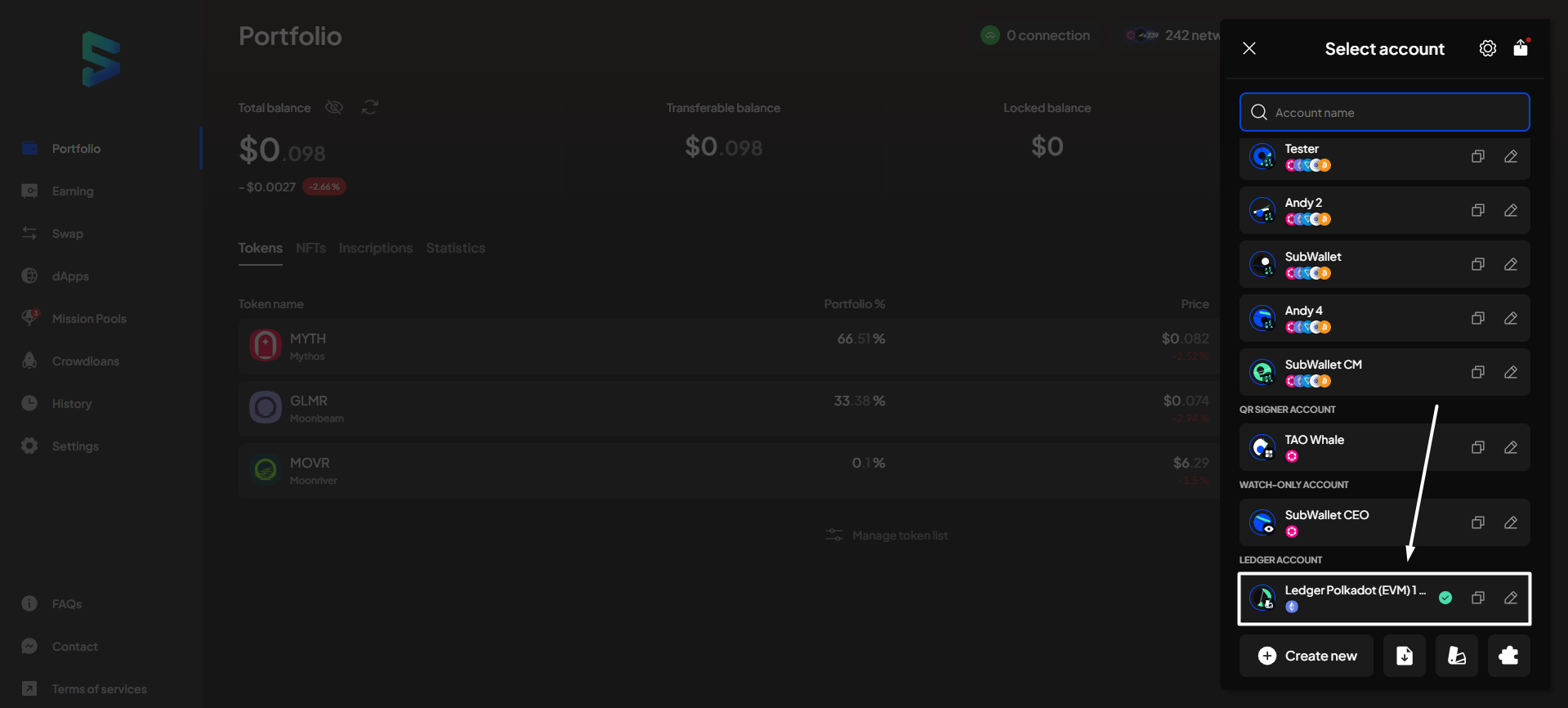
**Step 9**: Your Ledger account is ready!

If you repeat the action in **Step 2**, you will see your newly connected Ledger Polkadot accounts displayed in the "**Ledger Account**" section.

<figure><img src="https://631687399-files.gitbook.io/~/files/v0/b/gitbook-x-prod.appspot.com/o/spaces%2F-Lh39Kwxa1xxZM9WX_Bs%2Fuploads%2FW6odw1rQLK4OpLgBkKgV%2Fimage.png?alt=media&#x26;token=ef5b1838-11a0-4fd0-90e3-e39d2ee883d2" alt=""><figcaption></figcaption></figure>