---
description: Explore new horizons by seamlessly integrate a wide range of networks.
---
# Import custom networks
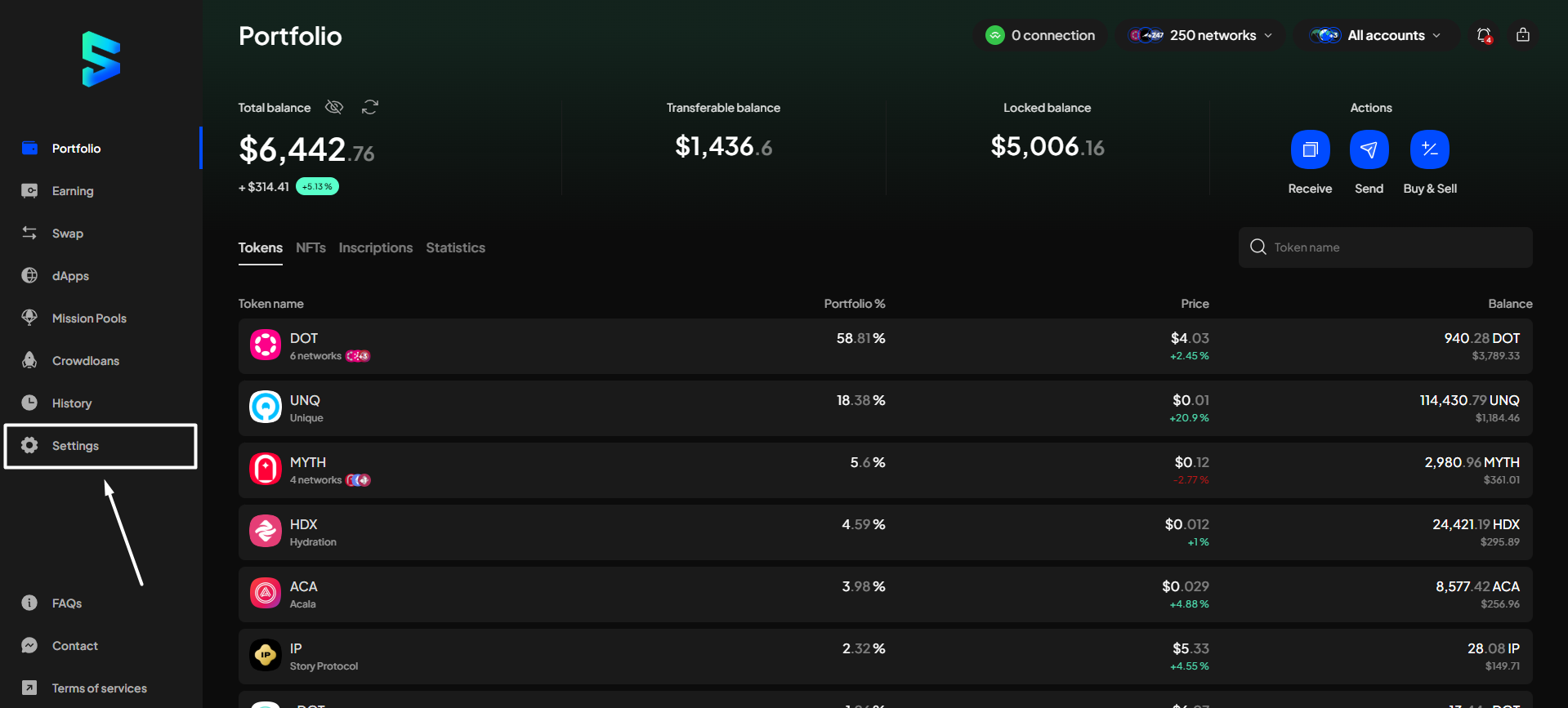
**Step 1**: On the SubWallet homepage, select the **Settings** tab on the sidebar to get to the settings.
**Step 2**: In the Settings screen, choose "**Manage networks**".
**Step 3**: Click on the "**+**" button at the top right corner of the screen to import a new network.
**Step 4**: Enter the network's provider URL. Once done, SubWallet will automatically detect the network name, token name (symbol), and network type.
{% hint style="info" %}
If you want to input more information, such as price ID, block explorer, and crowdloan URL, you're free to do so. You can check this article for more details.
{% endhint %}
_In this example, we are importing a network named "**Basecamp**", an EVM network with the token symbol "CAMP"._
{% hint style="info" %}
SubWallet currently supports WSS providers for Substrate networks and HTTP providers for EVM networks, so make sure you're importing a network with this type of provider.
{% endhint %}
Once done, click "**Save**" to successfully import the network.
**Step 5**: Find and use your network.
Once your network has been imported, you will be redirected to the "**Manage networks**" section. If you perform a search for your newly imported network, it will be found.