# View transaction history

## Supported types of transactions for display <a href="#supported-types-of-transactions-for-display" id="supported-types-of-transactions-for-display"></a>

{% hint style="info" %}
SubWallet supports 2 types of transactions for display in the History tab:

* All transactions made directly within the wallet will be **saved and displayed**.
* Transactions from networks that have their block explorer will be **retrieved and displayed**.
  {% endhint %}

## View the transaction history of your accounts

### View from Settings

**Step 1**: Open the SubWallet app and tap the list item at the top left of the screen to get to the Settings section.

<figure><img src="https://631687399-files.gitbook.io/~/files/v0/b/gitbook-x-prod.appspot.com/o/spaces%2F-Lh39Kwxa1xxZM9WX_Bs%2Fuploads%2FyYkTn0q5TFAf2c8t2Rt9%2FScreenshot_1.png?alt=media&#x26;token=81d9a9ff-b1b9-42e6-aaaa-647697f55522" alt="" width="272"><figcaption></figcaption></figure>

**Step 2**: In the Settings section, choose "**History**".

<figure><img src="https://631687399-files.gitbook.io/~/files/v0/b/gitbook-x-prod.appspot.com/o/spaces%2F-Lh39Kwxa1xxZM9WX_Bs%2Fuploads%2FpKw8ZdOnyCFzUUyqoa7m%2FScreenshot_3.png?alt=media&#x26;token=ac9eda70-5dce-4d5b-be24-e027beb818c9" alt="" width="272"><figcaption></figcaption></figure>

**Step 3**: In the History screen, select the network you want to check the transaction history.

*In this example, we want to check the transaction history of the "Andy 2" account on the Hydration network.*

<div><figure><img src="https://631687399-files.gitbook.io/~/files/v0/b/gitbook-x-prod.appspot.com/o/spaces%2F-Lh39Kwxa1xxZM9WX_Bs%2Fuploads%2FoKxwaRaakmHOE5FYa49q%2FScreenshot_5.png?alt=media&#x26;token=94746024-3080-43f5-8251-d5ae12bd5395" alt="" width="272"><figcaption></figcaption></figure> <figure><img src="https://631687399-files.gitbook.io/~/files/v0/b/gitbook-x-prod.appspot.com/o/spaces%2F-Lh39Kwxa1xxZM9WX_Bs%2Fuploads%2FcyTMSXDevqVp5q175Wog%2FScreenshot_6.png?alt=media&#x26;token=b875e5c9-b0b6-4331-9dcc-7297c885e8d0" alt="" width="272"><figcaption></figcaption></figure></div>

<details>

<summary>If you're in the "<strong>All accounts</strong>" mode</summary>

In this case, you will also need to select the account for which you want to view the transaction history.

<img src="https://631687399-files.gitbook.io/~/files/v0/b/gitbook-x-prod.appspot.com/o/spaces%2F-Lh39Kwxa1xxZM9WX_Bs%2Fuploads%2FIuw6loOZoXoHt3a8hTC4%2FScreenshot_4.png?alt=media&#x26;token=d3a512be-0e86-49c5-94ee-4566e5211bb2" alt="" data-size="original">

</details>

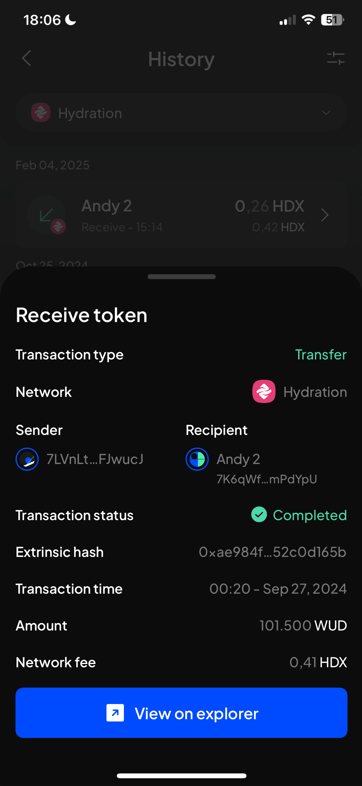
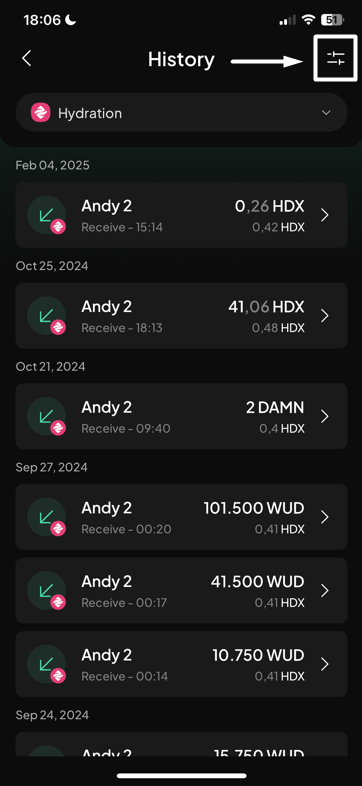
**Step 4**: You can now see all the transactions that happened in the account. Tap on the transaction you want to view the details.

<div><figure><img src="https://631687399-files.gitbook.io/~/files/v0/b/gitbook-x-prod.appspot.com/o/spaces%2F-Lh39Kwxa1xxZM9WX_Bs%2Fuploads%2FIXaoXbsVRbHcVjr0KCUT%2FScreenshot_7.png?alt=media&#x26;token=46e2e73e-6e57-458e-b14b-12342adcd721" alt="" width="272"><figcaption></figcaption></figure> <figure><img src="https://631687399-files.gitbook.io/~/files/v0/b/gitbook-x-prod.appspot.com/o/spaces%2F-Lh39Kwxa1xxZM9WX_Bs%2Fuploads%2Ft6iYPs6A5M11Ijc7HvlB%2FScreenshot_8.png?alt=media&#x26;token=29fe0583-be73-48ed-a73b-f17817b556c3" alt="" width="272"><figcaption></figcaption></figure></div>

You can also use the filter feature to see transactions in a particular category by pressing on the <img src="https://631687399-files.gitbook.io/~/files/v0/b/gitbook-x-prod.appspot.com/o/spaces%2F-Lh39Kwxa1xxZM9WX_Bs%2Fuploads%2FBd3SWCmk4Up0ShHmmSwE%2FScreenshot_41.png?alt=media&#x26;token=6c4a1011-5085-4199-a92e-60ef1c71614c" alt="" data-size="line"> icon at the upper right corner. Choose the type(s) of the transaction you want to view and tap the "**Apply filter**" button below.

<div><figure><img src="https://631687399-files.gitbook.io/~/files/v0/b/gitbook-x-prod.appspot.com/o/spaces%2F-Lh39Kwxa1xxZM9WX_Bs%2Fuploads%2Fwv4xthZSKPXKHOZPh5Iz%2FScreenshot_9.png?alt=media&#x26;token=fe1b4238-b52c-41bb-afdc-4eae0853fe3c" alt="" width="272"><figcaption></figcaption></figure> <figure><img src="https://631687399-files.gitbook.io/~/files/v0/b/gitbook-x-prod.appspot.com/o/spaces%2F-Lh39Kwxa1xxZM9WX_Bs%2Fuploads%2F67vWp8DyWAoXd5SIGK50%2FScreenshot_10.png?alt=media&#x26;token=a83fe05a-5596-4949-819d-5992ad4137a4" alt="" width="272"><figcaption></figcaption></figure></div>

### View from SubWallet homepage

**Step 1**: Open the SubWallet app and tap the counter-clockwise icon to access the History screen.

<figure><img src="https://631687399-files.gitbook.io/~/files/v0/b/gitbook-x-prod.appspot.com/o/spaces%2F-Lh39Kwxa1xxZM9WX_Bs%2Fuploads%2FvJxhUWLNEheyD0ERQhU7%2FScreenshot_2.png?alt=media&#x26;token=1d9a758b-c0c1-4d13-a113-e12b138ae319" alt=""><figcaption></figcaption></figure>

**Step 2**: In the History screen, select the network you want to check the transaction history.

<div><figure><img src="https://631687399-files.gitbook.io/~/files/v0/b/gitbook-x-prod.appspot.com/o/spaces%2F-Lh39Kwxa1xxZM9WX_Bs%2Fuploads%2FlF7aekRY1W3q6WnXxMnG%2FScreenshot_5.png?alt=media&#x26;token=226ef935-2f30-4603-a46b-08d2830b205f" alt="" width="272"><figcaption></figcaption></figure> <figure><img src="https://631687399-files.gitbook.io/~/files/v0/b/gitbook-x-prod.appspot.com/o/spaces%2F-Lh39Kwxa1xxZM9WX_Bs%2Fuploads%2FFmHkbfbzekmKnD7JXu2A%2FScreenshot_6.png?alt=media&#x26;token=001a465d-918a-43be-9064-5f57383b31f2" alt="" width="272"><figcaption></figcaption></figure></div>

<details>

<summary>If you're in the "<strong>All accounts</strong>" mode</summary>

In this case, you will also need to select the account for which you want to view the transaction history.

<img src="https://631687399-files.gitbook.io/~/files/v0/b/gitbook-x-prod.appspot.com/o/spaces%2F-Lh39Kwxa1xxZM9WX_Bs%2Fuploads%2FIuw6loOZoXoHt3a8hTC4%2FScreenshot_4.png?alt=media&#x26;token=d3a512be-0e86-49c5-94ee-4566e5211bb2" alt="" data-size="original">

</details>

**Step 3**: You can now see all the transactions that happened in the account. Tap on the transaction you want to view the details.

<div><figure><img src="https://631687399-files.gitbook.io/~/files/v0/b/gitbook-x-prod.appspot.com/o/spaces%2F-Lh39Kwxa1xxZM9WX_Bs%2Fuploads%2Fd3lJKy22B89j0z4TvQoi%2FScreenshot_7.png?alt=media&#x26;token=0e2cb2ce-5dcb-44f8-a6a8-ba010f6ea223" alt="" width="272"><figcaption></figcaption></figure> <figure><img src="https://631687399-files.gitbook.io/~/files/v0/b/gitbook-x-prod.appspot.com/o/spaces%2F-Lh39Kwxa1xxZM9WX_Bs%2Fuploads%2FnLYvL93cedmDmlzfjtCd%2FScreenshot_8.png?alt=media&#x26;token=dd2806f7-0f6e-4a22-85ee-f5cc94451128" alt="" width="272"><figcaption></figcaption></figure></div>

You can also use the filter feature to see transactions in a particular category by pressing on the <img src="https://631687399-files.gitbook.io/~/files/v0/b/gitbook-x-prod.appspot.com/o/spaces%2F-Lh39Kwxa1xxZM9WX_Bs%2Fuploads%2FBd3SWCmk4Up0ShHmmSwE%2FScreenshot_41.png?alt=media&#x26;token=6c4a1011-5085-4199-a92e-60ef1c71614c" alt="" data-size="line"> icon at the upper right corner. Choose the type(s) of the transaction you want to view and tap the "**Apply filter**" button below.

<div><figure><img src="https://631687399-files.gitbook.io/~/files/v0/b/gitbook-x-prod.appspot.com/o/spaces%2F-Lh39Kwxa1xxZM9WX_Bs%2Fuploads%2F0rt9KeAz8bnRsaaYizFx%2FScreenshot_9.png?alt=media&#x26;token=72158371-3b2b-4fbf-bea4-0dad9764385b" alt="" width="272"><figcaption></figcaption></figure> <figure><img src="https://631687399-files.gitbook.io/~/files/v0/b/gitbook-x-prod.appspot.com/o/spaces%2F-Lh39Kwxa1xxZM9WX_Bs%2Fuploads%2FV86PQCq14JCc3XbkQxUX%2FScreenshot_10.png?alt=media&#x26;token=a60fda00-1ac7-42d9-921c-4b6bd87c68e2" alt="" width="272"><figcaption></figcaption></figure></div>