# Transfer tokens via bridges

## Supported bridges

### 1. Supported tokens & channels <a href="#id-1.-supported-tokens-and-channels" id="id-1.-supported-tokens-and-channels"></a>

Currently, SubWallet supports these bridges to help you transfer tokens in-app directly:

<table><thead><tr><th width="287">Bridge</th><th>Supported tokens &#x26; channels</th></tr></thead><tbody><tr><td>Polkadot &#x3C;> Kusama Bridge</td><td><ul><li>DOT (Polkadot Asset Hub &#x3C;> Kusama Asset Hub)</li><li>KSM (Polkadot Asset Hub &#x3C;> Kusama Asset Hub)</li></ul></td></tr><tr><td>Snowbridge</td><td><ul><li>WBTC (Polkadot Asset Hub &#x3C;> Ethereum)</li><li>WETH (Polkadot Asset Hub &#x3C;> Ethereum)</li><li>MYTH (Polkadot Asset Hub &#x3C;> Ethereum)</li></ul></td></tr><tr><td>Avail Bridge*</td><td><ul><li>AVAIL (Avail &#x3C;> Ethereum)</li><li>AVAIL Turing (Avail Turing Testnet &#x3C;> Ethereum Sepolia)</li></ul></td></tr><tr><td>Unified Bridge**</td><td><ul><li>ETH (Ethereum &#x3C;> Polygon zkEVM</li></ul></td></tr><tr><td>Polygon PoS Bridge</td><td><ul><li>ETH (Ethereum -> Polygon)</li><li>WETH (Polygon -> Ethereum)</li></ul></td></tr></tbody></table>

{% hint style="info" %}
More bridges & channels will be supported soon!
{% endhint %}

*(\*): Once you initiate the transaction, you need to wait for the funds to reach the destination network. After that, you must manually claim the funds to complete the transaction.*

*(\*\*): Once you initiate the transaction from Ethereum to Polygon zkEVM, you need to wait for the funds to arrive at Polygon zkEVM to complete the transaction. In the opposite channel, besides waiting, you need to claim the funds manually on Ethereum to complete the transaction.*

### 2. Bridging time <a href="#id-2.-bridging-time" id="id-2.-bridging-time"></a>

<table><thead><tr><th width="359">Channel</th><th width="189">Normal bridging time</th><th width="202">Maximum bridging time</th></tr></thead><tbody><tr><td><p>WBTC (Polkadot Asset Hub &#x3C;> Ethereum)*</p><p>WETH (Polkadot Asset Hub &#x3C;> Ethereum)*</p><p>MYTH (Polkadot Asset Hub &#x3C;> Ethereum)*</p></td><td>20 - 60 minutes</td><td>2 hours</td></tr><tr><td>AVAIL (Avail → Ethereum)**</td><td>30 - 40 minutes</td><td>90 minutes</td></tr><tr><td>AVAIL (Ethereum → Avail)**</td><td>75 minutes</td><td>90 minutes</td></tr><tr><td>ETH (Ethereum → Polygon zkEVM)*</td><td>30 minutes</td><td>40 minutes</td></tr><tr><td>ETH (Polygon zkEVM → Ethereum)</td><td>2 hours 30 minutes</td><td>3 hours</td></tr><tr><td><p>ETH (Ethereum -> Polygon)*</p><p>WETH (Polygon -> Ethereum)*</p></td><td>22 minutes</td><td>30 minutes</td></tr></tbody></table>

## Transfer your tokens via Snowbridge

**Step 1**: Open the SubWallet app and tap the "**Send**" button on the homepage.

<figure><img src="https://631687399-files.gitbook.io/~/files/v0/b/gitbook-x-prod.appspot.com/o/spaces%2F-Lh39Kwxa1xxZM9WX_Bs%2Fuploads%2FdhWENhYKvu84ZIPu8WED%2FScreenshot_1.png?alt=media&#x26;token=752d52ba-a731-4021-a7f8-6de23a8114e1" alt="" width="272"><figcaption></figcaption></figure>

You will be directed to the Transfer screen.

<figure><img src="https://631687399-files.gitbook.io/~/files/v0/b/gitbook-x-prod.appspot.com/o/spaces%2F-Lh39Kwxa1xxZM9WX_Bs%2Fuploads%2FY0XStTGdBpWzQ2hCguqK%2FScreenshot_40.png?alt=media&#x26;token=7dc4d04f-4bf5-4879-bd43-a0b2810f11b2" alt="" width="272"><figcaption></figcaption></figure>

{% hint style="warning" %}
If you are in Single-account mode, make sure the account you initially chose is not watch-only.
{% endhint %}

**Step 2:** Enter the required information in the corresponding fields.

*In this example, we will transfer MYTH tokens on the Polkadot Asset Hub network to the Ethereum network from "Andy 2" to "Andy 1".*

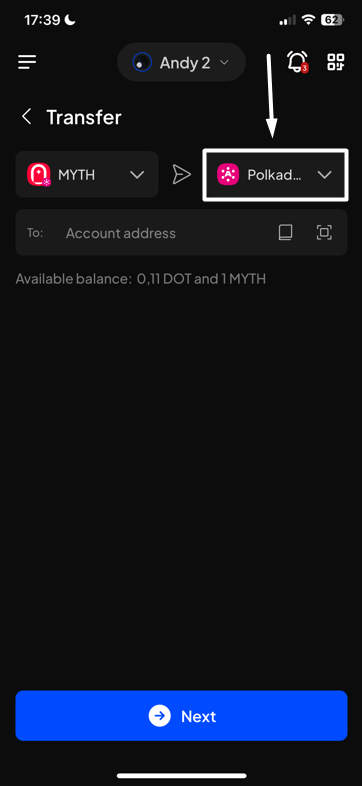
First, select the token you want to transfer by clicking on the top-left field (*in this example, MYTH on Polkadot Asset Hub*).

<div><figure><img src="https://631687399-files.gitbook.io/~/files/v0/b/gitbook-x-prod.appspot.com/o/spaces%2F-Lh39Kwxa1xxZM9WX_Bs%2Fuploads%2FXoWMVVfpinc1lHDGVu2W%2FScreenshot_11.png?alt=media&#x26;token=ea0bd46e-6c89-4599-b80b-29be2c7bf87b" alt="" width="272"><figcaption></figcaption></figure> <figure><img src="https://631687399-files.gitbook.io/~/files/v0/b/gitbook-x-prod.appspot.com/o/spaces%2F-Lh39Kwxa1xxZM9WX_Bs%2Fuploads%2FwAb3gnPvpjcJpxVYlcGy%2FScreenshot_12.png?alt=media&#x26;token=f18c13dd-50c7-4392-955d-7298087eae8d" alt="" width="272"><figcaption></figcaption></figure></div>

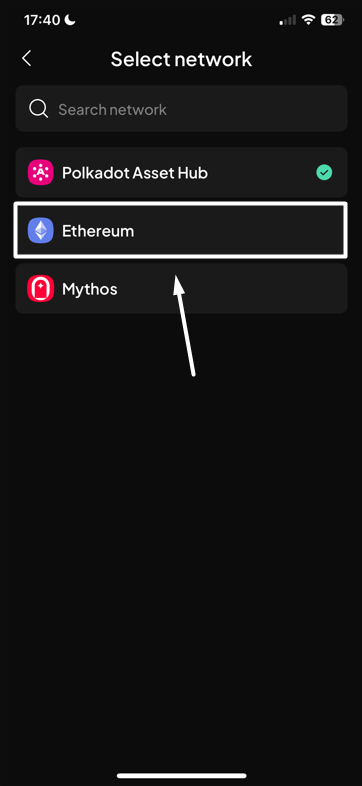
Next, select the destination network (the network you want to transfer tokens to) by clicking on the top-right field.

<div><figure><img src="https://631687399-files.gitbook.io/~/files/v0/b/gitbook-x-prod.appspot.com/o/spaces%2F-Lh39Kwxa1xxZM9WX_Bs%2Fuploads%2FfbriGLINWfBTUm8eRdhv%2FScreenshot_21.png?alt=media&#x26;token=7078fd81-f5ef-4791-91a5-3db7d27de9e8" alt="" width="272"><figcaption></figcaption></figure> <figure><img src="https://631687399-files.gitbook.io/~/files/v0/b/gitbook-x-prod.appspot.com/o/spaces%2F-Lh39Kwxa1xxZM9WX_Bs%2Fuploads%2FO3QvGFBZlRQO7uUEANLm%2FScreenshot_22.png?alt=media&#x26;token=fd652172-022d-4836-90fe-f4193e6d8b16" alt="" width="272"><figcaption></figcaption></figure></div>

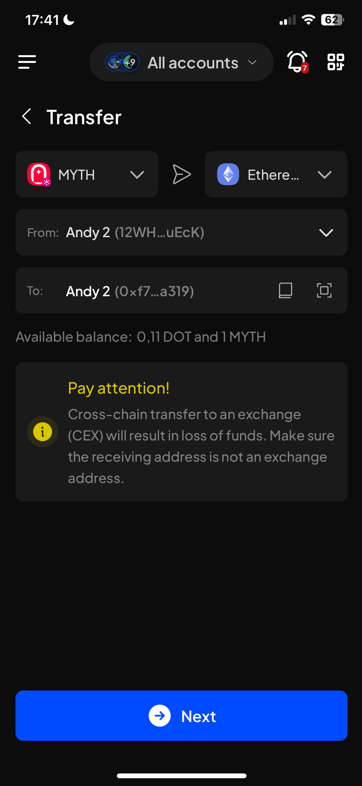
Enter the recipient's address, then hit "**Next**".

<figure><img src="https://631687399-files.gitbook.io/~/files/v0/b/gitbook-x-prod.appspot.com/o/spaces%2F-Lh39Kwxa1xxZM9WX_Bs%2Fuploads%2FuG4NYSh3GuuYpklFmPeM%2FScreenshot_23.png?alt=media&#x26;token=63ad19f6-8af2-4def-987c-b2b77839b512" alt="" width="272"><figcaption></figcaption></figure>

{% hint style="info" %}
With this type of transfer, you can select the same account for both the sender and recipient.
{% endhint %}

{% hint style="warning" %}
Note that transferring tokens cross-chain to a centralized exchange (CEX) address will result in loss of funds. This is because these CEXs may not recognize or properly credit deposits made to their wallet addresses.

![](https://docs.subwallet.app/~gitbook/image?url=https%3A%2F%2F631687399-files.gitbook.io%2F%7E%2Ffiles%2Fv0%2Fb%2Fgitbook-x-prod.appspot.com%2Fo%2Fspaces%252F-Lh39Kwxa1xxZM9WX_Bs%252Fuploads%252FvIiUHFDKXryYf901qdk0%252FScreenshot_39.png%3Falt%3Dmedia%26token%3D10fd8b1e-9cb0-4cfc-85c7-f93b00d2fd8d\&width=300\&dpr=4\&quality=100\&sign=5e6fa971\&sv=2)

If you face this situation, it is recommended that you contact their support team as soon as possible.
{% endhint %}

<details>

<summary>If you're in the "All accounts" mode</summary>

In addition to the above information, you will also need to choose the sender's address.

<img src="https://631687399-files.gitbook.io/~/files/v0/b/gitbook-x-prod.appspot.com/o/spaces%2F-Lh39Kwxa1xxZM9WX_Bs%2Fuploads%2FKGo7ujeCarDxJAsIxkSE%2FScreenshot_26.png?alt=media&#x26;token=aaa67bf1-a714-4ec8-8653-5dc67bdf3f42" alt="" data-size="original">

</details>

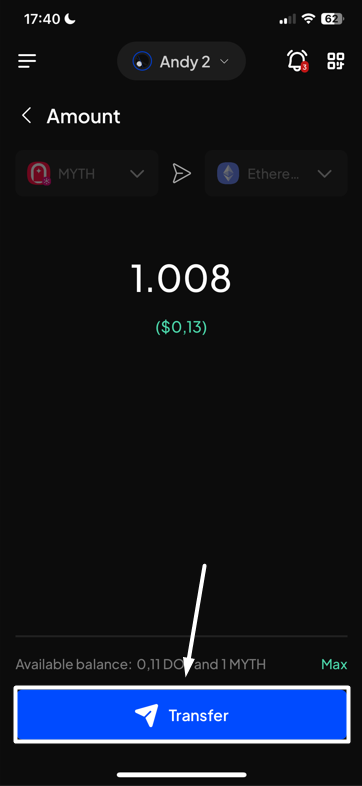
**Step 3:** Enter the amount you want to transfer and then hit "**Transfer**".

<figure><img src="https://631687399-files.gitbook.io/~/files/v0/b/gitbook-x-prod.appspot.com/o/spaces%2F-Lh39Kwxa1xxZM9WX_Bs%2Fuploads%2F0OA85nO5HzFgXHU3aSPs%2FScreenshot_24.png?alt=media&#x26;token=925430db-80a9-4e59-a32d-bf1850cd2e2d" alt="" width="272"><figcaption></figcaption></figure>

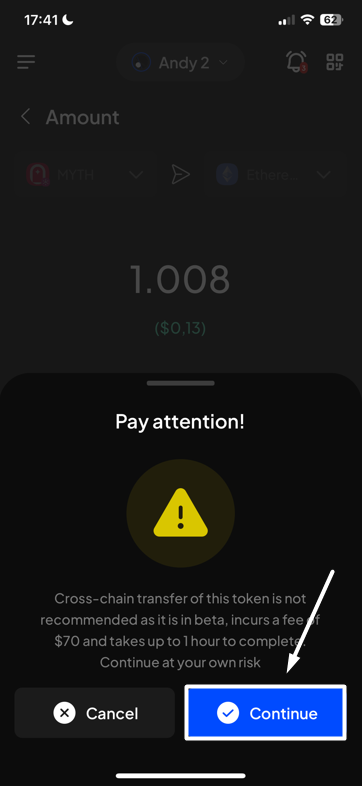
**Step 4**: Read the popup message carefully, then click "**Continue**" to proceed.

{% hint style="warning" %}
The cross-chain transaction on Snowbridge usually incurs a high fee and can take 20 minutes to more than 2 hours to complete, depending on the bridge's status. Transfer at your own risk!
{% endhint %}

<figure><img src="https://631687399-files.gitbook.io/~/files/v0/b/gitbook-x-prod.appspot.com/o/spaces%2F-Lh39Kwxa1xxZM9WX_Bs%2Fuploads%2FGMxbPBalO46KKiZCyvWk%2FScreenshot_25.png?alt=media&#x26;token=04bbf8d8-843a-4794-9934-4e5f35bcf44d" alt="" width="272"><figcaption></figcaption></figure>

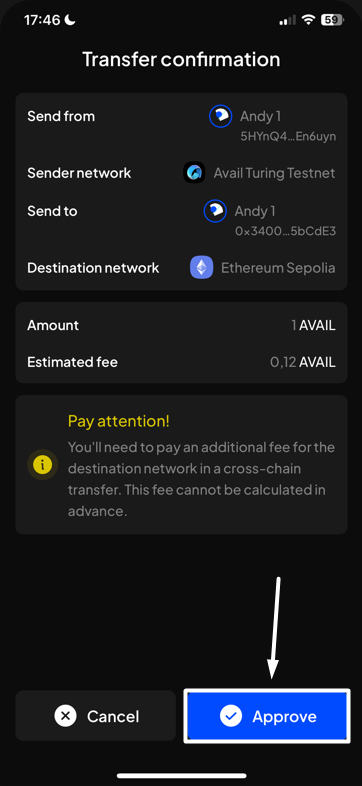
**Step 5**: Check your transaction details, then hit "**Approve**" to proceed.

<figure><img src="https://631687399-files.gitbook.io/~/files/v0/b/gitbook-x-prod.appspot.com/o/spaces%2F-Lh39Kwxa1xxZM9WX_Bs%2Fuploads%2F1d4lCRXglcAqTz0P1pd5%2FScreenshot_37.png?alt=media&#x26;token=fb90f344-673e-481b-8731-a35cc6781594" alt="" width="272"><figcaption></figcaption></figure>

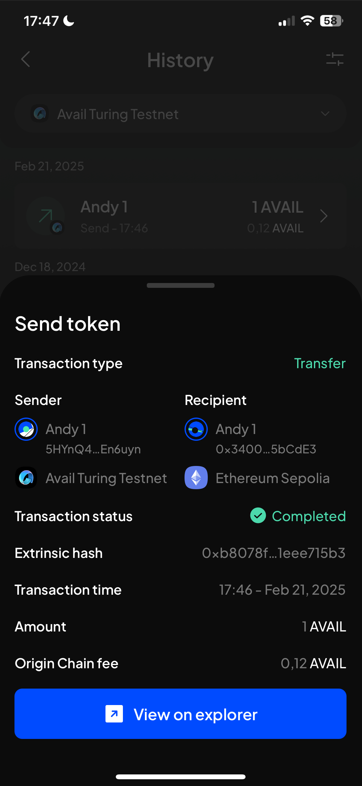
**Step 6**: Transaction result is in!

<figure><img src="https://631687399-files.gitbook.io/~/files/v0/b/gitbook-x-prod.appspot.com/o/spaces%2F-Lh39Kwxa1xxZM9WX_Bs%2Fuploads%2FVEq2xrIMS7TE2WCJt0Mh%2FScreenshot_9.png?alt=media&#x26;token=1973e5cd-76f9-4b8c-beca-35f55060cafc" alt="" width="272"><figcaption></figcaption></figure>

You can select "**Back to home**" to return to the homepage or "**View transaction**" to see transaction details in the History tab.

{% hint style="info" %}
If you press "**View transaction**", SubWallet will show you the latest transaction record in your transaction history along with the extrinsic hash of the transfer.

<img src="https://631687399-files.gitbook.io/~/files/v0/b/gitbook-x-prod.appspot.com/o/spaces%2F-Lh39Kwxa1xxZM9WX_Bs%2Fuploads%2Fvdfx0MfoK2dBUIvHHKNJ%2FScreenshot_39.png?alt=media&#x26;token=15805b45-9b8b-4dd9-aa65-451620137a3b" alt="" data-size="original">
{% endhint %}

## Transfer your tokens via Avail Bridge & Unified Bridge

{% hint style="info" %}
With these bridges, except for the ETH transfer from Ethereum to Polygon zkEVM, you must claim the funds on the destination network to complete the transaction.
{% endhint %}

### Transfer tokens to the destination network

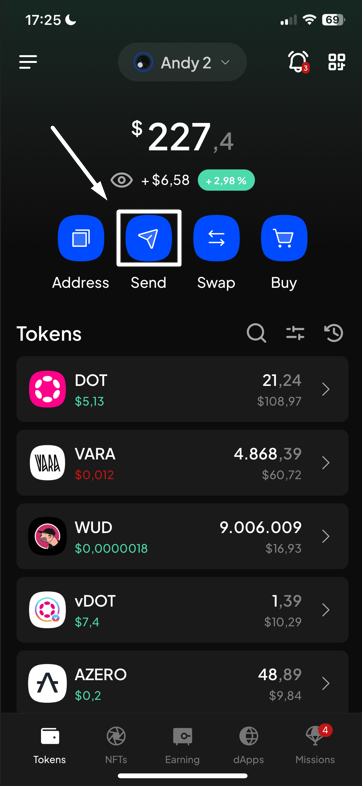
**Step 1**: Open the SubWallet app and tap the "**Send**" button on the homepage.
<figure><img src="https://631687399-files.gitbook.io/~/files/v0/b/gitbook-x-prod.appspot.com/o/spaces%2F-Lh39Kwxa1xxZM9WX_Bs%2Fuploads%2FXu06Dtj55rg703WMzeuT%2FScreenshot_1.png?alt=media&#x26;token=5773fe48-2b50-4fb8-bd26-27e947654e77" alt="" width="272"><figcaption></figcaption></figure>

You will be directed to the Transfer screen.

{% hint style="warning" %}
If you are in Single-account mode, make sure the account you initially chose is not watch-only.
{% endhint %}

**Step 2:** Enter the required information in the corresponding fields.

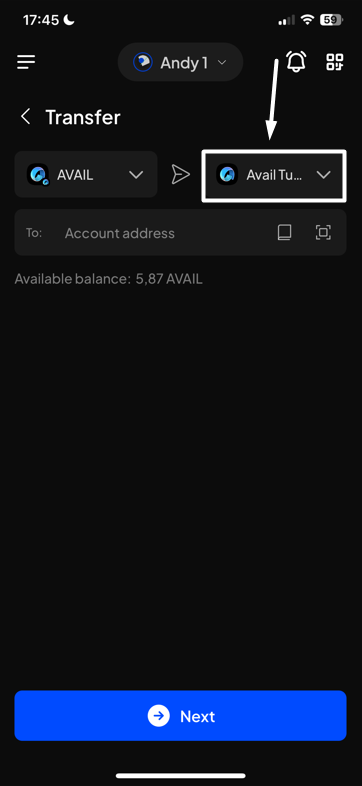
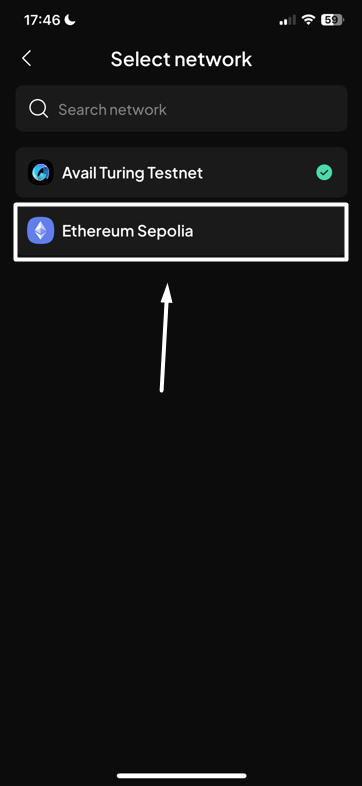
*In this example, we will transfer AVAIL Turing tokens on the Avail Turing testnet network to the Ethereum Sepolia network within account "Andy 1".*

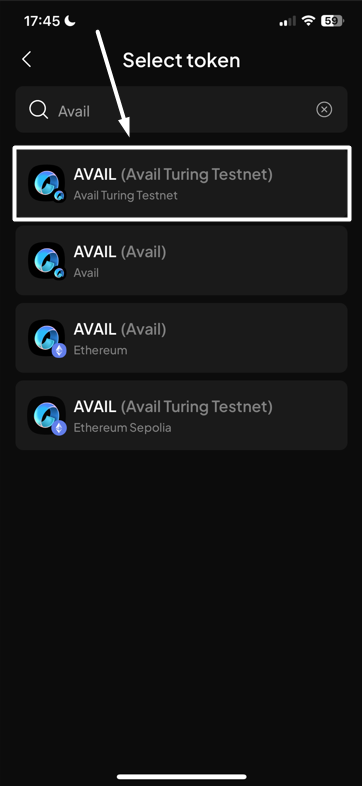
First, select the token you want to transfer by clicking on the top-left field.

<div><figure><img src="https://631687399-files.gitbook.io/~/files/v0/b/gitbook-x-prod.appspot.com/o/spaces%2F-Lh39Kwxa1xxZM9WX_Bs%2Fuploads%2Fupd5whIFd9AkqiCHApd7%2FScreenshot_29.png?alt=media&#x26;token=9a633c77-2f9b-4c54-a9eb-63c9ad7fd69b" alt="" width="272"><figcaption></figcaption></figure> <figure><img src="https://631687399-files.gitbook.io/~/files/v0/b/gitbook-x-prod.appspot.com/o/spaces%2F-Lh39Kwxa1xxZM9WX_Bs%2Fuploads%2FMtIZVwlH9Smo5KCsbx2K%2FScreenshot_31.png?alt=media&#x26;token=e39de910-ee11-4a9c-b98a-48a3cab8d633" alt="" width="272"><figcaption></figcaption></figure></div>

Next, select the destination network (the network you want to transfer tokens to) by pressing the top-right field.

<div><figure><img src="https://631687399-files.gitbook.io/~/files/v0/b/gitbook-x-prod.appspot.com/o/spaces%2F-Lh39Kwxa1xxZM9WX_Bs%2Fuploads%2FSIX7alrZiW3LR8GmFfYa%2FScreenshot_32.png?alt=media&#x26;token=eb8943b5-afec-44cd-be32-3028378bcdc9" alt="" width="272"><figcaption></figcaption></figure> <figure><img src="https://631687399-files.gitbook.io/~/files/v0/b/gitbook-x-prod.appspot.com/o/spaces%2F-Lh39Kwxa1xxZM9WX_Bs%2Fuploads%2FqQAgAGGLNFqT8J5l3s8i%2FScreenshot_33.png?alt=media&#x26;token=0e602f04-67b9-4878-b8e1-1e195b15b802" alt="" width="272"><figcaption></figcaption></figure></div>

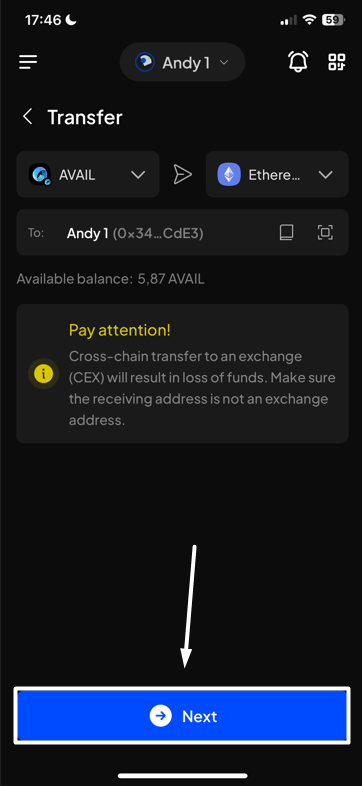
Enter the recipient's address, then hit "**Next**".

<figure><img src="https://631687399-files.gitbook.io/~/files/v0/b/gitbook-x-prod.appspot.com/o/spaces%2F-Lh39Kwxa1xxZM9WX_Bs%2Fuploads%2F7PLFwqbWQz5D9DBf28qj%2FScreenshot_34.png?alt=media&#x26;token=4c5e9742-b0e8-472c-85c8-b88b63a683f6" alt="" width="272"><figcaption></figcaption></figure>

<details>

<summary>If you're in the "All accounts" mode</summary>

In addition to the above information, you will also need to choose the sender's address

</details>

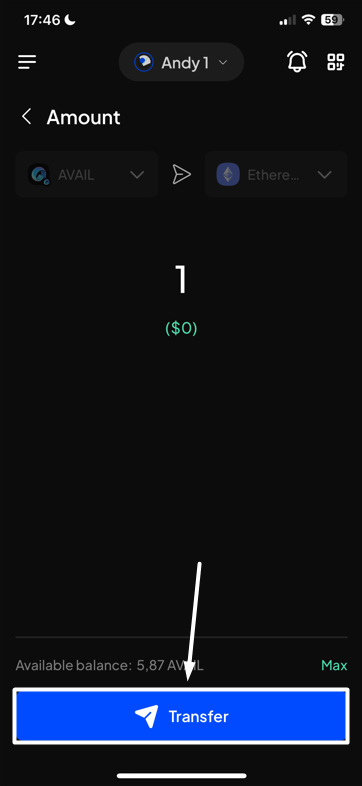
**Step 3:** Enter the amount you want to transfer and then hit "**Transfer**".

<figure><img src="https://631687399-files.gitbook.io/~/files/v0/b/gitbook-x-prod.appspot.com/o/spaces%2F-Lh39Kwxa1xxZM9WX_Bs%2Fuploads%2FtogxwEMIMmJ0J91OKWAw%2FScreenshot_35.png?alt=media&#x26;token=52919c60-15f8-4259-8c7d-2e002f78bda1" alt="" width="272"><figcaption></figcaption></figure>

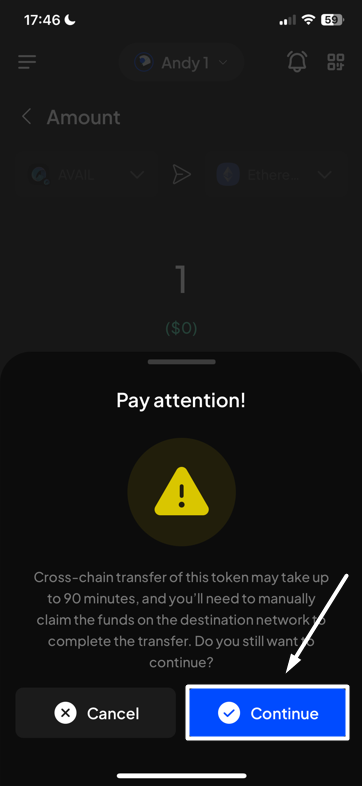
**Step 4**: Read the popup message carefully, then click "**Continue**" to proceed.

{% hint style="warning" %}
Depending on the bridge's status, the cross-chain transaction on Avail Bridge can take 30 to 75 minutes for the tokens to arrive at the destination network. Transfer at your own risk!
{% endhint %}

<figure><img src="https://631687399-files.gitbook.io/~/files/v0/b/gitbook-x-prod.appspot.com/o/spaces%2F-Lh39Kwxa1xxZM9WX_Bs%2Fuploads%2Fct1RRTASNr4dPIhAPY15%2FScreenshot_36.png?alt=media&#x26;token=ef14a1b2-a7a2-44aa-b5ff-190c12904e60" alt="" width="272"><figcaption></figcaption></figure>

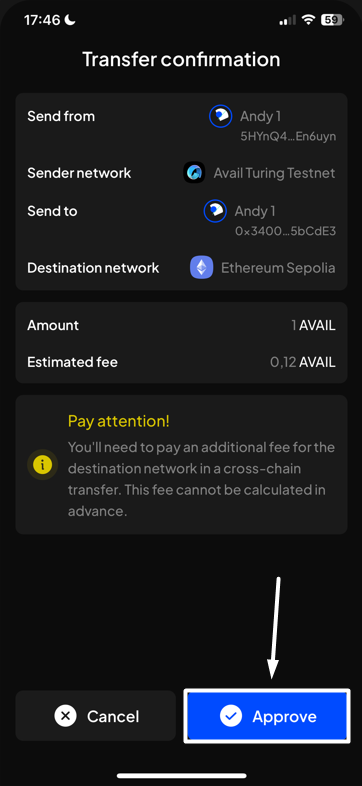
**Step 5**: Check your transaction details, then hit "**Approve**" to proceed.

<figure><img src="https://631687399-files.gitbook.io/~/files/v0/b/gitbook-x-prod.appspot.com/o/spaces%2F-Lh39Kwxa1xxZM9WX_Bs%2Fuploads%2FKaWOvIj5p2ZNxOIDZwMO%2FScreenshot_37.png?alt=media&#x26;token=0a4c36b7-2a73-4ad1-8bac-bfcc6651324f" alt="" width="272"><figcaption></figcaption></figure>

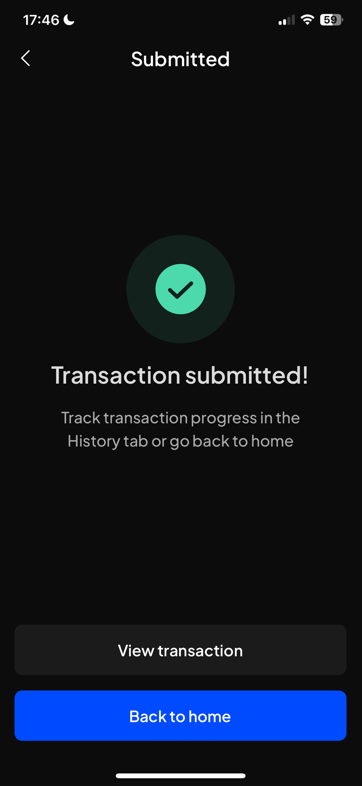
**Step 6**: Transaction result is in!

<figure><img src="https://631687399-files.gitbook.io/~/files/v0/b/gitbook-x-prod.appspot.com/o/spaces%2F-Lh39Kwxa1xxZM9WX_Bs%2Fuploads%2F46DC0LaIJV9TfSuuqtEq%2FScreenshot_38.png?alt=media&#x26;token=167f8ba3-dd7a-4b2e-b7f5-f8416aabd831" alt="" width="272"><figcaption></figcaption></figure>

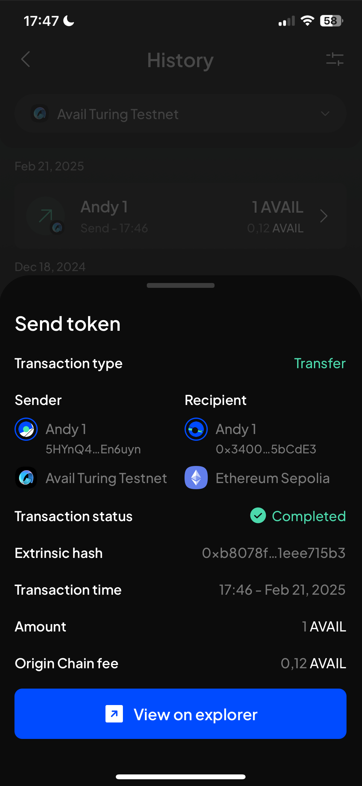
You can select "**Back to home**" to return to the homepage or "**View transaction**" to see transaction details in the History tab.

{% hint style="info" %}
If you press "**View transaction**", SubWallet will show you the latest transaction record in your transaction history along with the extrinsic hash of the transfer.

<img src="https://631687399-files.gitbook.io/~/files/v0/b/gitbook-x-prod.appspot.com/o/spaces%2F-Lh39Kwxa1xxZM9WX_Bs%2Fuploads%2F3FLktP2nbblTVWBg9P6P%2FScreenshot_39.png?alt=media&#x26;token=049221e5-c313-40f2-97c3-a444fe1d6563" alt="" data-size="original">
{% endhint %}

### Claim tokens on the destination network

{% hint style="info" %}
If you transfer ETH from Ethereum to Polygon zkEVM, you won't need to follow the steps below, as the tokens will be credited to the destination network after the bridging time ends.
{% endhint %}

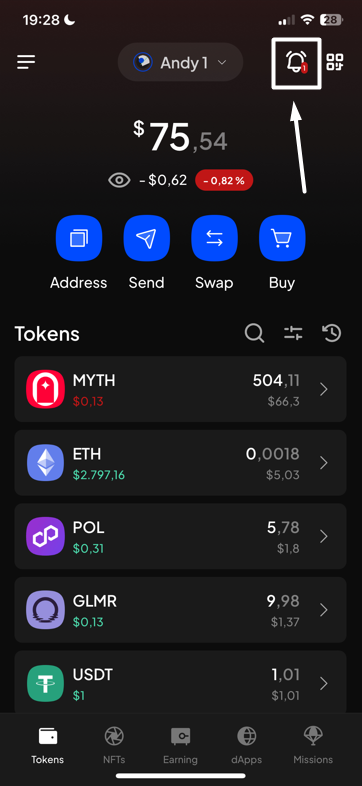
**Step 7**: On the SubWallet homepage, tap the <img src="https://docs.subwallet.app/~gitbook/image?url=https%3A%2F%2F631687399-files.gitbook.io%2F%7E%2Ffiles%2Fv0%2Fb%2Fgitbook-x-prod.appspot.com%2Fo%2Fspaces%252F-Lh39Kwxa1xxZM9WX_Bs%252Fuploads%252FABMVKpycPXFreIIe1LiG%252FScreenshot_287.png%3Falt%3Dmedia%26token%3D32cba28e-5292-496a-87d7-1fa00c0a8979&#x26;width=40&#x26;dpr=4&#x26;quality=100&#x26;sign=d2eee267&#x26;sv=2" alt="" data-size="line"> button at the top right of the screen.
<figure><img src="https://631687399-files.gitbook.io/~/files/v0/b/gitbook-x-prod.appspot.com/o/spaces%2F-Lh39Kwxa1xxZM9WX_Bs%2Fuploads%2FkAeBToZw9cYphMLAqdVE%2FScreenshot_1.png?alt=media&#x26;token=d24b6548-7698-431a-b42c-f9fc463b37bd" alt="" width="272"><figcaption></figcaption></figure>

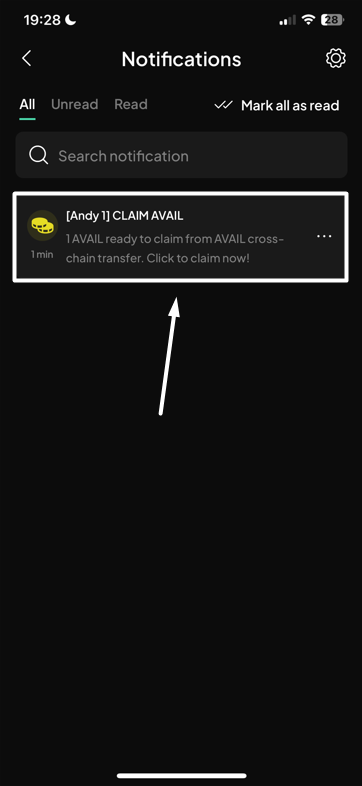
In the Notifications screen, look for the notification related to claiming bridged tokens, then click on that notification.

<figure><img src="https://631687399-files.gitbook.io/~/files/v0/b/gitbook-x-prod.appspot.com/o/spaces%2F-Lh39Kwxa1xxZM9WX_Bs%2Fuploads%2FdjY4n5F2DR8Dlr5vsDEq%2FScreenshot_2.png?alt=media&#x26;token=e3b3fbac-ba7b-47f8-8ca9-f4e8c0890382" alt="" width="272"><figcaption></figcaption></figure>

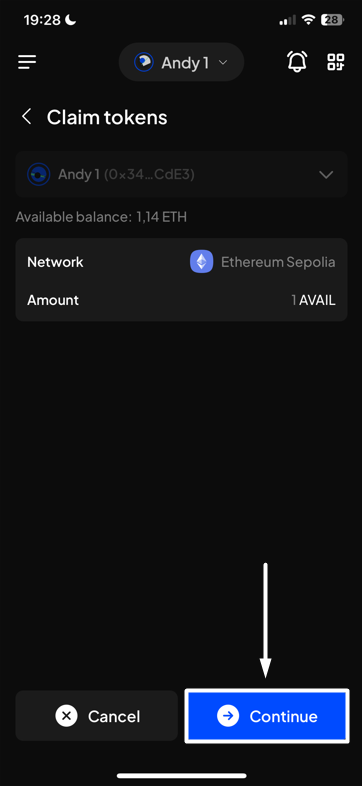
**Step 8**: You will be directed to the Claim tokens screen. Press "**Continue**" to proceed.

<figure><img src="https://631687399-files.gitbook.io/~/files/v0/b/gitbook-x-prod.appspot.com/o/spaces%2F-Lh39Kwxa1xxZM9WX_Bs%2Fuploads%2FnHI5rL8J1SGAtNa8vvTp%2FScreenshot_3.png?alt=media&#x26;token=fc7ebc30-f3a2-4629-80c2-1f0c3589ece3" alt="" width="272"><figcaption></figcaption></figure>

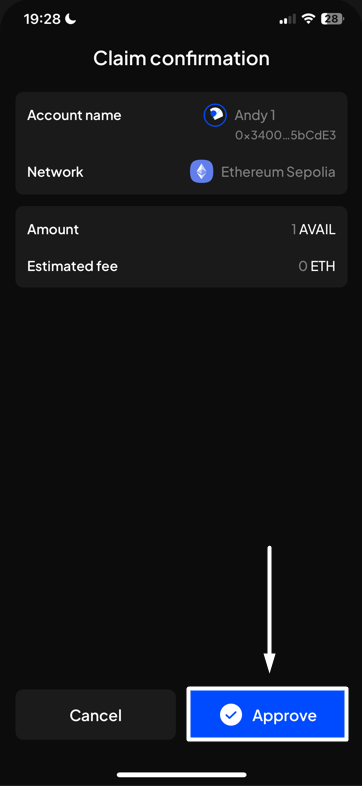
**Step 9**: Check your transaction details, then hit "**Approve**" to proceed.

<figure><img src="https://631687399-files.gitbook.io/~/files/v0/b/gitbook-x-prod.appspot.com/o/spaces%2F-Lh39Kwxa1xxZM9WX_Bs%2Fuploads%2FOhc2zKYd9ouRqot0o2hv%2FScreenshot_4.png?alt=media&#x26;token=615f4c23-af91-4c15-af29-a92e58cb892c" alt="" width="272"><figcaption></figcaption></figure>

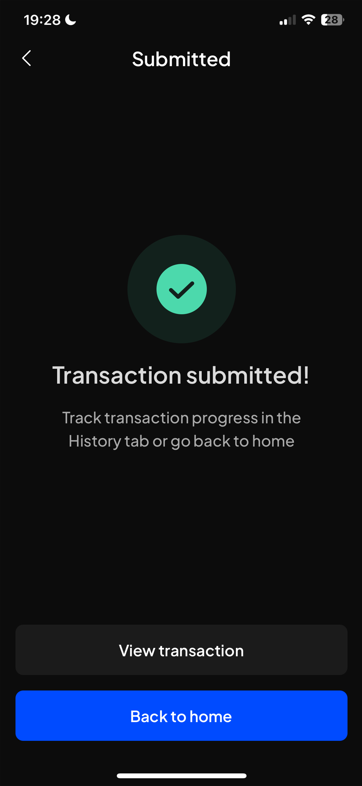
**Step 10**: Your transaction has been submitted!

<figure><img src="https://631687399-files.gitbook.io/~/files/v0/b/gitbook-x-prod.appspot.com/o/spaces%2F-Lh39Kwxa1xxZM9WX_Bs%2Fuploads%2F9AoVKxAZqD1yrG2683gh%2FScreenshot_5.png?alt=media&#x26;token=91668e16-1e79-4928-a0cf-0c41893dda0a" alt="" width="272"><figcaption></figcaption></figure>

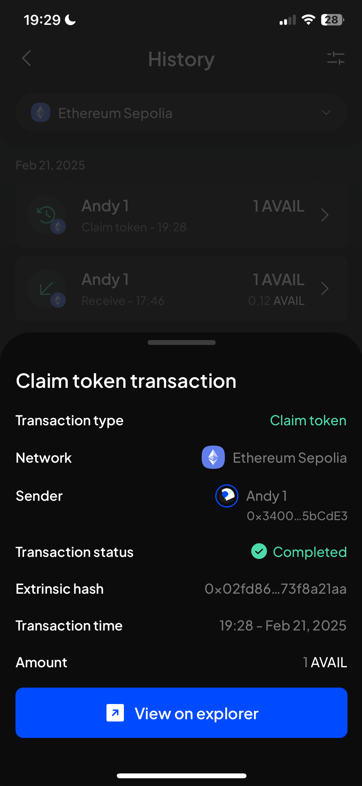
You can either click "**Back to home**" to return to the homepage or "**View transaction**" to see transaction details in the History tab.

{% hint style="info" %}
If you click "**View transaction**", SubWallet will show you the latest transaction record in your transaction history along with the extrinsic hash of the transfer.

<img src="https://631687399-files.gitbook.io/~/files/v0/b/gitbook-x-prod.appspot.com/o/spaces%2F-Lh39Kwxa1xxZM9WX_Bs%2Fuploads%2F1CA6HSpoZ0vQwoyZop3x%2FScreenshot_22.png?alt=media&#x26;token=cfab37da-0d81-4863-98ce-c597d2be63e0" alt="" data-size="original">
{% endhint %}